English - 27 -
Note: This feature can be used only if the mobile device
supports this feature. If you experience problems with the
connection check if the operating system version you use
supports this feature. There may be incompatibility problems
with the operating system versions which are released after
the production of this TV. Scanning and connecting processes
GL௺HUDFFRUGLQJWRWKH
program you use.
Connecting Other Wireless Devices
Your TV supports another short range wireless
connection technology too. A pairing is required before
using these kind of wireless devices with the TV set.
You should do the following to pair your device with
the TV:
Set the device to pairing mode
Start device discovery on the TV
Note: Refer to the user manual of the wireless device to learn
how to set the device to pairing mode.
You can connect audio devices or remote controllers
wirelessly to your TV. Unplug or switch off any
other connected audio device in order for wireless
connection feature to work correctly. For audio
devices you should use the Audio Link option in the
Settings>Sound menu, for remote controllers the
Smart Remote option in the Settings>System>More
menu. Select the menu option and press the OK button
to open the related menu. Using this menu you can
discover and connect the devices that use the same
wireless technology and start to use them. Follow the
on-screen instructions. Start the device discovery. A
list of available wireless devices will be displayed.
Select the device you want to connect from the list and
press the OK button to connect. If “Device connected”
message is displayed, the connection is successfully
established. If the connection fails try it again.
Image transfer and audio streaming
You can also use this type of connection to transfer
images or stream audio from your mobile device to
your TV.
Pair the mobile device and the TV as described before.
Start a device search in your hand-held device. Select
your TV from listed devices. Conrm the request for
connection on your TV screen and do the same on
your hand held device screen. If no pairing is done,
image transfer or audio streaming to the TV will not
be possible.
The images sent by mobile device will be displayed
on the TV without conrmation request, if the image
le is suitable. You can also save the image le to a
connected USB memory drive or set as boot logo, if
this feature is supported and the le is suitable. Press
the Exit button to terminate displaying the image.
The audio will be routed through the speakers of
the TV, after conrmation is given. To start audio
streaming unpair the device from your TV if it is paired
with your TV previously. After pairing is completed, a
conrmation message will be displayed asking whether
you want to start audio streaming from your mobile
device. Select Yes and press the OK button on the
remote of the TV. If the connection is
successful, all
audio will be routed through the speakers of the TV. A
symbol will appear on the upper side of the TV screen
as long as the audio streaming connection is active. To
terminate the audio streaming, you should turn o the
wireless connection of your mobile device.
Close all running applications and all the menus on
the TV for a trouble-free transfer. Only image les with
sizes smaller than 5 MB and in the following le formats
are suitable; .jpg, .jpeg, .png, bmp. If a le sent by the
mobile device does not suit these requirements, it will
not be displayed on the TV.
If the AVS option in the Settings>System>More menu
is disabled, the TV will ignore pairing requests and no
information message will be displayed on the screen.
If a device is already paired prior to disabling the AVS
option, it will be able to continue sharing audio/video
with the TV even if the AVS option is disabled.
Note: Wireless devices may operate within the same radio
frequency range and may interfere with one another. To
improve the performance of your wireless device place it at
least 1
metre away from any other wireless devices.
Connectivity Troubleshooting
Wireless Network Not Available
Ensure that any rewalls of your network allow the
TV wireless connection.
Try searchng for wreless networks agan, usng the
Network menu screen.
If the wireless network does not function properly, try
using the wired network in your home. Refer to the
Wired Connectivity section for more information on
the process.
If the TV does not functon usng the wred connecton,
check the modem (router). If the router does not have a
problem, check the nternet connecton of your modem.
Connection is Slow
See the nstructon book of your wreless modem to
get nformaton on the nternal servce area, connecton
speed, sgnal qualty and other settngs. You need to
have a hgh speed connecton for your modem.
Disruption during playback or slow reactions
You could try the following in such a case:
Keep at least three meters distance from microwave
ovens, mobile telephones, bluetooth devices or any
other WLAN compatible devices. Try changing the
active channel on the WLAN router.
Internet Connection Not Available / Audo Vdeo
Sharng Not Working
If the MAC address (a unque dentfer number) of your
PC or modem has been permanently regstered, t s
possble that your TV mght not connect to the nternet.
In such a case, the MAC address s authentcated
English - 28 -
each tme when you connect to the nternet. Ths s a
precauton aganst unauthorsed access. Snce your
TV has ts own MAC address, your nternet servce
provder cannot valdate the MAC address of your TV.
For ths reason, your TV cannot connect to the nternet.
Contact your nternet servce provder and request
nformaton on how to connect a derent devce, such
as your TV, to the nternet.
It s also possble that the connecton may not be
avalable due to a frewall problem. If you thnk ths
causes your problem, contact your nternet servce
provder. A frewall mght be the reason of a connectvty
and dscovery problem whle usng the TV n Audo
Vdeo Sharng mode or whle browsng va Audo Vdeo
Sharng feature.
Invalid Domain
Ensure that you have already logged on to your PC wth
an authorsed username/password and also ensure
that your doman s actve, pror to sharng any fles n
your meda server program on your PC. If the doman
s nvald, ths mght cause problems whle browsng
fles n Audo Vdeo Sharng mode.
Using Audio Video Sharing Network Service
Audo Vdeo Sharng feature uses a standard that
eases the vewng process of dgtal electroncs and
makes them more convenent to use on a home
network.
Ths standard allows you to vew and play photos,
musc and vdeos stored
on the meda server
connected to your home network.
1. Server Software Installation
The Audo Vdeo Sharng feature cannot be used if
the server
program is not installed onto your PC or
f the requred meda server software s not nstalled
onto the companon devce. Prepare your PC with a
proper server
program.
2. Connect to a Wred or Wreless Network
See the Wired/Wireless Connectivity chapters for
detailed conguration information.
3. Enable Audio Video Sharing
Enter the Settings>System>More menu and
enable the Audio Video Sharing option.
4. Play Shared Fles va Meda Browser
Hghlght the AVS opton n the Sources menu by using
the directional buttons and press OK. Avalable meda
server devces n the network wll be lsted. Select one
and press OK to contnue. The media browser will
then be displayed.
Refer to the Media Browser menu section for further
information on le playback.
If a problem occurs with the network, switch your
television o at the wall socket and back on again.
Trick mode and jump are not supported with the Audo
Vdeo Sharng feature.
PC/HDD/Media Player or any other devices that are
compatible should be used with a wired connection for
higher playback quality.
Use a LAN connection for quicker le sharing between
other devices like computers.
Note: 7KHUH PD\ EHVRPH 3&¶V ZKLFK PD\QRW EH DEOHWR
utilise the $XGR9GHR6KDUQJ feature due to administrator
DQGVHFXULW\VHWWLQJVVXFKDVEXVLQHVV3&¶V
Apps
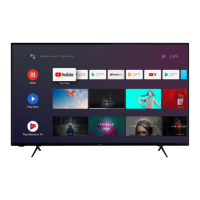
You can access the applications installed on your TV
from Apps menu. Highlight an app and press OK to
launch.
In order to manage the apps installed on your TV, add
new apps from the market or to see all available apps
in full screen mode highlight the Add More option
and press OK. Using this menu option you can add
an installed app to Home menu, launch or remove it.
Removed apps will no longer be accessible from Apps
menu. You can also add new apps from the market.
In order to enter the market highlight the shopping
basket logo located on the upper left side of the screen
and press OK. Available apps in the market will be
displayed. Use directional buttons to highlight an app
and press OK. Highlight Add to Apps option and press
OK again to add the selected app to Apps menu.
For quick access to Add More menu you can press the
Internet button on the remote, if this button is available.
Notes: Possible application dependent problems may be
caused by the content service provider.
Third party internet services may change, be discontinued or
restricted at any time.
Freeview Play Platform
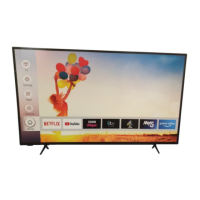
Freeview Play platform provides catch-up TV and
On Demand services. Simply press the Freeview
Play button on your remote control to connect to the
Freeview Play platform.
The Freeview Play platform can also be accessed from
the TV menu. Press Menu button and select TV. Then
highlight Freeview Play and press the OK button.
You will have to agree to the terms and conditions for
Freeview Play services rst if you did not agree them
during the First Time Installation. Highlight Yes and
press OK on the remote to conrm and proceed.
Integrated TV Player applications will be displayed.
Select one and press the OK button. Then select a
content that you want to play back and press the OK
button to watch.
Catch-up
content can also be accessed and played
back directly from the TV Guide. Refer to the section
Electronic Programme Guide for more information.
Requirements
The Freeview Play services may only be used if the
following requirements are fullled:


 To Next Page
 Loading...