Need help?
Do you have a question about the Poly VVX 101 and is the answer not in the manual?
Answer using speakerphone, handset, or headset by pressing soft keys or picking up.
Place calls via handset, speakerphone, or headset using dialpad or contact lists.
Transfer calls by choosing Blind or Consultative transfer methods after dialing.
End calls by replacing handset, pressing a soft key, or using dedicated button.
Highlight the call and press the Hold soft key to place it on hold.
Highlight the call and press the Resume soft key to retrieve it.
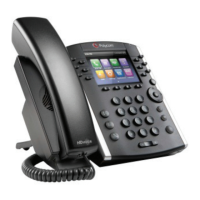
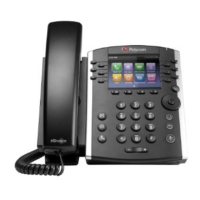
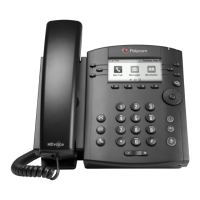
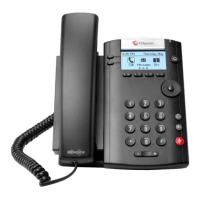
This document provides a quick reference guide for the Poly VVX 101 and VVX 201 phones, covering essential functions for call management, data entry, and directory services.
The Poly VVX 101 and VVX 201 are business phones designed for efficient communication. They support a single active call at a time but allow for multiple calls to be held. Users can make and receive calls using a handset, speakerphone, or headset, offering flexibility in communication style. The phones also support advanced features such as call forwarding, conference calls, and voicemail, enhancing productivity and connectivity.
Data entry on these phones is primarily done using the dialpad keys. To type, users repeatedly press a key until the desired character appears, then stop to select it. For backspacing, the "<<" key is used. Other characters can be entered by pressing "Encoding" and then using the 1, *, 0, and # keys on the dialpad.
To answer an incoming call, users have several options:
Users can initiate calls in multiple ways:
Calls can be transferred to any contact, with options for "Blind" or "Consultative" transfers.
To end an active call:
The phone supports holding multiple calls.
Calls can be forwarded to a contact, either for incoming calls or all calls.
Users can mute or unmute their microphone during calls by pressing the "Microphone Mute" button. "Microphone Mute" or "Microphone Unmute" will display on the screen.
DND can be enabled when calls are unwanted. To enable or disable DND, select "DND" on the Home screen or Idle screen.
A conference call can include up to eight contacts.
With Conference Management enabled, users can control all participants in their initiated conference calls.
Users can view recent placed, received, and missed calls. To view recent calls, select "Dirs" > "Recent Calls."
The Contact Directory allows users to view and add contacts.
When new voicemail messages are available, a voicemail icon displays on the line.
The document does not explicitly detail maintenance features for the Poly VVX 101 and VVX 201 phones. However, as a quick reference guide, it focuses on operational aspects rather than hardware maintenance. Typically, maintenance for such devices would involve keeping the phone clean, ensuring proper power supply, and periodically checking for software updates, though these are not covered in this guide. The guide primarily serves as an operational manual for daily use.
 General
| Lines | 1 |
|---|---|
| Audio | HD voice |
| Power over Ethernet (PoE) | Yes |
| SIP Accounts | 1 |
| Wi-Fi | No |
| Bluetooth | No |
| USB Port | No |
| Supported Codecs | G.711, G.722, G.729 |
| Protocols | SIP |

 To Next Page