8
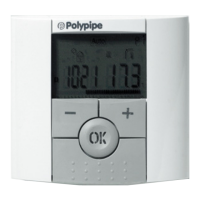
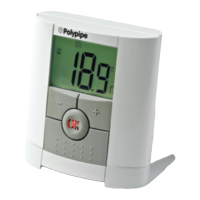
The next step is to join the SmartStat to the Hub, we recommend joining the
thermostat located nearest to the SmartHub rst.
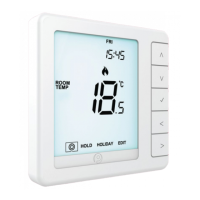
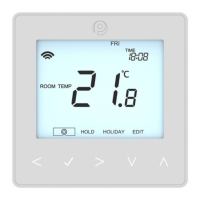
To add a SmartStat, follow these steps;
• In the app, select ADD ZONE, enter a preset or custom title, then press NEXT.
• You now have two minutes to join the thermostat to the Hub.
• On the SmartStat, use the Left / Right keys to select , press and hold Tick ............
• SETUP will be highlighted, now press the tick key once .....................................................
• Feature 01 is displayed on screen.
Pairing the SmartStat
Pairing the SmartHub
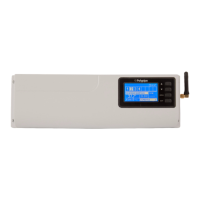
To pair the SmartHub with the Polypipe Smart App, follow these steps.
• Connect the Hub to your router with the Ethernet cable provided.
• Connect the power supply to the neoHub.
• The router will automatically assign an IP address to the Hub, the Link LED
will light up RED once the SmartHub has connected to your network.
• Once connected to the cloud server, the Link LED will turn GREEN.
• Connect your smartphone or tablet device to the same WiFi network as your router.
• Download the FREE Polypipe SmartApp from the Apple App Store or Google Play Store
and register an account.
• Once you have registered your account, press Sign In, then press Add Location.
• Press the connect button on the SmartHub to add the location to your account.
• When successfully connected, enter a title for the location (e.g. Home).
SmartStat


 To Next Page