Page 14 of 23 Visit www.inverx.com.au for more information
4. When the the battery light on the robot has 3 green lights on, the robot is fully charged. Note: Fully charge the
robot before the first use.
5. Once the robot is fully charged, turn the power off at the wall, then unplug the charger from the robot and the
power supply. Store the charger in a safe place. To protect the battery, do not leave the charger plugged into the
robot after charging has completed.
6. Re-insert the charging port cover back into the charging port on the robot.
7. If the robot will not be used for an extended period of time, it should be fully charged at least every three months
to protect the battery.
8. Do not charge the robot outdoors.
Note: Only use the genuine charger to charge the robot. Using any other charger will void the warranty.
2.6 WIFI Connection
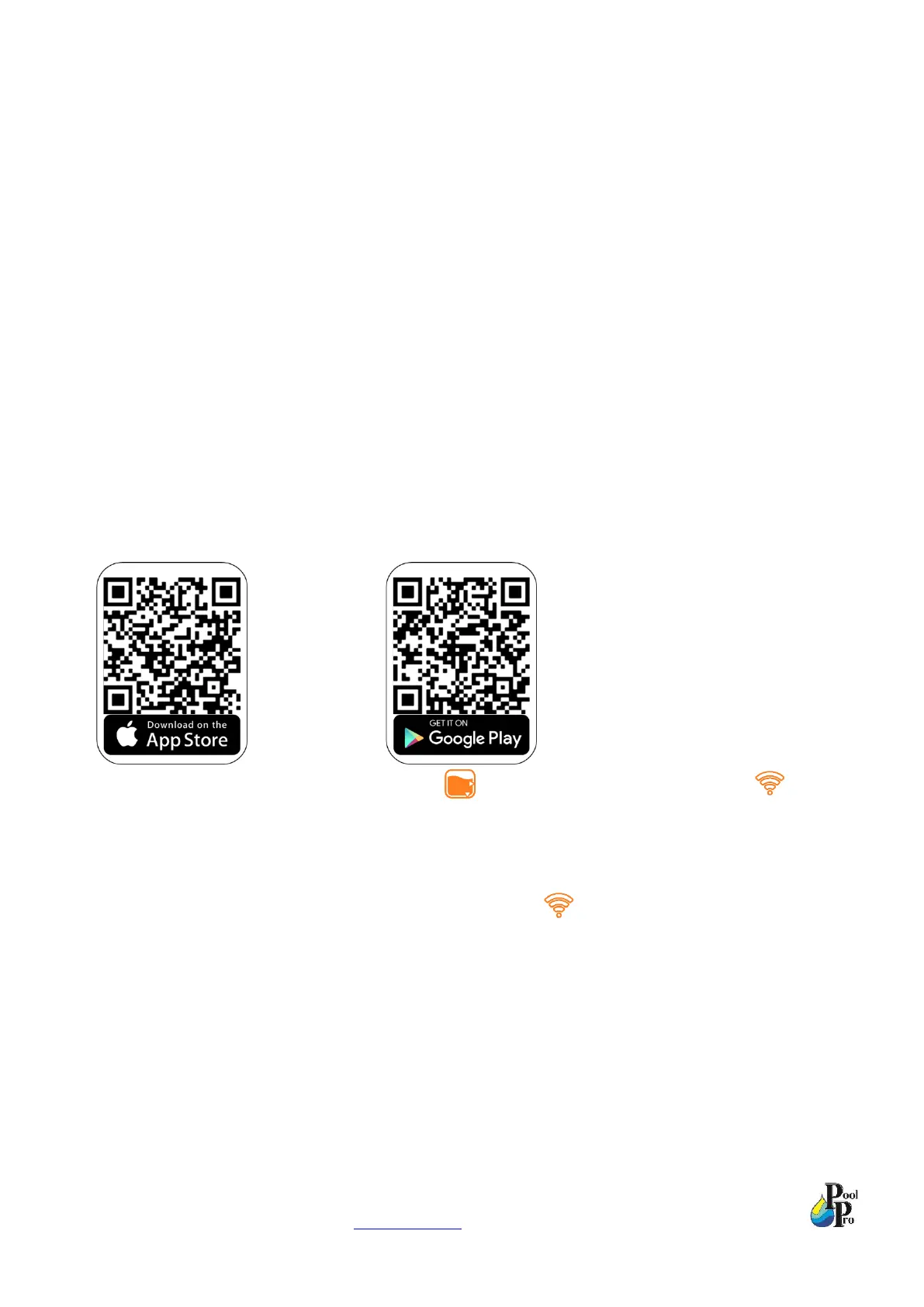
1. Ensure your mobile device is connected to WIFI. On your mobile device, download the “AI-BOT” app in the
Apple iOS App Store or the Google Play Store. You will need to create an account in the AI-BOT app. Ensure
you allow the app to access Notifications, Bluetooth and WIFI.
2. To begin connecting your robot with the app, hold for 3 seconds. The robot will beep and will flash
green to indicate it is in pairing mode.
3. In the “AI-BOT” app, tap the “Add Device” button to begin searching for the robot. Follow the prompts in the
app to connect your mobile device to the robot.
4. When the app and the robot are successfully paired/connected, will be green.
5. You will now be able to control the robot from the app.
Note: The robot must be on and programmed manually first, then you can use the app to change various settings.
Note: Do not perform this setup when the robot is in the pool as the water may cause signal interference.


 To Next Page