
 Need help?
Do you have a question about the POSITECTOR SST and is the answer not in the manual?
Set the volume of water used for the test (3.0 ml default).
Set the current date and time, important for timestamped measurements.
Enable automatic time synchronization via WiFi using NTP.
Setup WiFi configuration options for the Gage.
Manually enter network IP information such as IP Type and Gateway.
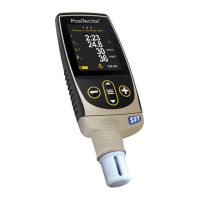
The PosiTector SST is a Soluble Salt Tester designed for measuring soluble salt contamination on surfaces. This advanced instrument features internal memory storage for recording measurement data, allowing users to review stored measurements on-screen or access them via computers, tablets, and smartphones. All measurements are date and time-stamped, and the device can store up to 250,000 readings across up to 1,000 batches. The presence of the memory icon on the display indicates that the gage is set to store measurement data.
The PosiTector SST offers a comprehensive suite of features to enhance usability and data management. Users can Open previously created batches or sub-batches, making them active for further measurements. If a batch contains measurements, on-screen statistics will immediately reflect values calculated from that batch, and the associated calibration setting will also be opened. The View function allows users to scroll through information, statistical summaries, and a list of each reading within the currently opened batch using the Up or Down buttons. Pressing the center navigation button exits this view.
The Display option enables users to choose between different display options in the upper portion of the screen while taking measurements. A shortcut for this is to press the Up button to scroll through the display options. This option is only available if a batch is currently open. To facilitate better data organization, the Annotate feature allows users to create meaningful batch names and enter notes directly on the gage using an onscreen QWERTY keyboard. Both the touch screen and navigation buttons can be used for entering annotations. These annotations can be synchronized with PosiSoft.net and the PosiTector App and are included in PosiSoft USB Drive reports.
For reporting, the Print function sends a statistical summary and individual measurements to an optional Bluetooth wireless printer. Printing can be canceled by simultaneously pressing and holding the (-) and (+) buttons. The New Batch feature closes any currently opened batch and creates a new one with the lowest available number. Each measurement taken will be displayed and stored in this new batch, with on-screen statistics immediately updated. New batches are date and time-stamped upon creation. A shortcut for creating a new batch when one is open is to press (+). To remove the last reading from the current open batch, press (-). The Close function stops the recording process, closes the current batch, and removes batch information from the display. The Delete function allows users to remove a batch or sub-batch completely from memory, erasing all measurements and the batch name. Sub-batches can be deleted individually, or the top-level batch can be deleted to remove all related sub-batches. A Batch Summary displays a summary of all stored batches, including the Batch Name, Probe Type, and Number of Readings for each.
The Setup menu provides various configuration options for the gage. Users can set the Patch Volume, which is the volume of water used for the test (default 3.0 ml), using the (-) and (+) buttons to adjust the value. This volume is crucial for calculating surface density. The Set Clock option allows users to keep the date and time current, as all measurements are date and time-stamped. The NTP (Network Time Protocol) feature enables automatic time synchronization with a remote server over WiFi, using POSIX format for time zone settings.
The Units setting allows the operator to change the displayed units for both Temperature (°C or °F) and Surface Density (mg/m^2 or µg/cm^2). The Battery Type can be selected from Alkaline, Lithium, or NiMH, which calibrates the battery state indicator symbol. The Sound feature adjusts the volume of the built-in speaker (Off, Low, Medium, High). Touch functionality can be disabled, allowing all gage functions to be controlled via navigation buttons. Backlight brightness can be selected (Sun, Normal, Night), and if Auto Dim is enabled, the display dims after a period of inactivity to conserve battery life. Pressing the Down button brightens the display. Flip Lock disables the Auto Rotate feature, locking the display in its current orientation. The Language setting converts displayed and printed words to the selected language. Gage Info displays essential device details such as model and serial numbers, probe type, PosiSoft.net registration key, remaining memory, date and time, and software packages. The registration key is required to add the gage to a free PosiSoft.net account.
Hi Res increases the displayed gage resolution (0.1 µS for 0-200 µS, 1.0 µS for over 200 µS), though gage accuracy remains unaffected. The Bresle Mode (default) guides the user through a 3-step test process in accordance with ISO 8502-6. Unchecking this mode allows the PosiTector SST to function as a regular conductivity meter for testing abrasive materials per ISO 11127-6 and ASTM D4940-15.
The Connect menu offers various communication and connection options. Bluetooth allows readings to be sent to a computer, optional printer, or compatible device, requiring pairing. The Enabled option within Bluetooth allows readings to be sent. Stream enables streaming individual readings to a USB-connected computer via a serial protocol, ideal for SPC data collection software. Pairing ensures the instrument and receiving device are connected before data transmission. Info lists current Bluetooth connection details, including the paired device and MAC address.
The USB connection allows the gage to be connected to a PC/Mac using a USB-C cable to view and print readings and graphs via web browsers/file explorers or PosiSoft Desktop. While connected via USB, power is supplied through the cable, and batteries are not used. Sync.net Now immediately synchronizes stored measurement data to PosiSoft.net (requires USB connection to a computer running PosiSoft Desktop). Auto Sync .net automatically synchronizes measurements upon connection to a PC. The USB Drive feature makes the PosiTector recognizable as a USB mass storage device, allowing easy retrieval of stored data. JSON Files (default enabled) make JSON schema files available in the PosiSoft USB drive for parsing into databases and custom software applications. Disabling this may reduce the time for computer recognition. The HTML Report (default enabled) provides a formatted HTML report accessible via index.html or START_HERE.html, allowing viewing and copying of stored readings and graphs. Disabling this may reduce computer recognition time. USB Keyboard mode enables the PosiTector to emulate a USB keyboard, typing each reading followed by a carriage return, simplifying data capture without special software.
WiFi allows connection to a local wireless network or mobile hotspot for synchronizing measurements with PosiSoft.net. Setup Options configure WiFi settings. AP Channel sets the access point channel (default 6), which can be adjusted for better connection. Gage Name allows users to enter a unique name (up to 14 characters) for identification on the local network. Server Enable enables the gage's WebServer, accessible by network-connected devices via the gage's IP Address:8080. IP Settings allow manual entry of network IP information. AP Passphrase sets a password for the WiFi network created by the PosiTector's Access Point. WiFi Reset removes all configured networks and restores default WiFi settings. WiFi Stream wirelessly streams readings to a device or computer over WiFi, turning the gage into an Internet of Things device. Auto Sync .net automatically synchronizes stored data with PosiSoft.net upon power-up. Access Point creates a wireless network for direct connection to smart devices or computers when a WiFi network is unavailable.
Bluetooth Smart enables communication with a computer or smart device running the PosiTector App via auto-pairing. Send Batches transfers selected batches to the PosiTector App, useful when switching devices. BLE Keyboard mode communicates wirelessly by emulating keyboard keystrokes. Smart Probes displays available PosiTector DPM-L and CMM-IS Smart Probes within range.
The Reset function restores factory settings, erasing all batches, stored datasets, batch names, screen captures, calibration adjustments, and the last stored background measurement (y1). Menu settings are also returned to default. A more thorough Hard Reset can be performed by powering down the gage, waiting, then simultaneously holding the center navigation and (+) buttons until the Reset symbol appears. This clears Bluetooth Pairing info and restores all menu settings to an out-of-the-box condition.
The Power Off Time can be adjusted from 5 to 60 minutes in 5-minute increments when connected wirelessly via Bluetooth Smart, helping maintain connectivity during measurements. By default, the PosiTector Advanced powers off after 5 minutes of inactivity, entering Sleep Mode for faster power-up. It completely powers off after 4 hours of inactivity, retaining all settings. Alternatively, users can select Power Off from the main menu.
The Updates feature checks for available software updates for the gage. To perform an update, the gage must be connected to an internet-connected computer running PosiSoft Desktop or a WiFi network. A WARNING states that the gage will perform a Hard Reset after an update, erasing all stored measurements from memory.
The Help menu provides on-gage help for highlighted menu options (indicated by an 'i' icon). Pressing (+) or touching the 'i' icon displays the help. A formatted PDF of all on-gage help items is also available online. Menu Operation describes how to navigate the menu using either the keypad or touch screen, select options, navigate between pages, and return to previous screens. Screen Capture allows users to save an image of the current display by pressing both (-) and (+) buttons simultaneously. The last 100 screen captures are stored in memory and can be accessed via PosiSoft USB Drive when connected to a computer.
 General
| Model | SST |
|---|---|
| Accuracy | ±1% |
| Display | LCD |
| Operating Temperature (°F) | 32° - 122°F |
| Operating Temperature (°C) | 0 to 50 |
| Storage Temperature (°F) | 14° - 140°F |
| Storage Temperature (°C) | -10° - 60°C |

 To Next Page