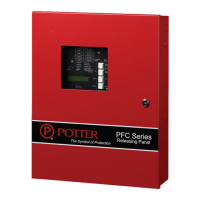
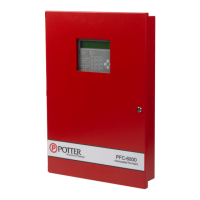
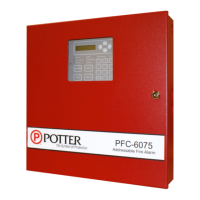
PFC-4064 KEYPAD PROGRAMMING • 8870080 • REV A • 12/17
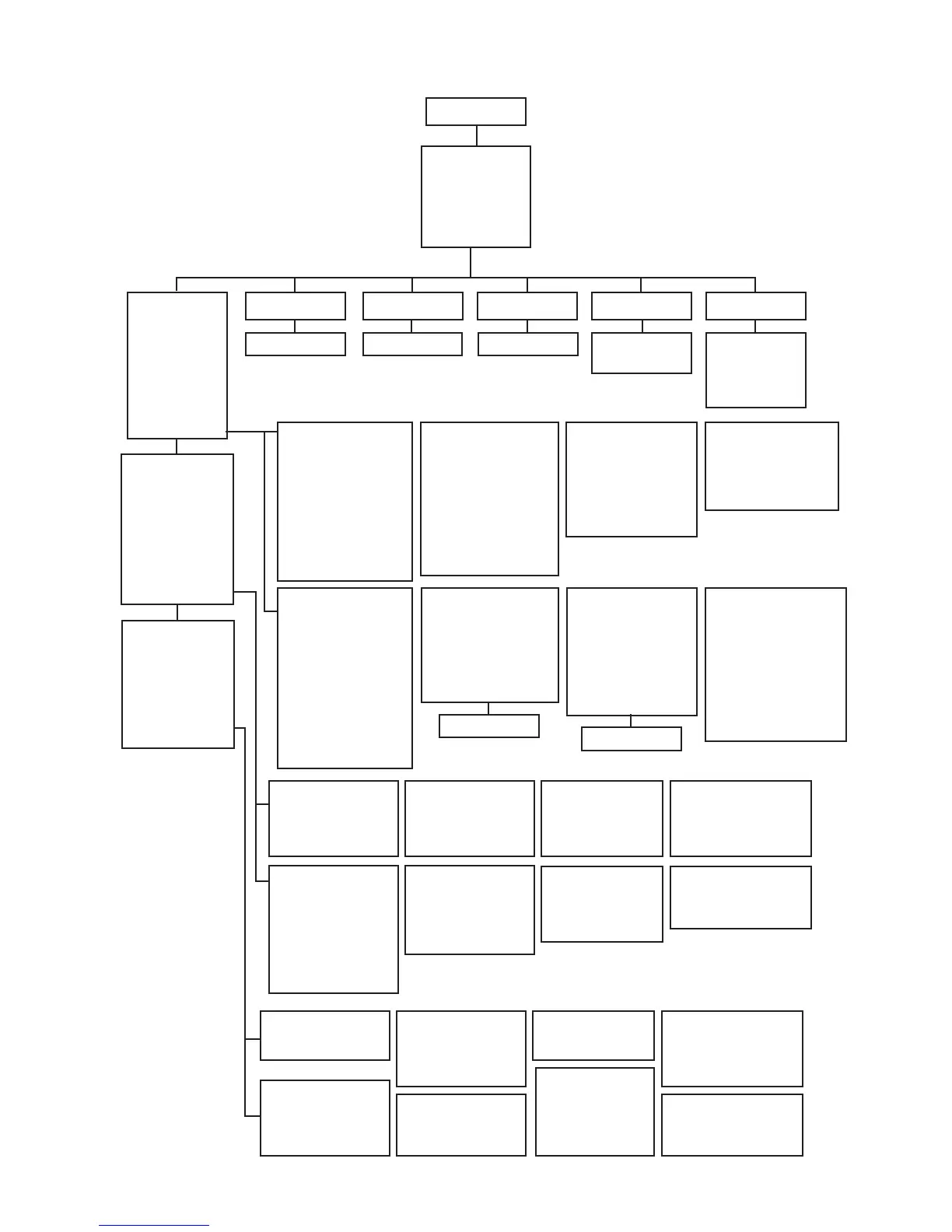
Remote User/
Pswd
1-Username
2-Password
ESC-Exit
Menu Tree 2
6=Programming
1-System Setup
2-LEARN Menu
3-Panel Default
4-IP Settings
5-Dt ID/Pswd
6-Prog ID/Pswd
ESC-Exit
4-IP Settings2-LEARN Menu1-System Setup
1-Zones
2-Points
3-Assign Zones
4-Prog. Relays
5-PLink Devices
6-Email Setup
7-IP Reporting
8-User Codes
9-More
3-Panel Default 6-Prog ID/Pswd5-Dt ID/Pswd
More
1-AC Report Delay
2-Waterow Delay
3-Door Hold Delay
4-Alarm Verication
5-Autotest Setup
6-Time Zone
7-DST Setup
8-Job Details
9-More
More
1-Panel Name
2-Idle Message
3-Display Option
4-Clock Option
5-Strobe Silence
6-CO Tone
7-24 Hour Resound
8-Cross Zones
See Menu Tree 3
1-Zones
Software zone attributes
are set here. Includes
options like Alarm
or Supervisory zone
styles, silenceable or
non-silenceable signaling
devices, latching or non
latching, etc. Points are
assigned to zones in
option 3 = Assign Zones
2-Points
Function and description
of both input and output
circuits are set here.
The on-board NAC &
Aux Power circuits will
be found under Built-In
Power Supply.
The on board input zones
are located under Built-In
IDC6
3-Assign Zones
Input zones and outputs
(NAC) are added or
removed from one or
more software zones.
This is where input
output correlations are
established.
4-Program Relays
This pertains to the 4
on-board relays. They
can each be individually
set for Alarm, Trouble,
Supervisory, Waterow
5-PLink Devices
The panel supports
several different types
of devices wired to the
P-link circuit including
the UD-1000 DACT,
LCD Annunciators,
PSN-1000 Power Supply,
CA4064 Class A Module,
etc. These devices can be
added or removed from
the panel conguration
here.
6-Email Setup
The PFC-4064 is capable
of sending panel status
reports, scheduled history
reports and responding to
email requests for up to
20 different email users /
accounts.
7-IP Reporting
Allows the panel the
report to a monitoring
station reciever by
IP. By default IP
reporting is turned
off. The submenu in IP
Reporting allows you to
congure the IP Dialer.
8-User Codes
The Users option allows
you to create up to ten
(10) user code proles,
as needed. Each prole
may have different access
rights, which controls the
panel functions a user may
access as well as the option
to connect to the Facility
Management Tool (FMT).
1-AC Report Delay
Sets the AC Report
Delay
Default = 1 hr (0 - 30
hr)
2-Waterow Delay
Sets the Waterow
Delay (If enabled)
Default = 0 sec (0 - 255
sec)
3-Door Holder Delay
Sets the Door holder
Delay
Default = 15 sec (0 - 5
min)
4-Alarm Verication
Sets the Alarm Verication
time (If enabled)
Default = 60 sec (30 - 60
sec)
5-Autotest Setup
Sets the test timer for
both dialers on the
panel and reporting
frequency
Default Reporting
Time= 2:00 AM
Default Reporting
Intveral = 24 hr
6-Time Zone
Sets the panel’s time
zone. Automatically
adjusts to current time
& date when plugged
into network
7-DST Setup
Sets Daylight
Standard Time if
enabled and when the
DST starts and ends.
8-Job Details
Submenu in section allows
you to enter site specic
information
1-Panel Name
Enter a descriptive
panel name.
2-Idle Message
Changes the panel
description on the
panel’s LCD (When
enabled)
3-Display Option
Choose how the panel
displays history events
4-Clock Option
Submenus in this selection
allows you to congure
the panel’s automatic time
setup.
5-Strobe Silence
Allows strobes to
remain active when
panel is silenced (When
enabled)
6-CO Tone
Allows CO tone to be
annuciated over remote
annunciators
7-24 Hour Resound
Panel’s buzzer will
resound after a 24
hour period if off
normal condition is
present on the panel.
8-Cross Zones
Allows panel’s inputs to
be cross zoned together to
turn on outputs
See Menu Tree 3 See Menu Tree 3 Resets the FACP
Remote Password
See Menu Tree 4
See Menu Tree 5
19


 To Next Page