Studio One ArtistQuickStart
Creating a New Song
Quantum 2626
Owner’sManual
6.3 Creating a New Song 创作一首新的歌曲
Now that you’veconfigured your audio and MIDI devices,let’s
create a new Song. We’ll start by setting up your default audio I/O.
你已经配置了你的音频和
MIDI
设备,现在让我们来创建一个新
的歌曲。我们将从你的默认音频输入
/
输出设置开始。
1.
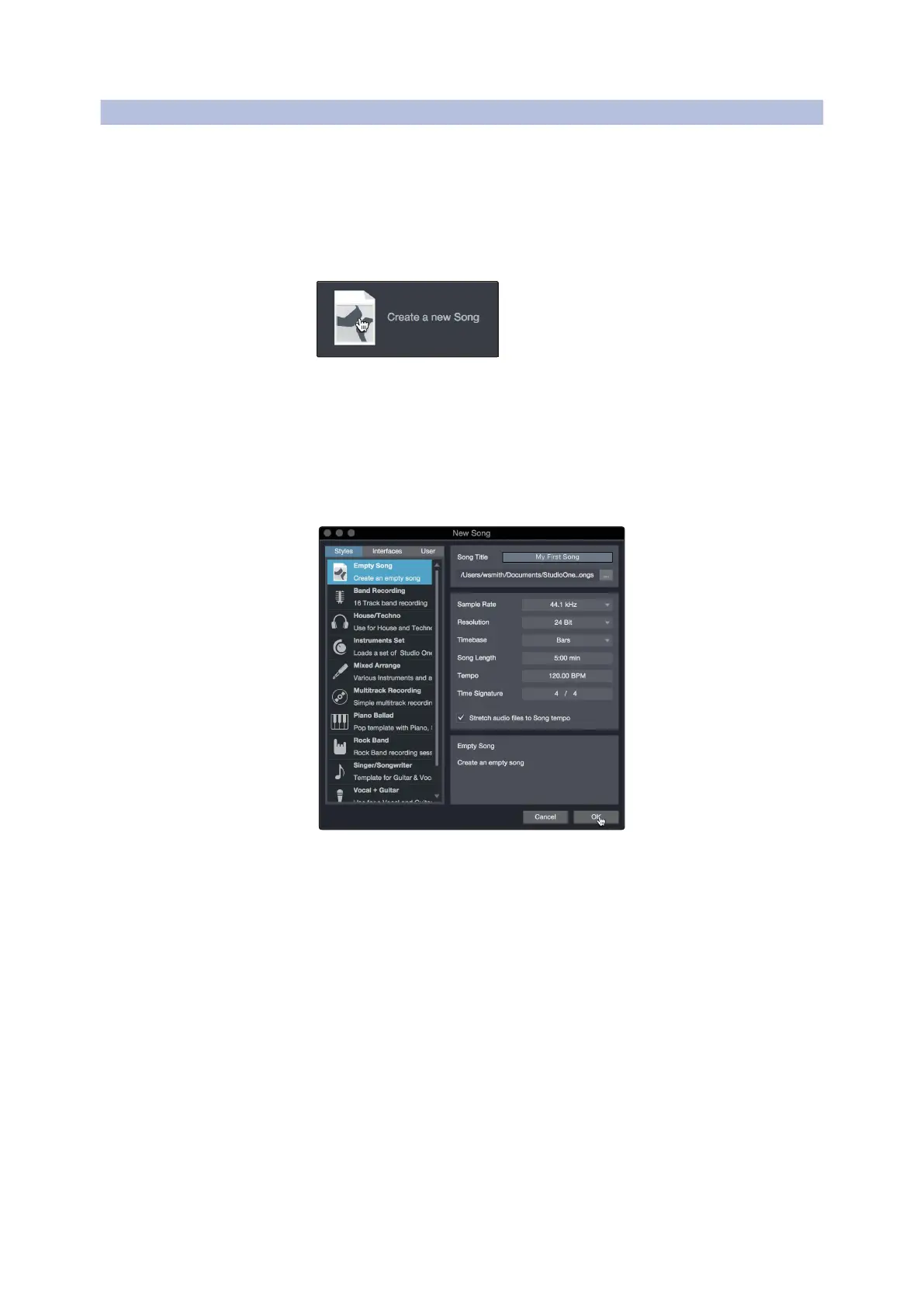
From the Start page, select Create a New Song.
从 "Start" 页面,选择 "Create a New Song"。
2.
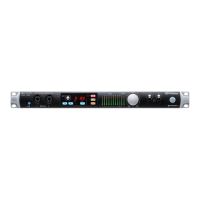
In the New Song window, name your Song and choose the directory in
which you’d like it saved. You’ll notice a list of templates on the left. These
templates provide quick setups for a variety of devices and recording
situations. The section will describe creating a Song from an empty session.
在
"New Song"
窗口中,为你的歌曲命名,并选择你希望它保存的目
录。你会注意到左边有一个模板列表。这些模板为各种设备和录音
情况,提供快速设置。本节将描述从一个空的会话中创建一首歌曲。
3.
Select Empty Song from the Templates list. At this point, you should give
your Song a name and select your preferred sample rate and bit depth for
recording and playback. You can also set the length of your Song and the
type of time format you would like the timeline to follow (notation bars,
seconds, samples, or frames). Click the OK button when you are finished.
从模板列表中选择
Empty Song
。这块,你应该给你的歌曲起个名
字,并选择你喜欢的采样率和比特深度来进行录音和播放。你还
可以设置歌曲的长度和你希望时间线遵循的时间格式类型(记号
条、秒、样本或帧)。完成后,点击
"OK"
确认按钮。
PowerUserTip:
If youplantoimport loops into your Song, make sure that
the Stretch AudioFiles to Song Tempooption is selected.This will
automaticallyimport loopsatthe correct BPM.
用户提示 :
如果你打算将你的歌曲导入循环播放,请确保选择
"
Stretch
Audio Filesto Song Tempooption
"
选项。这将自动以正确的
BPM
导入循环。






 To Next Page