Studio One Artist Quick Start
Monitor Mixing in Studio One
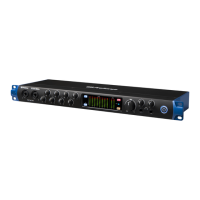
Quantum 2626
Owner’sManual
6.4.2
Punching In
The Quantum 2626’s unique integration with Studio One and ultra-low
latency performance make punching in easier than ever. This section will
guide you through setting up a punch in so that there is no change sonically
between audio you’re playing back and the audio you’re recording.
Quantum 2626
与
Studio One
的独特集成和超低延迟性能,使
Punching In
比以往更容易。本节将指导你如何设置它,可以
使你正在播放的音频和录制的音频之间,从声音上没有变化。
1.
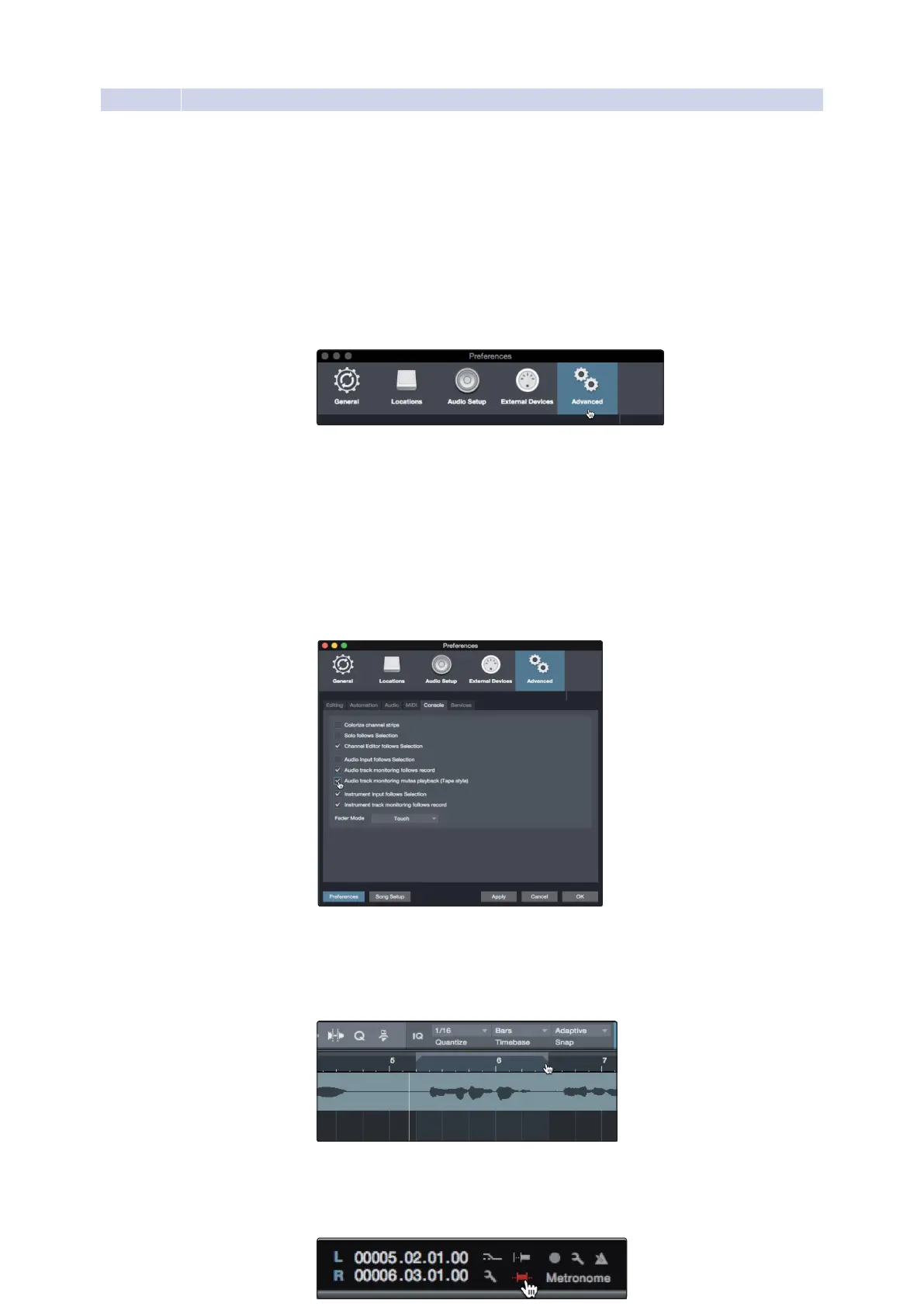
Before you begin, go to Studio One>Preferences and click on the Advanced tab.
开始之前,请你进入
Studio One > Preferences
并点击
Advanced
标签。
2.
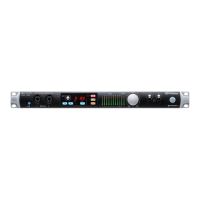
On the Console preferencetab, check the box next to“Audiotrack
monitoring mutes playback (TapeStyle).This will allow youuse Cue
Mix to monitor during a punch in. Click Apply and then OK.
在
”Console”
控制台优先选项卡上,勾选
"Audio track
monitoring mutes playback (TapeStyle)
音轨监听静音播放
(
TapeStyle
)
"
旁边的方框。你将可以在
”Punch In”
期
间使用
Cue Mix
来监听。点击
”Apply ”
应用,然后
”OK”
确定。
3.
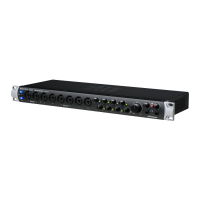
After youhave recorded your audio, set the punch
in and out points in the timeline.
在你录制完音频后,在时间轴上设置
”Punch
In & out”
开始
/
停止录音点。
4.
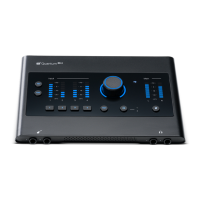
Enable the Auto punch button the left of the
Metronome settings in thetransport.
启用传输中
”Metronome”
设置左侧的
”
Auto punch
”
按钮。






 To Next Page