16
5. Disconnect your tablet from the console if
desired.
To disconnect your tablet from the console, first
select the disconnect option in the iFit–Smart
Cardio Equipment app. Then, press and hold the
iFit Sync button on the console until the LED on the
console turns solid green.
Note: All BLUETOOTH connections between
the console and other devices (including any
tablets, heart rate monitors, and so forth) will be
disconnected.
HOW TO CONNECT YOUR HEART RATE MONITOR
TO THE CONSOLE
The console is compatible with all BLUETOOTH Smart
heart rate monitors.
To connect your BLUETOOTH Smart heart rate moni-
tor to the console, press the iFit Sync button on the
console; the console pairing number will appear in the
display. When a connection is established, the LED on
the console will flash red twice.
Note: If there is more than one compatible heart rate
monitor near the console, the console will connect to
the heart rate monitor with the strongest signal.
To disconnect your heart rate monitor from the console,
press and hold the iFit Sync button on the console until
the LED on the console turns solid green.
Note: All BLUETOOTH connections between the
console and other devices (including any tablets, heart
rate monitors, and so forth) will be disconnected.
THE SETTINGS MODE
1. Select the settings mode.
To select the settings mode, press the Settings
button. The first settings screen will appear in the
display. Note: If you have selected a workout, you
may need to press the Stop button repeatedly to
return to the main menu before selecting the set-
tings mode.
2. Navigate the settings mode.
While the settings mode is selected, you can
navigate through several settings screens. Press
the Stop button repeatedly to select the desired
settings screen.
3. Change settings as desired.
Software Version Number—The software version
number will appear in the display.
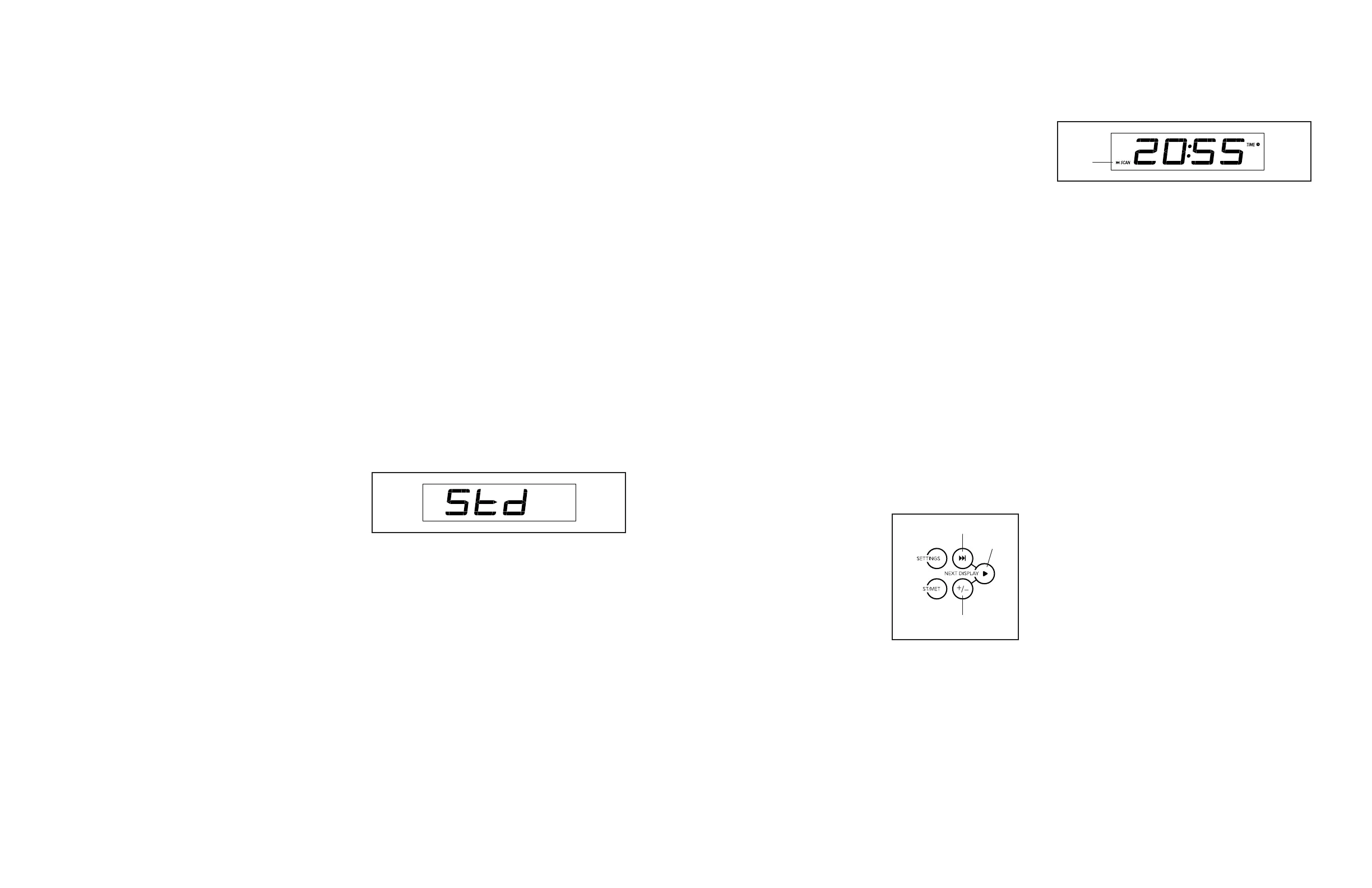
Unit of Measurement—The currently selected
unit of measurement will appear in the display. The
console can show speed and distance in standard
or metric units of measurement. To change the unit
of measurement, press the Speed increase button
repeatedly. To view workout information in standard
units, select Std. To view workout information in
metric units, select Met.
13
4. Follow your progress with the display.
The display can show the following workout
information:
Calories (CALS)—When the manual mode and
most onboard workouts are selected, the approxi-
mate number of calories you have burned. When
calorie workouts are selected, the approximate
number of calories that remain to be burned in the
workout.
Calories per Hour (CALS/HR)—The approximate
number of calories you are burning per hour.
Distance (MI or KM)—The distance that you have
walked or run in miles or kilometers. To change the
unit of measurement, press the St/Met button.
Pace—Your speed in minutes per mile or minutes
per kilometer. To change the unit of measurement,
press the St/Met button.
Pulse (BPM and heart symbol)—Your heart rate
when you use the handgrip heart rate monitor or a
compatible heart rate monitor (see step 5 on page
14).
Speed (MPH or KPH)—Your speed in miles per
hour or kilometers per hour. To change the unit of
measurement, press the St/Met button.
Time—When the manual mode is selected, the
elapsed time.
Press the Next
Display button (A)
repeatedly to view
the desired workout
information in the
display.
Scan mode—The console also has a scan mode
that will display workout information in a repeating
cycle. To turn on the scan mode, press the Scan
button (B); the scan indicator (D) will turn on in the
display.
To manually advance the scan cycle, press the
Scan button repeatedly.
To turn off the scan mode, press the Next Display
button; the scan indicator will turn off.
You can also customize the scan mode to display
only the desired workout information in the
repeating cycle.
To customize the scan mode, first press the
Next Display button repeatedly until the workout
information that you want to add to or remove from
the scan cycle appears in the display.
Next, press the Add/Remove button (C) to add or
remove that workout information from the scan
cycle. When workout information is added, its
indicator will turn on in the display. When workout
information is removed, its indicator will turn off.
Then, press the Scan button to turn on the scan
mode.
To reset the displays, press the Stop button twice,
remove the key, and then reinsert the key.
A
B
C
D


 To Next Page
 Loading...