12
HOW TO TURN ON THE POWER
IMPORTANT: If the treadmill has been exposed to
cold temperatures, allow it to warm to room tem-
perature before you turn on the power. If you do
not do this, you may damage the console displays
or other electrical components.
Plug in the power cord (see
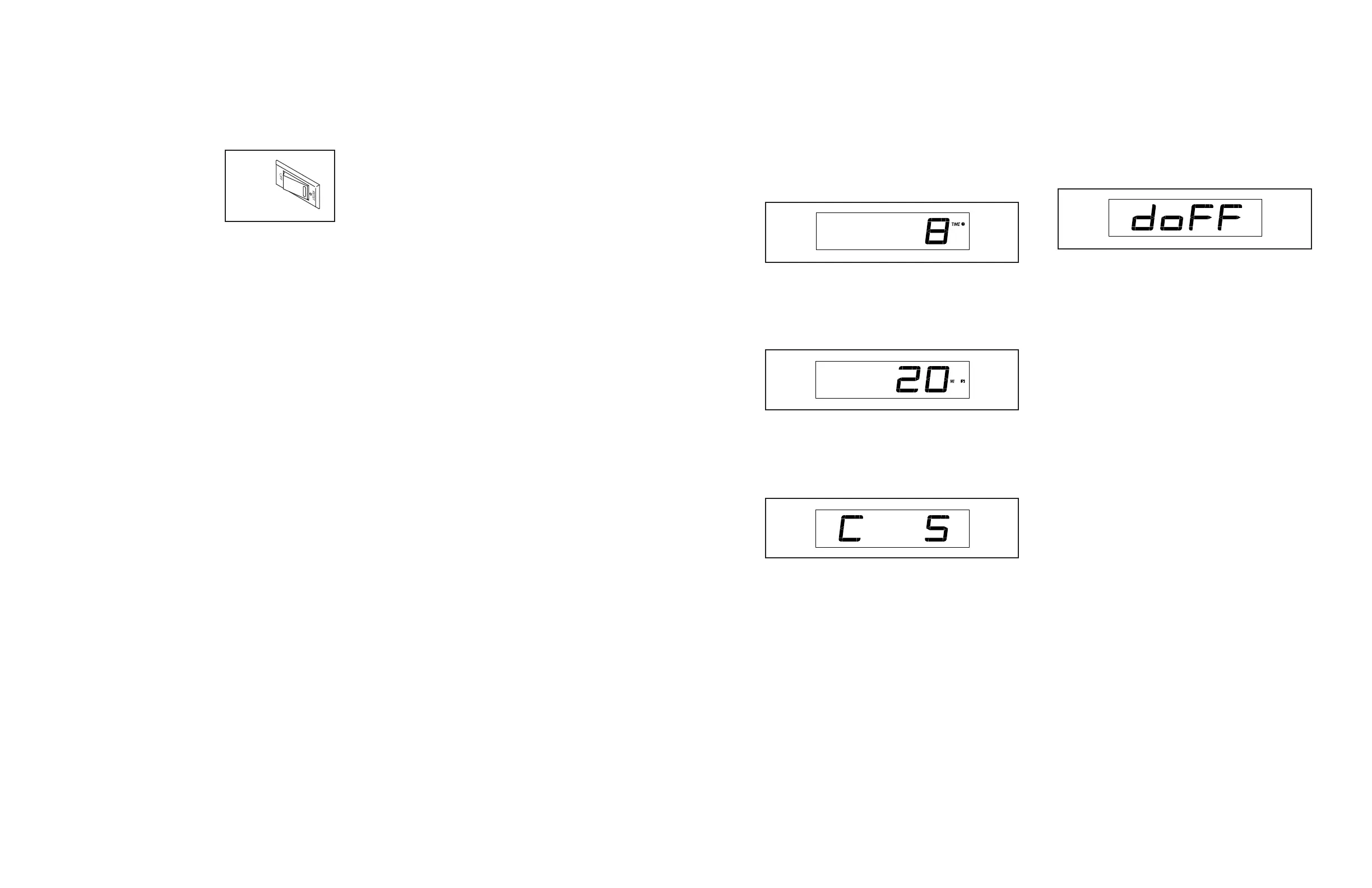
page 10). Next, locate the
power switch on the treadmill
frame near the power cord.
Make sure that the switch is
in the reset position.
IMPORTANT: The console may feature a display
demo mode, designed to be used if the treadmill is
displayed in a store. If the displays light as soon
as you plug in the power cord and press the power
switch into the reset position, the demo mode is
turned on. To turn off the demo mode, hold down
the Stop button for a few seconds. If the displays
remain lit, see THE SETTINGS MODE on page 16 to
turn off the demo mode.
Next, stand on the foot rails of the treadmill. Find the
clip attached to the key, and slide the clip onto the
waistband of your clothes (see the drawing on page
11). Then, insert the key into the console. After a
moment, the displays will light. IMPORTANT: In an
emergency, the key can be pulled from the con-
sole, causing the walking belt to slow to a stop.
Test the clip by carefully taking a few steps back-
ward; if the key is not pulled from the console,
adjust the position of the clip.
HOW TO USE THE MANUAL MODE
1. Insert the key into the console.
See HOW TO TURN ON THE POWER at the left.
2. Select the manual mode.
When the key is inserted, the manual mode will be
selected. If you have selected a workout, press the
Manual Control button. Only zeros should appear
in the display.
3. Start the walking belt.
To start the walking belt, press the Start button or
one of the Quick Speed buttons.
If you press the Start button, the walking belt will
begin to move at 2 Km/H. As you exercise, change
the speed of the walking belt as desired by press-
ing the Speed increase and decrease buttons.
Each time you press one of the buttons, the speed
setting will change in small increments; if you hold
down the button, the speed setting will change
more quickly.
If you press one of the Quick Speed buttons, the
walking belt will gradually change speed until it
reaches the selected speed setting.
To stop the walking belt, press the Stop button.
The time will begin to fl ash in the display. To
restart the walking belt, press the Start button, the
Speed increase button, or one of the Quick Speed
buttons.
Reset
17
Display Test—This screen is intended to be used
by service technicians to identify whether the
display is working correctly.
Button Test—This screen is intended to be used
by service technicians to identify whether a certain
button is working correctly.
Total Time—The word TIME will appear in the
display. The display will show the total number of
hours that the treadmill has been used.
Total Distance—The letters MI or KM will appear
in the display. The display will show the total
distance (in miles or kilometers) that the walking
belt has moved.
Contrast Level—The currently selected contrast
level will appear in the display. Press the Speed
increase and decrease buttons to adjust the con-
trast level.
Demo Mode—The currently selected demo mode
option will appear in the display. The console
features a demo mode, designed to be used if the
treadmill is displayed in a store. If the demo mode
is turned on, the console will not turn off and the
display will not be reset when you fi nish exercis-
ing. Press the Speed increase button repeatedly to
select a demo mode option. To turn on the demo
mode, select Don. To turn off the demo mode,
select Doff.
4. Exit the settings mode.
Press the Settings button to exit the settings mode.





 To Next Page