©2022 Pro-Vision Solutions, LLC. Page 35 of 56
Home Page
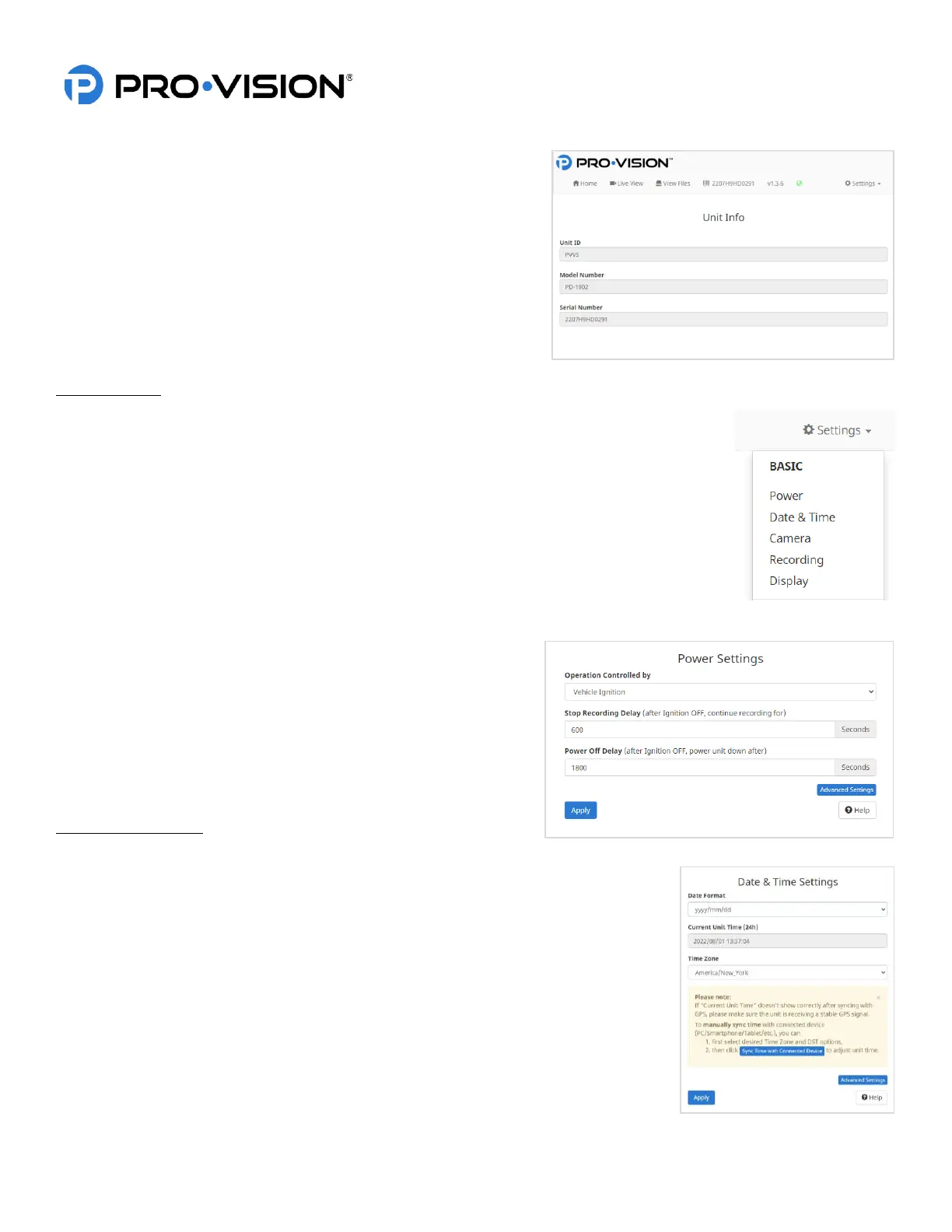
The DVR Interface displays a top navigation bar with the main
sections available within the interface – Home, Live View, View Files,
Unit ID, Firmware Version, a green icon indicating internet
connectivity, and a Settings drop-down menu with Basic, Advanced,
Admin, and Info items.
Basic DVR Settings
Basic DVR settings are adjusting by clicking on the Settings drop-
down menu located in the right, top corner of the web page and then
selecting the category.
Power Settings
The power settings allow the user to set when the system turns on and off. By default, the
system will turn on with the vehicles ignition and turn off 1800 seconds (30mins) after the key is
turned off.
Operation Controlled by:
Set to “Vehicle Ignition” for normal operation, this can be changed to “Schedule” to set certain
times of the day to power the system on/off rather than by ignition state.
Stop Recording Delay:
Set the number of seconds after the key turns off that the DVR unit will continue to record for.
Commonly this is set to 600 seconds (10 min) regardless of the power down time.
Power Off Delay:
This setting is used to configure the amount of time the DVR will
continue to remain powered on and active after the vehicle ignition
has been turned OFF, this works in conjunction with the “Stop
Recording Delay” setting above. If the vehicle is not using Wi-Fi
transfer this is commonly set to 600 seconds. If transfer software is
used to transfer files at the end of the day, this setting is normally set
around 3600 seconds (1 hour) to allow sufficient time to transfer
data.
Date & Time Settings
Date Format:
Allows the user to select which date format as it will appear on the video.
Current Unit Time (24h):
Shows the time the DVR is currently set at, using 24-hour format.
Time Zone:
Select the time zone for your area. This is required if using GPS time sync, if set
incorrectly GPS will synchronize to the incorrect time.
Daylight Savings:
Set Daylight Saving Time for three global regions or disable DST.
If you do not have GPS coverage when you are setting the time, you can manually sync
the time with your device by pressing “Sync Time with Connected Device”. Once GPS
signal is acquired the time will be synced with the GPS.


 To Next Page
 Loading...