©2022 Pro-Vision Solutions, LLC. Page 48 of 56
VIDEO PLAYBACK
There are multiple methods of playing back video from the DVR unit:
1. Directly from the DVR unit through a web browser.
2. Removing the SD Card or SSD and connecting it to a computer.
3. Directly from the office computer/server using one of PRO-VISON connectivity software packages such as
Connect, CloudConnect, or SecuraMax.
Viewing Video through a Web Browser
1. Connect to the drive recorder through Wi-Fi on your
device.
2. Open a web browser on the device and type
“192.168.1.254” in the address bar and press Enter.
3. The drive recorder’s web interface will open, and you will
see the Unit ID and be prompted to login.
4. Login to the interface using one of the login credentials
(Default for View Files only permissions is Username:
“playback” Password: “watchvids”)
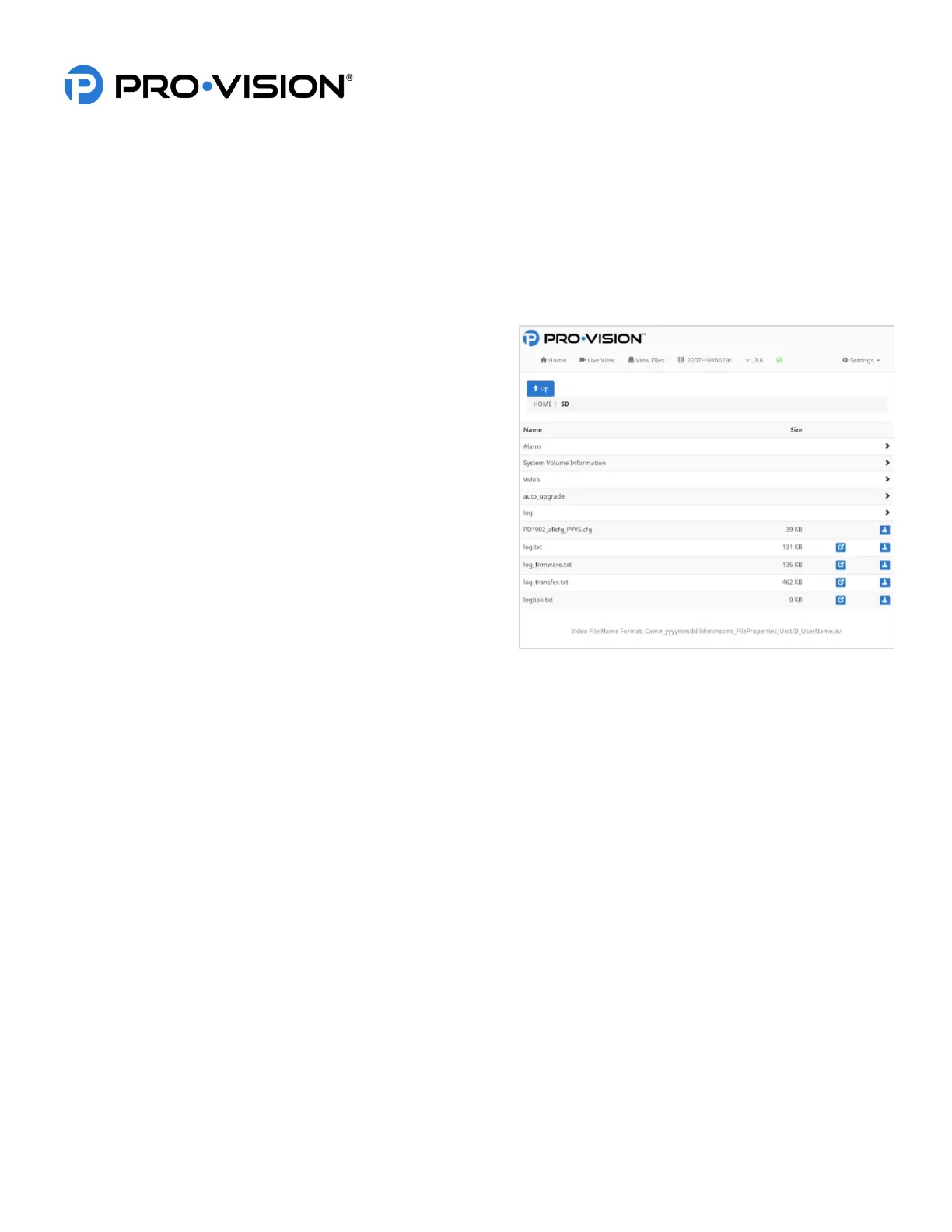
5. Click on “View Files” to navigate to the playback page.
6. The contents of the disks will be shown. Select the disk,
then click on the desired folder for playback: “Video” for
normal video, “Alarm” for event marked videos.
7. Select and click the appropriate date for the desired
event.
8. Select and click the date and hour folder (24-hour format) for the desired video.
9. Choose the appropriate file to download it to your device for playback.



 To Next Page