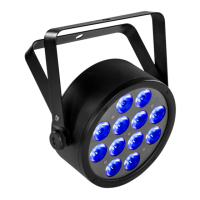
WiFiBoX
8
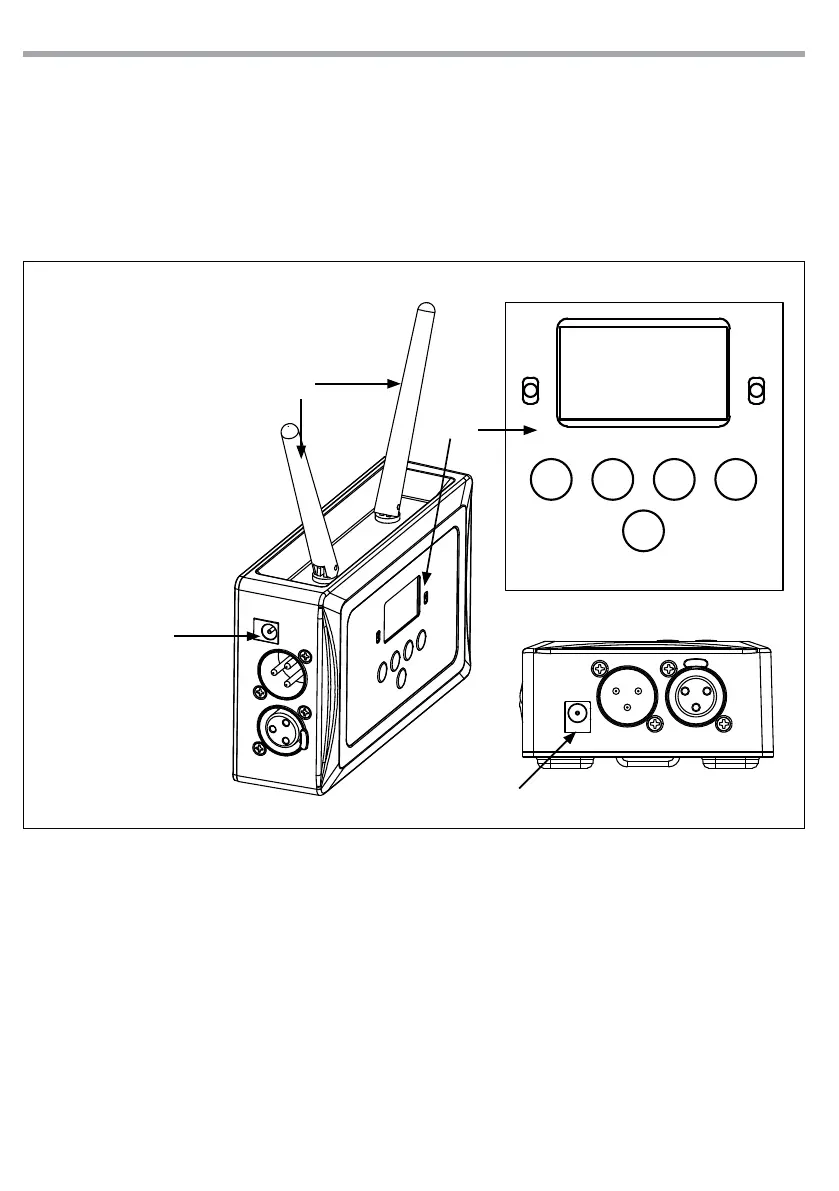
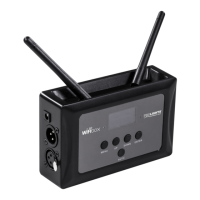
• Connect the supplied main cable to a socket (1), then the WIFIBOX will automatically turns on.
The WIFIBOX has a LCD display and buttons for access to the functions of the control panel; use control
panel (2) to set the WIFIBOX:
• Set the WIFI data Input Mode (see chapter 3.6)
• Set the Manual Channel for data wireless communication (see chapter 3.4)
Note:
• The channel for data wireless communication must be the same set on the projector.
MENU UP DOWN ENTER
AUTO SYNC
1
1
2
3
Fig.5
1. POWER IN: DC9V
2. CONTROL PANEL with
display and button
used to access the
control panel functions
and manage them
3. WIRELESS ANTENNA
“SmartColors” app conguration
Important: WIFIBOX hardware is required to use this app.
• Turn on the WIFIBOX and set it as described in the previous chapter. When switch on the WIFIBOX, it will
generate a wi network called “WIFI -TEST”.
• Install “SmartColors” app on your Android/Apple device.
• Connect your Android/Apple device to “WIFI-TEST”.
• Launch the app “SmartColors”.
• After SmartColors app has been open, you can see “Device WIFI-TEST connected” message. If this mes-
sage doesn’t appear, see the WIFIBOX conguration chapter.
Before using the application, check that all devices are properly congured with WIFIBOX.
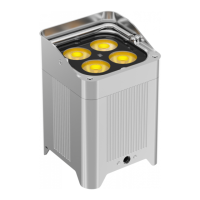
Now we try to add an example of projector: the MOBIBLAST.


 To Next Page