Locker
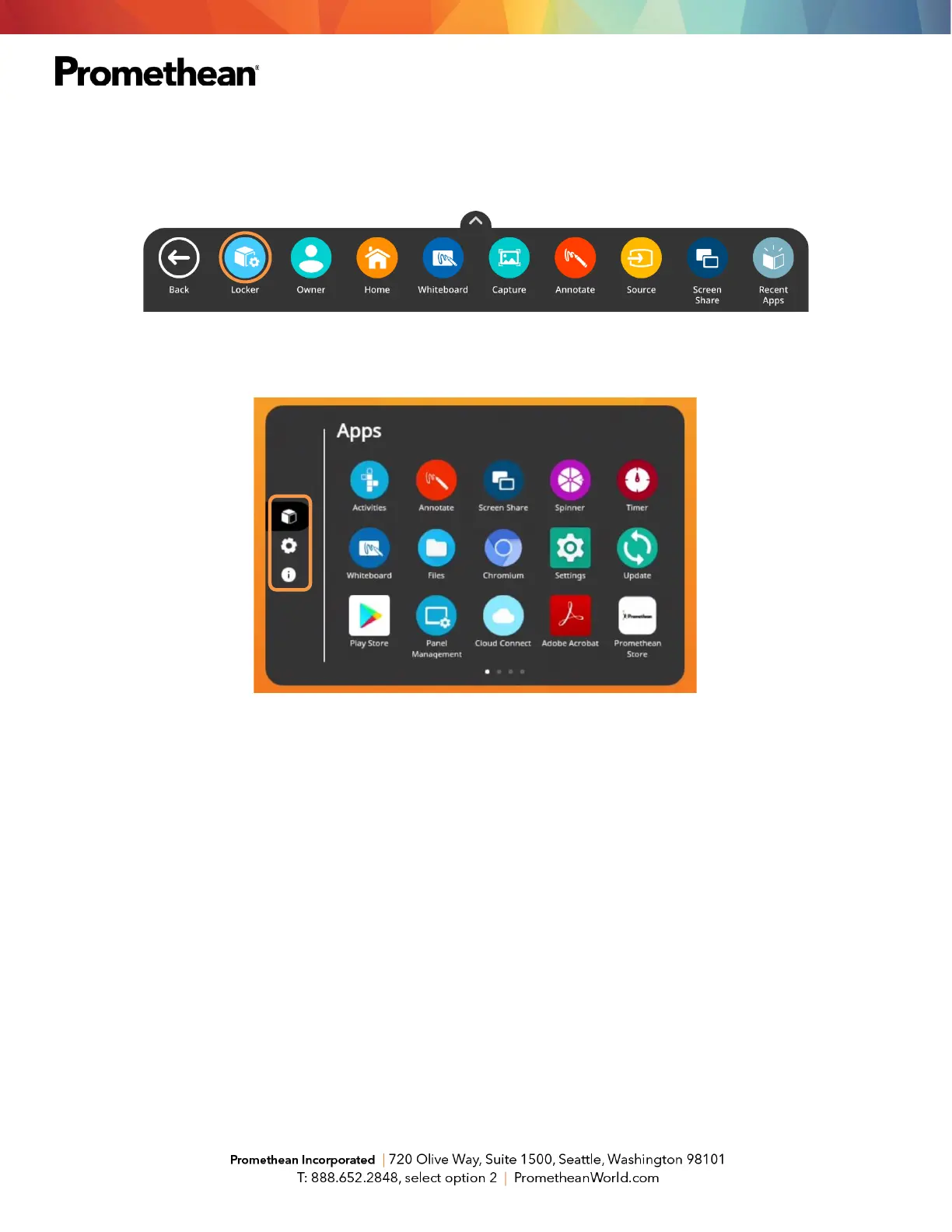
The Locker is a personal space for you to access apps, files, and settings. You can access your Locker from
any of the three Unified Menu locations.
There are three icons on the left side of the Locker: Apps, Settings, and About this panel.
Apps allows you to access preinstalled Classroom Essential apps such as Activities, Annotate, Screen Share,
Spinner, Timer, and Whiteboard, as well as any apps you have installed on connected devices such as an
ActivConnect OPS-G or Promethean Chromebox.
Tap the gear icon to access Settings. In Settings, you may quickly change ActivPanel settings such as
brightness or volume, and access more settings.
The About this panel icon will provide you details about your ActivPanel. This information may come in handy
when communicating with your IT Administrator or Promethean Support.





 To Next Page