User Profiles: Guest Profile
Your ActivPanel Titanium has User Profiles that enable multiple educators to make the most of a single ActivPanel.
The Guest Profile is ideal for instances in which a guest instructor or substitute is using your classroom.
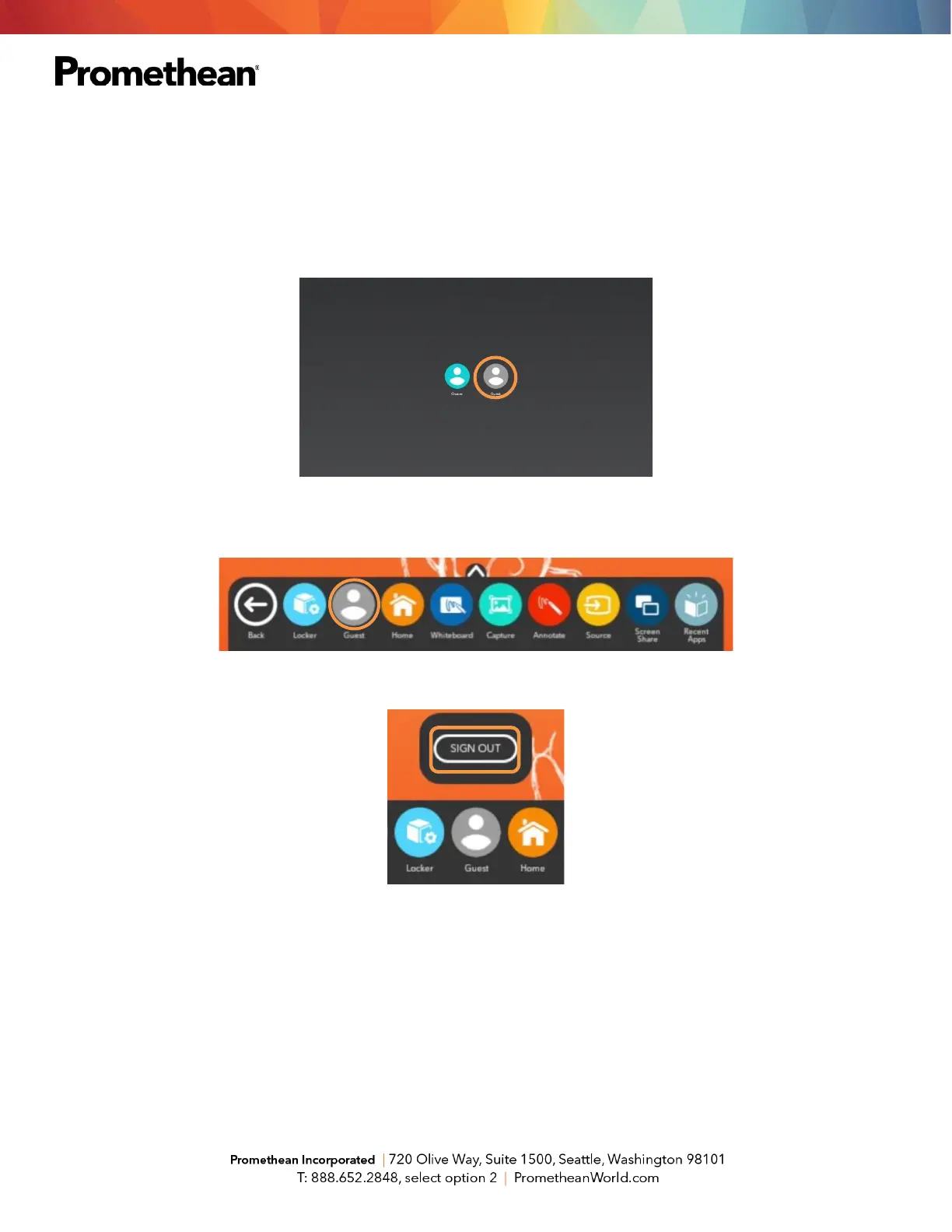
To begin, select Guest from the Sign-In screen.
As a Guest, you will be able to utilize Classroom Essential Apps, access the web, and more. When your Guest
session is complete, select the Unified Menu, then tap User. In this case, it is labeled Guest.
Select Sign Out.
You will be prompted to delete your session’s information or save it for later. Guest session information includes local
web data, local app data, and locally stored files.
Regardless of your choice, you will be returned to the Sign-In screen.







 To Next Page