Emergency File Protection
Important:
The RAC 107 records in segments onto the Micro SD card. The default segment
duration is 2 minutes, which can be changed from the menu settings. For
example, 1 hour of recording would generate 30 x 2 minute segments.
During recording, press MENU button
to protect current video, the lock icon
appears on the screen, if you press the MENU button during the first 10 seconds
of this video, both the current and the last video segment will be protected; if you
press the MENU button between the first 10 seconds and the last 10 seconds, the
current video will be protected; if you press the MENU button during the last 10
seconds, both current and the next video segment will be protected and cannot be
replaced .
Remove the protection from the video:
Press REC/OK button to stop recording, then press Mode button twice switch to
Playback Mode, choose the protection video and then press Menu button to enter
playback menu, press up and down buttons to enter Protect settings and then
press REC/OK button to enter Protect Sub menu , using UP and DOWN buttons to
select “Unlock Current” or “Unlock All”, press REC/OK button to confirm unlock
current video or all the protected videos, the lock icon will disappear from
the screen, the video will not be protected and can be replaced if the Micro SD card
is full.
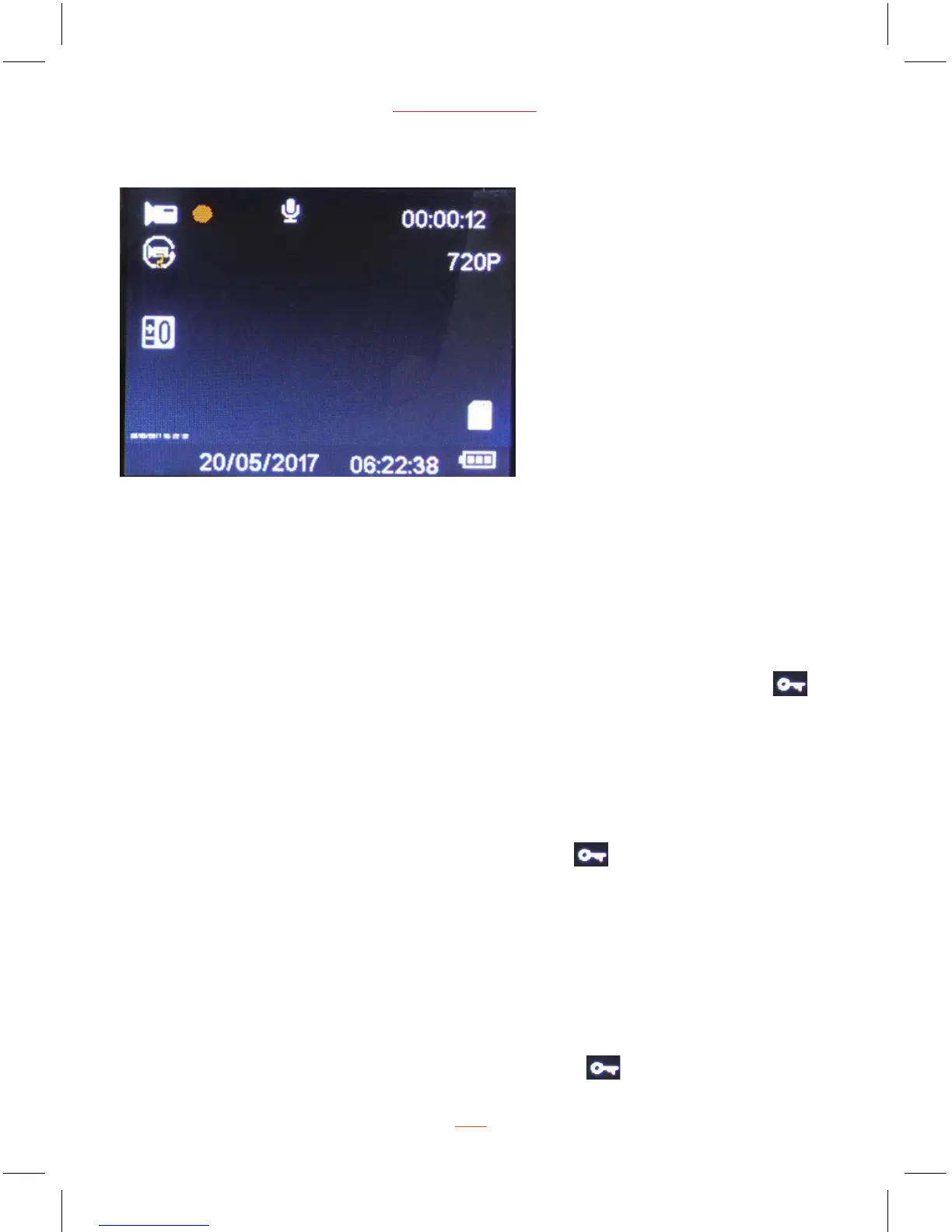
Recording Screen
07
PC 105 HD Dash Cam
Note: The protective video can be seen the lock icon in dash cam playback
mode, but it can’t be distinguished in computer.


 To Next Page