EasyManua.ls Logo

Prowise ProLine Plus - Control Panel Buttons

Prowise ProLine Plus
53 pages
Print Icon
To Next Page IconTo Next Page
To Previous Page IconTo Previous Page
Loading...
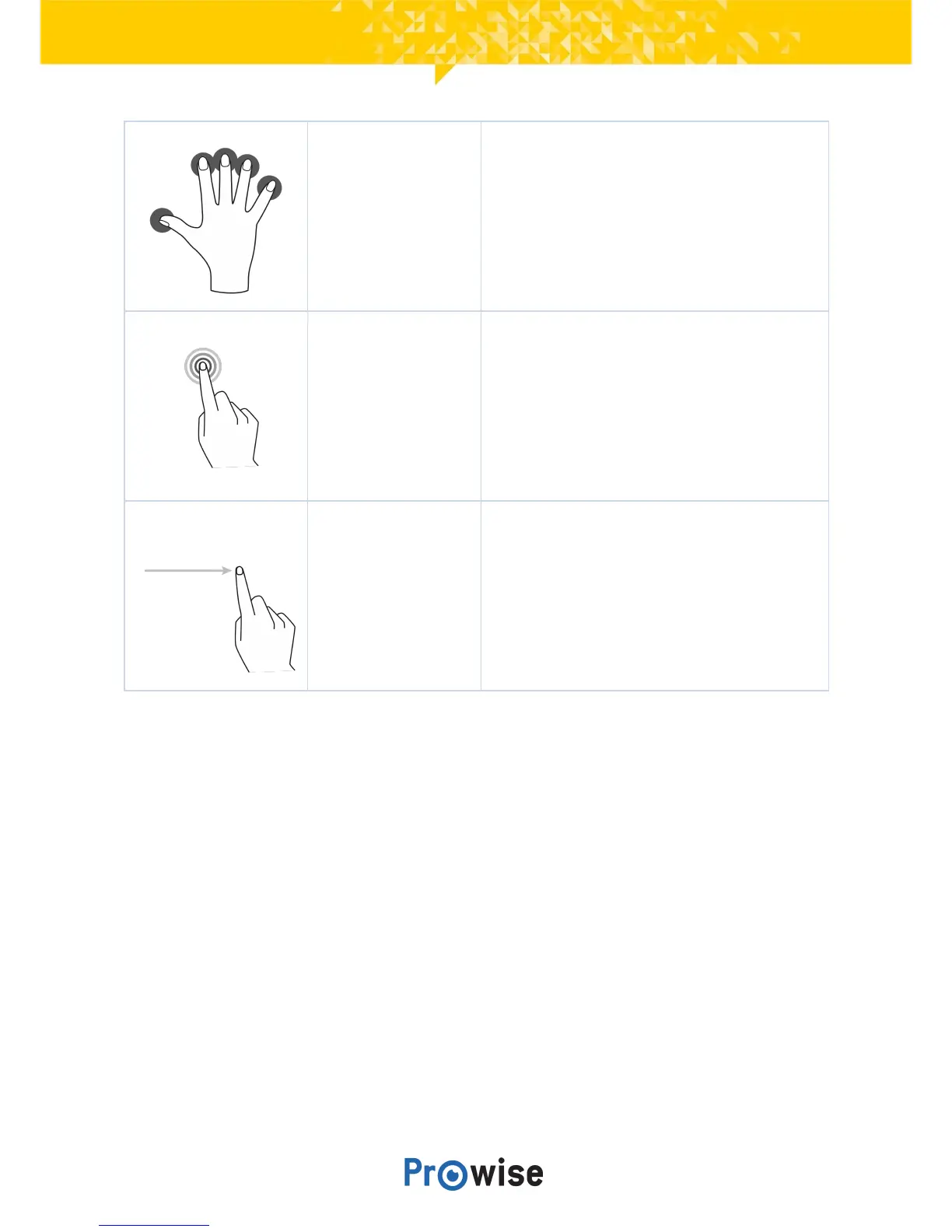
OpenProwise
Centralmenu
Placefivefingersofonehandonthescreenforat
least2seconds.Themenuwillappear.
Right-click
(context-menu)
(PCmodule)
Tapandholdonefingeronthescreenforafew
secondsfortherightclickfunction.
Scroll
Slideonefingeracrossthescreeninthedesired
direction.
The touchscreen can also be controlled by using a computer mouse or with the supplied remote control.
Furthermore, you can use the buttons of the control panel, located on the right-hand side of the
touchscreen,toturnoffthetouchscreenortonavigatebacktotheCentralhomeenvironment.
4.5.ControlPanelButtons
Thebuttonsbelowarefoundonthecontrolpanelontheright-handsideofthetouchscreen.
On/Offbutton
Whenthetouchscreenisturnedoff,pressthisbuttontoturnitbackonagain.
Whenthetouchscreenisturnedon,pressthisbuttontoturnitoff.
ManualProLine+
16

Related product manuals