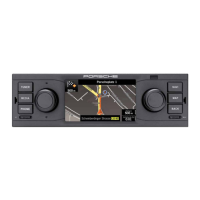
How to use your PCRN
11
Exiting menus
Returning to the higher-level menu
Press BACK to cancel the procedure to
return to the next higher menu.
Returning to the main menu
Press one of the main menu keys to return to
the corresponding main menu.
Returning to the top level of a main menu
Press BACK repeatedly to return to the main
menu's top level. Alternately, press the corre-
sponding key on the PCRN, or the associated tab
on the touchscreen.
Using lists
There are several ways to highlight a menu
option:
Tapping the arrow button or on the
touchscreen
- or -
Tapping the scroll bar between the two arrow
buttons
- or -
Turning the right-hand knob . Menu op-
tions are highlighted by an orange-coloured
frame.
Pressing the right-hand knob or selecting
a menu option via the touchscreen: Conrm
the selection.
Using input menus
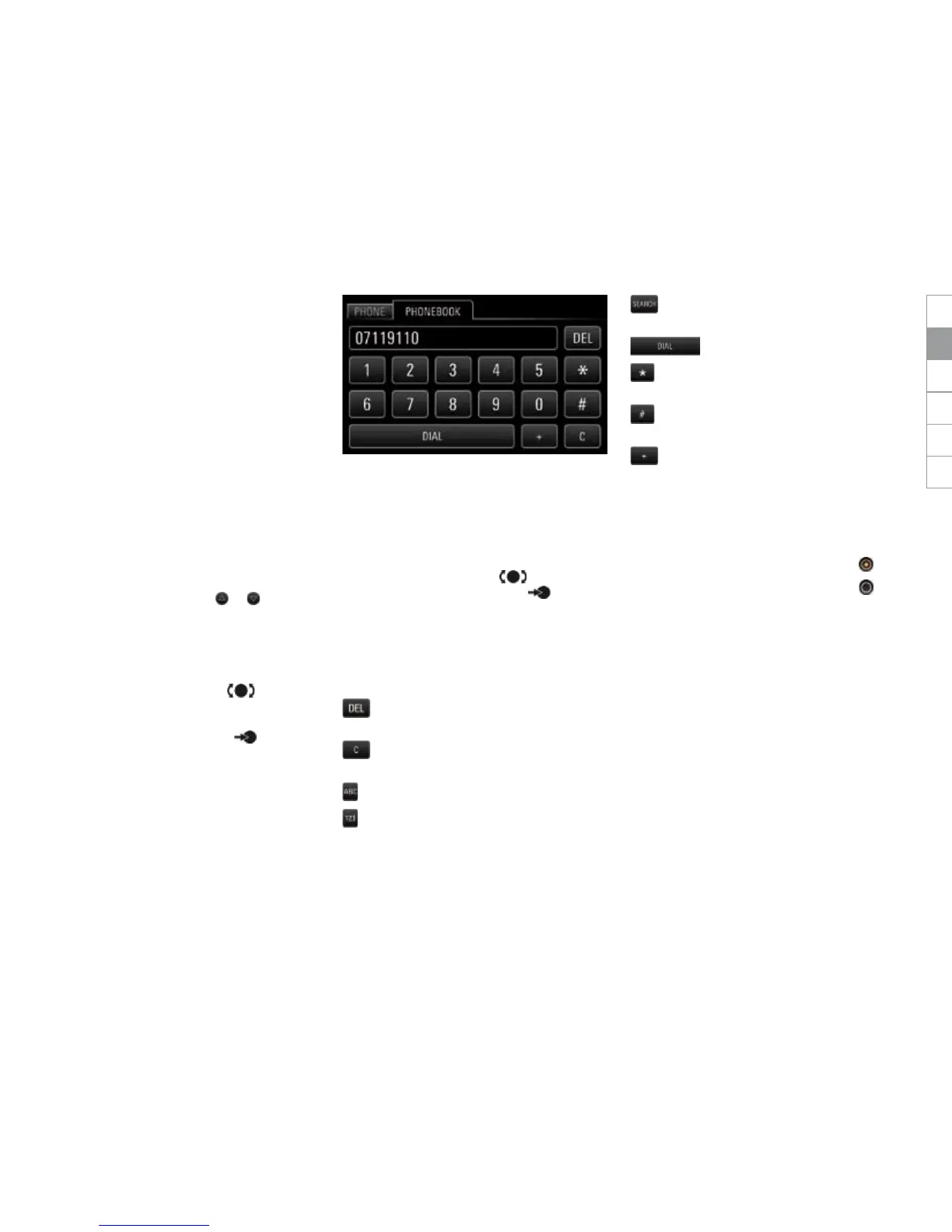
In some instances you may need to enter data
into your PCRN, e.g. a phone number.
To enter data in an input menu, tap the char-
acters on the screen.
- or -
Turn the right-hand knob to highlight a
character and press the knob to select
it.
To conrm and adopt the data entered to
this point, tap the corresponding button (e.g.
DIAL) in the menu.
In addition to characters, the menus also
provide some buttons.
deletes the last entry from the
input eld
deletes all entries from the input
eld
switches to letters
switches to numbers
searches the phonebook
for entries
dials the number entered
is required to enter GSM service
codes
is required to enter GSM service
codes
is required to enter GSM country
codes
Option elds
Some menu entries oer so-called option elds
that allow you to enable or disable functions.
Selecting and enabling a menu option .
Selecting and disabling a menu option .
DEENFRITESRU


 To Next Page
 Loading...