EasyManua.ls Logo

Q-See QC828 - User Manual

Q-See QC828
46 pages
Print Icon
To Next Page IconTo Next Page
Loading...
1
H.264 NETWORK VIDEO RECORDERS
720P and 1080P Recording Options
User Manual
QC SERIES
NVRS
ESCFNRECSHIFT
ENTER
POWERHDD1 2 3 4 5 6 7 8 9 10 11 12 13 14 15 16 NET
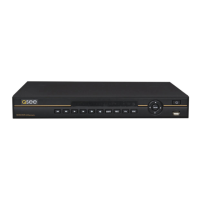
QC828 NVR 8 Channels

Questions and Answers

  • N
    nguyentamaraAug 20, 2025
    Why does my Q-See QC828 often automatically shut down or stop running?
    • J
      Jasmine ThomasAug 20, 2025
      Your Q-See Network Hardware might be shutting down due to several reasons: * Unstable or low input voltage. * Hard drive malfunction or cable issues. * Insufficient power. * Unstable front video signal. * Overheating or excessive dust. * System board malfunction.
  • J
    Justin ThompsonAug 22, 2025
    How to fix distorted video when searching local records on Q-See QC828 Network Hardware?
    • R
      Robert SmithAug 22, 2025
      If the video is distorted when searching local records on your Q-See Network Hardware, it could be due to the video quality setting being too low. Also, restarting the NVR might solve a program read error where the bit data is too small.
  • J
    Justin WrightAug 25, 2025
    What to do if Q-See Network Hardware cannot detect hard drive?
    • A
      April StephensAug 25, 2025
      If your Q-See Network Hardware isn't detecting the hard drive, it could be due to: * No hard drive being installed. * A damaged hard drive. * A loose hard drive cable connection. * A damaged main board SATA port.
  • B
    Brenda AlexanderAug 26, 2025
    What to do if I cannot search local records on Q-See QC828?
    • R
      Raymond WilliamsAug 27, 2025
      If you can't search local records on your Q-See Network Hardware, the HDD ribbon might be damaged, or the HDD has failed. Also, the recorded file may have been overwritten, or the record function has been disabled.
  • H
    Holly ChristianAug 28, 2025
    Why is there no video output to one or more channels on my Q-See QC828?
    • L
      Lauren SmithAug 28, 2025
      If there is no video output to one or more channels on your Q-See Network Hardware, it could be due to several reasons. If the brightness is set to 0, please restore factory default setup. It can also be because of updated firmware using the wrong file, no video input signal or a weak signal, privacy mask setup, or combo NVR hardware malfunctions.
  • V
    Victor JacksonAug 30, 2025
    How to fix Q-See QC828 burn error or USB backup error?
    • E
      Evan ComptonAug 30, 2025
      If you're experiencing a burn error or USB backup error with your Q-See Network Hardware, try stopping the recording first and then begin the backup, as the system might be using too much CPU resources. It may also result in burner error if the data amount exceeds the backup device capacity.
  • T
    timothymooreSep 1, 2025
    Why is the time display not correct on my Q-See Network Hardware?
    • J
      Julia WallaceSep 1, 2025
      If the time display is incorrect on your Q-See Network Hardware, it could be due to incorrect setup. If the battery contact is not good or the voltage is too low, replace the battery. It could also be because the crystal is broken.
  • K
    Kim VanceSep 2, 2025
    How to fix no audio when monitoring with Q-See Network Hardware?
    • D
      Dylan HatfieldSep 2, 2025
      If there is no audio when monitoring with your Q-See Network Hardware, make the channel you want to hear audio on full screen. It also could be because the audio cable is damaged or the combo NVR hardware malfunction.
  • R
    Rodney ReeseSep 4, 2025
    Why is there audio when monitoring but no audio when Q-See QC828 system plays back?
    • V
      vaughntimothySep 4, 2025
      If there is audio during monitoring but not during playback on your Q-See Network Hardware, enable the audio function in the settings. Also, the corresponding channel might not have any audio input.
  • D
    David Knight DVMSep 6, 2025
    How to resolve unstable network connection on Q-See QC828 Network Hardware?
    • D
      Debra LucasSep 6, 2025
      If your Q-See Network Hardware has an unstable network connection, it could be due to an unstable network, IP address conflict, MAC address conflict, or a faulty PC or combo NVR network card.

Summary

Introduction and Safety Precautions

Electric Shock Risk Warnings

Crucial safety warnings regarding electric shock when operating the NVR.

General Safety Guidelines

Important guidelines for safe installation and operation, including handling and ventilation.

Features and Specifications

Smartphone and Network Features

Mobile access, dual video streams, email alerts, and remote monitoring capabilities.

User Controls and Connectivity

User accounts, scheduled recording, mouse/remote control, and storage functions.

Connections and Controls Overview

Front and Rear Panel Connections

Detailed layout and function of NVR front and rear panel ports for connectivity.

Mouse and Virtual Keyboard Operation

Mouse Control Functions

How to use the mouse for navigation, selection, and interaction within the NVR interface.

Virtual Keyboard Usage

Inputting text and characters using the on-screen virtual keyboard.

Remote Control Functions

Remote Control Button Operations

Explanation of how each button on the remote control operates NVR functions.

IP Camera Connectivity

Locally Connected Cameras via POE

Connecting cameras directly to the NVR's POE ports for power and video.

Cameras Connected Through a Network

Accessing cameras via local networks (LAN) or the Internet (WAN).

Basic Operation and Live View

Live View and Shortcut Controls

Default display, multi-view options, and shortcut controls for quick actions.

Navigation Bar Functions

Accessing system menus and monitoring status alerts via the navigation bar.

System Login and Main Menu Access

Login, Logout, and User Management

Process for logging into the system, user accounts, and security recommendations.

Shortcut Menu Options

Quick access to various NVR functions and menus from the Live View screen.

System Menus and Recording Configuration

Main Menu Navigation

Overview of the main menu and its eight submenus for system functions.

Recording Modes and Settings

Understanding manual recording, schedule, and auto-resume features.

Camera Settings Configuration

Main and Extra Stream Settings

Adjusting resolution, frame rate, compression, and bit rate for video streams.

Overlay and Privacy Settings

Configuring on-screen displays, time/channel overlays, and privacy masking zones.

Recording Schedules and Snapshots

Schedule Menu Configuration

Setting up recording schedules based on time, day, and event triggers.

Snapshot Feature Setup

Configuring the NVR to take still images based on schedule or event triggers.

Event Detection and Response

Motion Detection Configuration

Setting up motion detection parameters, regions, and sensitivity for event recording.

Video Loss and Camera Masking Alerts

Configuring alerts and responses for video signal loss or camera obstruction.

Search and Playback Functions

Playback Window and Controls

Navigating recorded video using playback window, calendar, and playback controls.

Creating Video Clips and Backups

Saving specific video segments as clips and backing them up to USB.

System Menus Overview

Main Menu Structure

Introduction to the system's main menu and its configuration categories.

Main Menu and Information Access

Main Menu Functions

Accessing system functions via the main menu icons.

Info Menu Details

Accessing HDD Info, Logs, Version, and User information.

Network Resource and Setting Menu

Network Resource Information

Monitoring network bandwidth usage, capacity, and data transfer.

General Setting Configuration

Configuring system time, date format, and basic device settings.

Display Settings Customization

GUI and Channel Display Options

Adjusting menu transparency, channel names, and display modes.

Tour Setup Configuration

Setting up camera cycling tours for motion or alarm events.

Remote Device Management

Adding and Editing Remote Devices

Managing IP cameras and remote devices via IP search and manual add.

Advanced Settings and HDD Management

HDD Management Options

Configuring hard drive states (Read/Write, Read Only, Format, Recover).

User Account Management

Creating, modifying, and managing user accounts and their privileges.

PTZ Camera Setup and Control

Connecting and Configuring PTZ Cameras

Steps for connecting PTZ cameras, setting protocols, and enabling PTZ functions.

PTZ Control Panel Operations

Using the control panel for pan, tilt, zoom, focus, and iris adjustments.

PTZ Preset, Tour, Pattern, and Border Setup

Creating PTZ Presets and Tours

Defining camera positions (presets) and sequences (tours) for automated movement.

Pattern and Border Scan Configuration

Setting up camera movement patterns and automated border scanning.

Alarm System Integration

Alarm Input and Output Specifications

Understanding the parameters and connections for alarm inputs and relay outputs.

Alarm Setup and Activation

Configuring Alarm Trigger Periods

Setting schedules for when alarms are active and configuring event responses.

Alarm Response Actions

Defining actions like recording, email notifications, or buzzer alerts upon alarm activation.

Hard Disk Drive Management

Hard Disk Drive Installation;Removal

Step-by-step guide for installing or replacing the NVR's hard disk drive.

Troubleshooting Common Issues

NVR Boot-up and Operation Problems

Diagnosing and resolving issues related to NVR not booting or shutting down.

Video and Network Connection Issues

Troubleshooting problems with video output, color distortion, and network connectivity.

Technical Specifications

Model Specifications Comparison

Detailed comparison of specifications across different NVR models (QC804, QC808, QC814, etc.).

Q-See Product Warranty Information

Warranty Coverage and Exclusions

Details on the hardware warranty, service scope, and liability exclusions.

Q-See QC828 Specifications

General IconGeneral
Channels8
HDD Bays1
Max HDD Capacity6TB
Video OutputHDMI, VGA
CompressionH.264
TypeNVR (Network Video Recorder)
Network InterfaceRJ45
Power Supply12V/2A
Operating Temperature-10°C to +55°C (14°F to 131°F)
Operating Humidity10%–90% RH

Related product manuals