| Type | NAS |
|---|
| Noise level | 16.7 dB |
|---|
| Device class | Home & Home Office |
|---|
| Share folder | CIFS/SMB, FTP, WebDAV |
|---|
| Backup features | Cloud, USB drive |
|---|
| Backup function | Yes |
|---|
| Browser supported | Apple Safari 7+, Google Chrome, Microsoft Internet Explorer 10+, Mozilla Firefox |
|---|
| Security algorithms | 256-bit AES, FIPS 140-2, SNMPv3, SSH, SSL/TLS |
|---|
| Storage temperature (T-T) | -20 - 70 °C |
|---|
| Operating temperature (T-T) | 0 - 40 °C |
|---|
| Operating relative humidity (H-H) | 5 - 95 % |
|---|
| Chassis type | Tower |
|---|
| Cooling type | Active |
|---|
| Fan diameter | 70 mm |
|---|
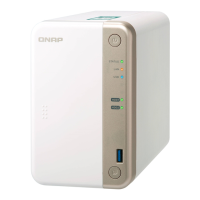
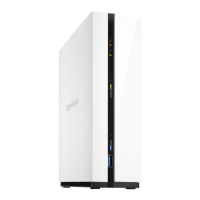
| Product color | White |
|---|
| LED indicators | HDD, LAN, Power, Status, USB |
|---|
| Number of fans | 1 fan(s) |
|---|
| Cable lock slot type | Kensington |
|---|
| Fiber ports quantity | 0 |
|---|
| USB 2.0 ports quantity | 3 |
|---|
| USB 3.2 Gen 1 (3.1 Gen 1) Type-A ports quantity | 2 |
|---|
| Wi-Fi | No |
|---|
| Ethernet LAN data rates | 1000 Mbit/s |
|---|
| Supported network protocols | TCP/IP, PTP, L2TP/IPSec, OpenVPN, QBelt(, FTP, SFTP, TFTP |
|---|
| Flash memory | 4000 MB |
|---|
| Internal memory | 4 GB |
|---|
| Memory form factor | SO-DIMM |
|---|
| Internal memory type | DDR4 |
|---|
| Maximum RAM supported | 8 GB |
|---|
| Cables included | AC, LAN (RJ-45) |
|---|
| Number of screws | 14 |
|---|
| Tjunction | 105 °C |
|---|
| Processor cache | 4 MB |
|---|
| Processor model | J4005 |
|---|
| System bus rate | - GT/s |
|---|
| Processor family | Intel® Celeron® |
|---|
| Processor socket | BGA 1090 |
|---|
| Processor codename | Gemini Lake |
|---|
| Processor frequency | 2 GHz |
|---|
| Processor lithography | 14 nm |
|---|
| Processor manufacturer | Intel |
|---|
| Processor package size | 25 x 24 mm |
|---|
| Processor boost frequency | 2.7 GHz |
|---|
| Processor operating modes | 64-bit |
|---|
| PCI Express configurations | 1x2, 1x2+2x1, 1x4, 2x1, 4x1 |
|---|
| Thermal Design Power (TDP) | 10 W |
|---|
| On-board graphics card model | Intel® UHD Graphics 600 |
|---|
| Fan voltage | 12 V |
|---|
| AC input voltage | 100 - 240 V |
|---|
| AC input frequency | 50 - 60 Hz |
|---|
| Power supply location | External |
|---|
| Power consumption (sleep) | 8.08 W |
|---|
| Power consumption (typical) | 15.25 W |
|---|
| Power supply unit (PSU) capacity | 65 W |
|---|
| Operating system version | 5.0.0 |
|---|
| Operating system installed | QNAP QTS |
|---|
| Mac operating systems supported | Mac OS X 10.10 Yosemite, Mac OS X 10.11 El Capitan, Mac OS X 10.12 Sierra, Mac OS X 10.13 High Sierra, Mac OS X 10.14 Mojave, Mac OS X 10.15 Catalina, Mac OS X 10.7 Lion, Mac OS X 10.8 Mountain Lion, Mac OS X 10.9 Mavericks |
|---|
| Server operating systems supported | Windows Server 2003, Windows Server 2008 R2, Windows Server 2012, Windows Server 2012 R2, Windows Server 2016, Windows Server 2019 |
|---|
| Windows operating systems supported | Windows 10, Windows 7, Windows 8 |
|---|
| RAID levels | 0, 1, JBOD |
|---|
| Storage drive size | - \ |
|---|
| Storage drive capacity | 0 GB |
|---|
| Supported file systems | FAT32, HFS+, NTFS, ext3, ext4 |
|---|
| Storage drive interface | - |
|---|
| Storage drive sizes supported | 3.5 \ |
|---|
| Supported storage drive types | HDD & SSD |
|---|
| Total installed storage capacity | 0 TB |
|---|
| Supported storage drive interfaces | Serial ATA II, Serial ATA III |
|---|
| Number of execution units | 12 |
|---|
| Maximum number of PCI Express lanes | 6 |
|---|
| Memory types supported by processor | DDR4-SDRAM, LPDDR4-SDRAM |
|---|
| Intel Smart Response Technology version | 0.00 |
|---|
| Intel Identity Protection Technology version | 1.00 |
|---|
| On-board graphics card ID | 0x3185 |
|---|
| On-board graphics card base frequency | 250 MHz |
|---|
| On-board graphics card DirectX version | 12.0 |
|---|
| On-board graphics card dynamic frequency (max) | 700 MHz |
|---|
| Processor ARK ID | 128992 |
|---|
| Harmonized System (HS) code | 84714100 |
|---|



 To Next Page
 General
 Weight and Dimensions