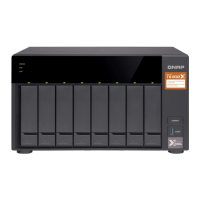
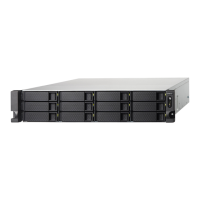
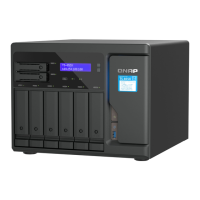
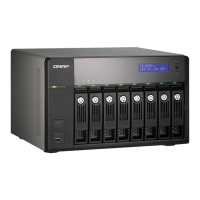
8. Connect all cables and external attachments.
9. Power on the device.
10. Verify that the module is recognized by the device.
a. Log on to QTS as administrator.
b. Go to Control Panel > System > System Status > Hardware Information .
c. Check the value for Total memory.
Expansion Unit Installation
The device supports SATA JBOD expansion units and USB expansion units. For details, please see table
below.
You can purchase storage expansion accessories from QNAP or an authorized reseller.
For details, go to https://shop.qnap.com/.
For the list of compatible expansion units and the maximum number of applicable expansion units, go to
http://www.qnap.com/go/compatibility-expansion.
Expansion Unit Model Description Required Accessories
TL-D400S • Uses a SFF-8088 interface
• Supports SATA HDD/SSD
• 1 x SFF-8088 connector cable
• QXP-400eS-A1164 host bus
adapter
TL-D800S • Uses a SFF-8088 interface
• Supports SATA HDD/SSD
• 2 x SFF-8088 connector
cables
• QXP-800eS-A1164 host bus
adapter
TS-832PX User Guide
Installation and Configuration 26



 To Next Page
 Loading...