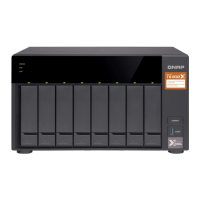
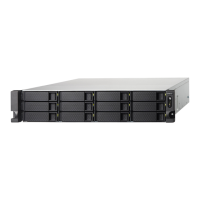
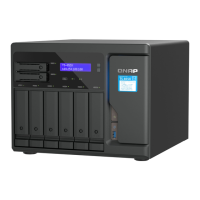
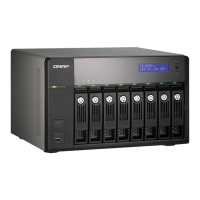
Expansion Unit Model Description Required Accessories
TL-D1600S • Uses a SFF-8088 to
SFF-8644 interface
• Supports SATA HDD/SSD
• 4 x SFF-8088 to SFF-8644
connector cables
• QXP-1600eS host bus adapter
TL-R400S • Uses a SFF-8088 interface
• Supports SATA HDD/SSD
• 1 x SFF-8088 connector cable
• QXP-400eS-A1164 host bus
adapter
• RAIL-B02
TL-R1200S-RP • Uses a SFF-8088 to
SFF-8644 interface
• Supports SATA HDD/SSD
• 3 x SFF-8088 to SFF-8644
connector cables
• QXP-1600eS host bus adapter
• RAIL-B02
TR-002 • Uses a USB 3.2 Gen 2 Type-C
interface
• Supports SATA drives
USB 3.2 Gen 2 Type-A to Type-C
cable
TR-004 • Uses a USB 3.2 Gen 1 Type-C
interface
• Supports SATA drives
USB 3.2 Gen 1 Type-A to Type-C
cable
TR-004U • Uses a USB 3.2 Gen 1 Type-C
interface
• Supports SATA drives
• USB 3.2 Gen 1 Type-A to
Type-C cable
• RAIL-B02
TL-D800C • Uses a USB 3.2 Gen 2 Type-C
interface
• Supports SATA drives
• USB 3.2 Gen 2 Type-A to
Type-C cable
• Optional: QXG-10G2U3A
PCIe card
TL-R1200C-RP • Uses a USB 3.2 Gen 2 Type-C
interface
• Supports SATA drives
• USB 3.2 Gen 2 Type-A to
Type-C cable
• RAIL-B02
Connecting USB Expansion Units
To connect the device to USB expansion units, USB Type-A to USB Type-C cables are required. For
required accessories details, see Expansion Unit Installation.
1. Connect the expansion unit to the NAS.
a. Connect the USB cable to the USB Type-C port on the expansion unit.
b. Connect the USB cable to a USB 3.2 Gen 1 Type-A port on the NAS.
TS-832PX User Guide
Installation and Configuration 27



 To Next Page
 Loading...