P1520 User Guide
Version 1.2 16 04/02/07
10/100 LAN
(2 LEDs)
LED Diagnostics
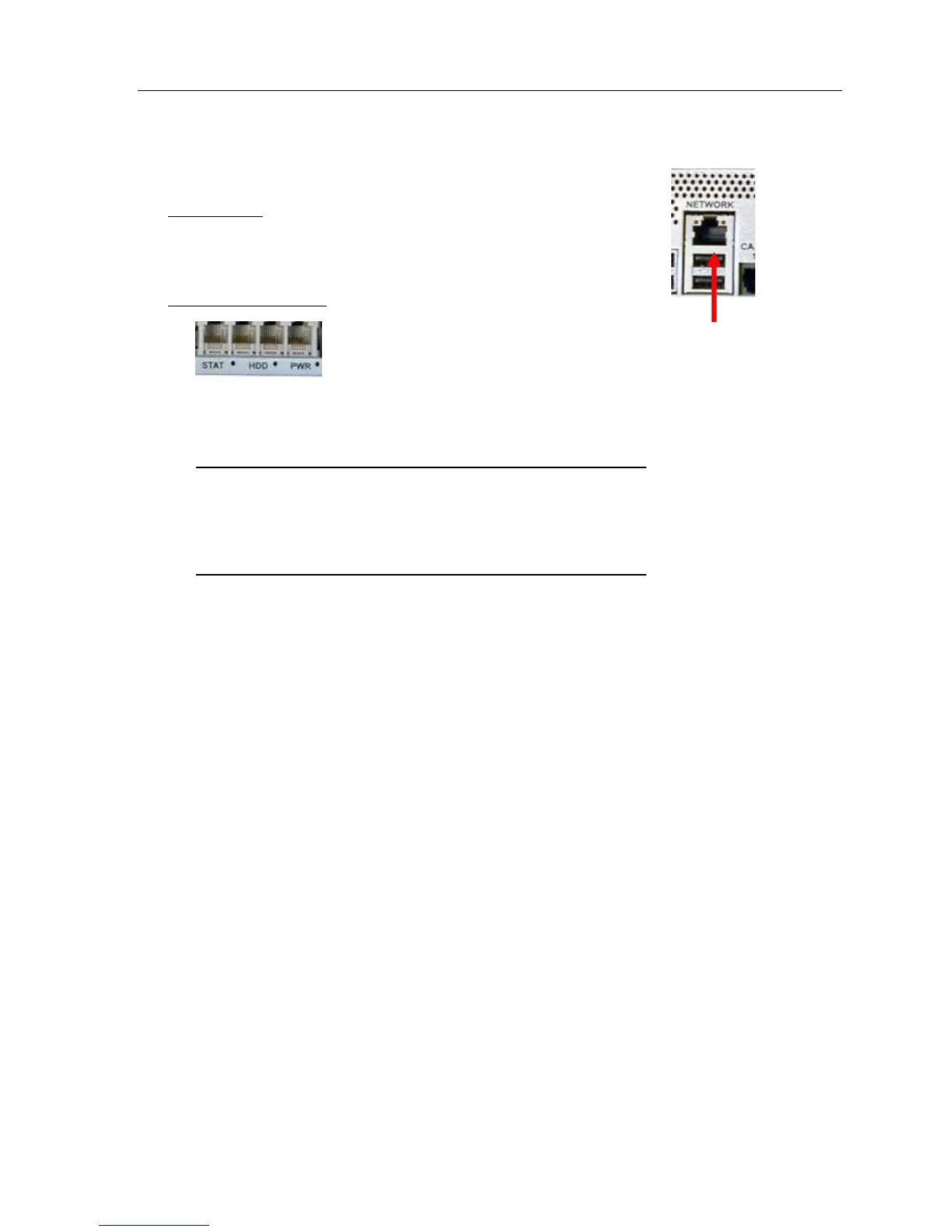
On the bottom panel of the P1520, there are 2 LED lights on the network port and 3 on the connectivity panel
that can be used for diagnostics.
Network LEDs
¾ Green - "Lnk" - is active and solid with functioning network connection.
¾ Yellow - "Act" - is active if activity (transmit and receive) data is on the
network
Connectivity Panel LEDs
¾ Green -“PWR” - is active and solid with power to the motherboard/terminal.
¾ Red -“HDD” - is active if activity is occurring with the hard disk drive
¾ Yellow/Green -“STAT” - functionality as follows:
STAT Codes STAT LED color
In S5 state: Off
Early in BIOS: Constant yellow
BIOS transition to Operating System (OS) load: Alternating yellow and green
Operating System load complete: Green flashing heartbeat
STAT Error Codes STAT LED color
BIOS post errors: Flashing yellow
OS boot failure: Flashing yellow
3. Using the P1520
The P1520 platform functions as a POS terminal for your business. Performance and functionality will differ
according to the operating system, software, and peripheral devices you install.
Starting Up the P1520
In order to run your operating system and access your software and data, you must start up the P1520 platform.
To start up the P1520, complete the following step:
¾ Simply plug the power cord into an electrical outlet. The system automatically turns on once plugged into
the outlet.
NOTE: Depending on your installed operating system and your selected settings, your system will vary in
the amount of time it takes to boot up.
Shutting Down the P1520
It is highly recommended to properly shut down the P1520 to avoid operating system corruption due to hard
power loss. To shut down the P1520, complete the following steps:
1. If using a software application, typically there is a software shutdown button in the manager’s setup screen
which should be used to properly shut down the terminal. If a shutdown button does not exist, then exist


 To Next Page