P1520 User Guide
Version 1.2 27 04/02/07
BBDemo.exe C:\advertisment.mpg
USAGE:
BBSlides.exe p=Path_to_Folder t=time
Example:
BBSlides.exe p=C:\Slides t=5
Upgrading BIOS using RadFlash.exe
Using RadFlash.exe to upgrade BIOS
RadFlash.exe is located in the C:\P15xx folder
BIOS ROM Files
• Located in C:\P15xx folder unless they were released after the P15xx Platform
Driver release
• They can also be found at the Radiant Hardware Driver Downloads website
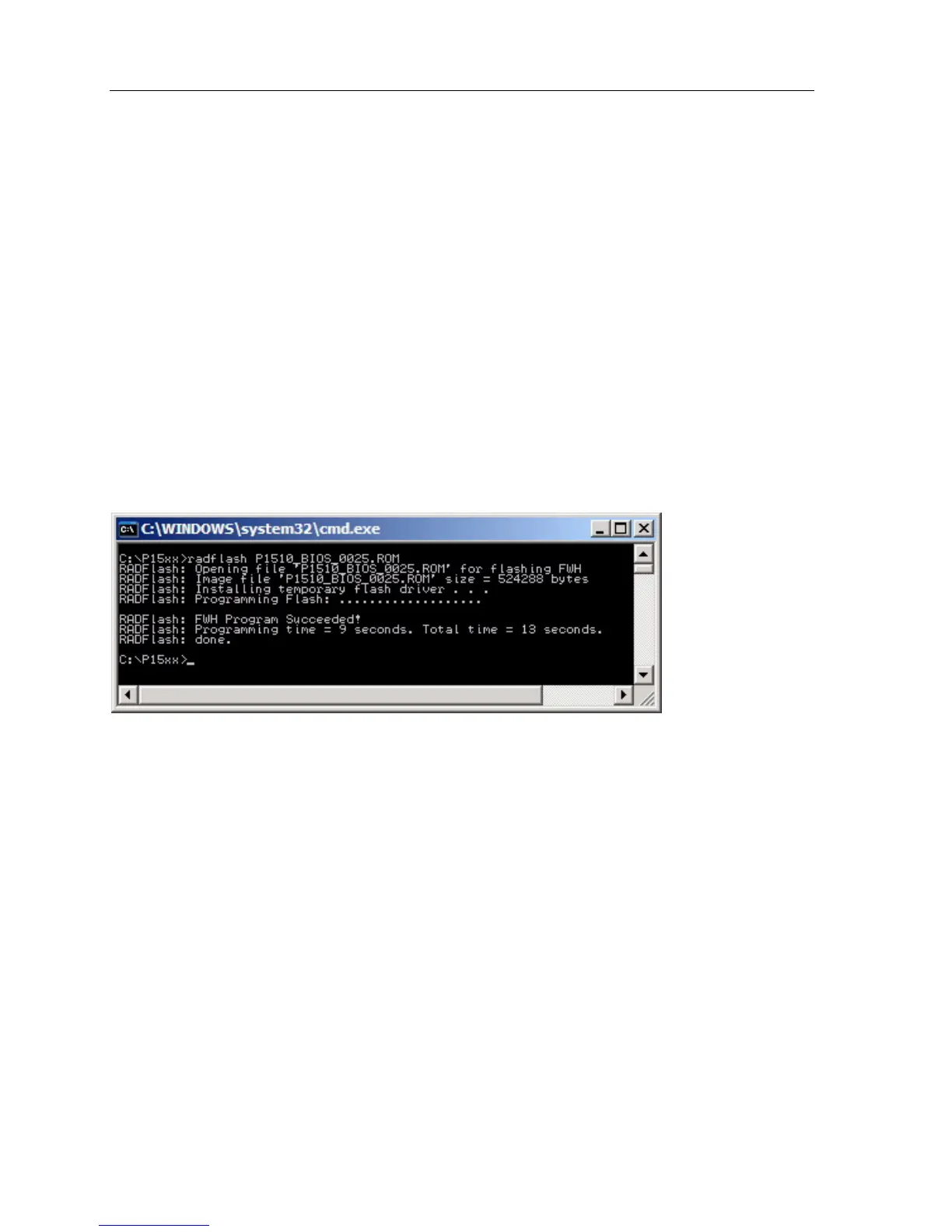
Run RadFlash.exe from the command line
• P1510 BIOS Example:
RadFlash P1510_BIOS_0025.ROM
• Reboot after flashing BIOS
6. Removing a Defective P1520
Follow these steps to replace a P1520:
1. Locate the unit to be serviced.
2. Properly shut down the terminal through either the software application, operating system, or by
using the “On/Off” button on the bottom panel.
3. Locate the AC power connection at the wall outlet.
4. Disconnect the power cable from the wall outlet
5. Tilt the terminal back and open the access door to the connectivity panel on the bottom of the
touch head.
6. Disconnect the network cable from the network port.
7. Note which RJ11 port number each peripheral device is connected to.
This information will be used later to re-connect the peripheral device cables.
8. Disconnect all peripheral device cables from the RJ11 and/or USB ports.
9. Open the Cable Management™ System by pressing the blue tab in the arrow direction.


 To Next Page