Complete The Android Pairing Procedure:
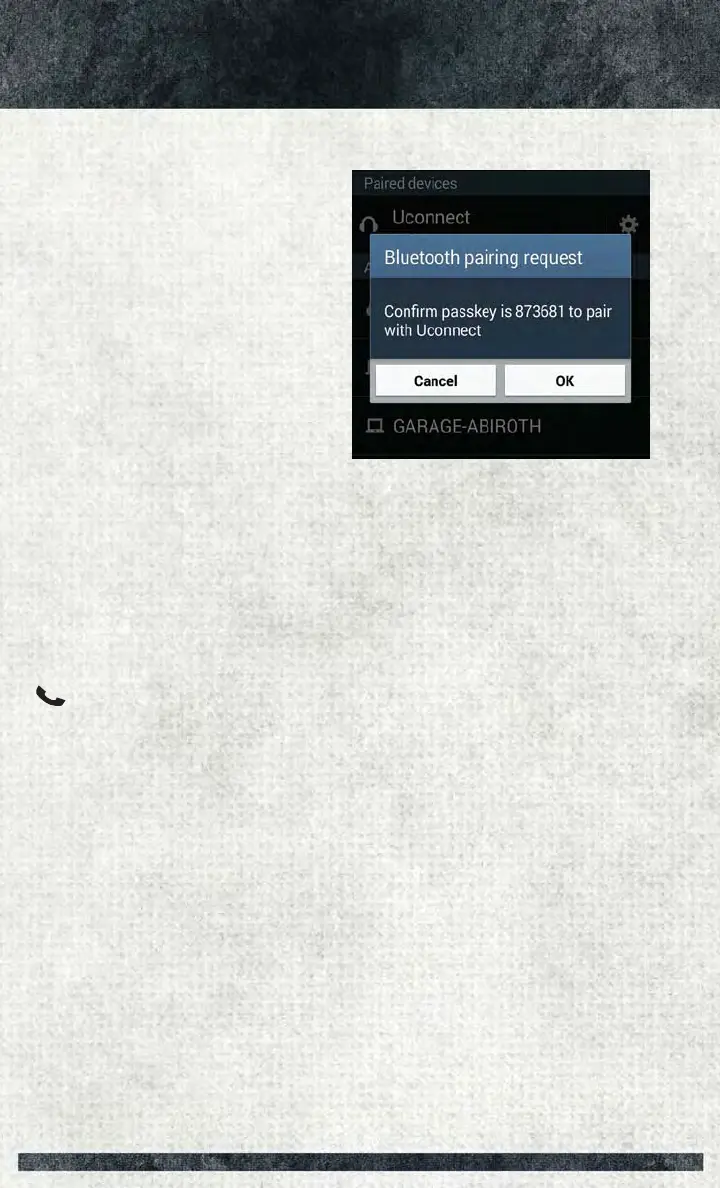
1. Confirm the passkey shown on the
mobile phone matches the passkey
shown on the Uconnect system then
accept the Bluetooth pairing request.
NOTE:
Some mobile phones require the PIN to
be entered manually, enter the PIN num-
ber shown on the Uconnect screen.
Select The Android Mobile Phone's Priority
Level
When the pairing process has success-
fully completed, the system will prompt
you to choose whether or not this is your
favorite mobile phone. Selecting “Yes”
will make this mobile phone the highest
priority. This mobile phone will take precedence over other paired mobile phones
within range and will connect to the Uconnect system automatically when entering
the vehicle. Only one mobile phone and/or one Bluetooth audio device can be
connected to the Uconnect system at a time. If “No” is selected, simply select
“Uconnect” from the mobile phone/audio device Bluetooth screen, and the
Uconnect system will reconnect to the Bluetooth device.
You are now ready to make hands-free calls. Press the Uconnect “Phone” button
on your steering wheel to begin.
NOTE:
Refer to UconnectPhone.com website for additional information on mobile phone
pairing and for a list of compatible phones.
Common Phone Commands (Examples)
• “Call John Smith”
• “Call John Smith mobile”
• “Dial 1 248 555 1212”
• “Redial”
Mute (Or Unmute) Microphone During Call
• During a call, press the “Mute” button on the Phone main screen to mute and
unmute the call.
Transfer Ongoing Call Between Handset And Vehicle
• During an on-going call, press the “Transfer” button on the Phone main screen to
transfer an on-going call between handset and vehicle.
Pairing Request
ELECTRONICS
150



 To Next Page