Operating the Instrument
R&S
®
RTO2000
86Getting Started 1332.9719.02 ─ 10
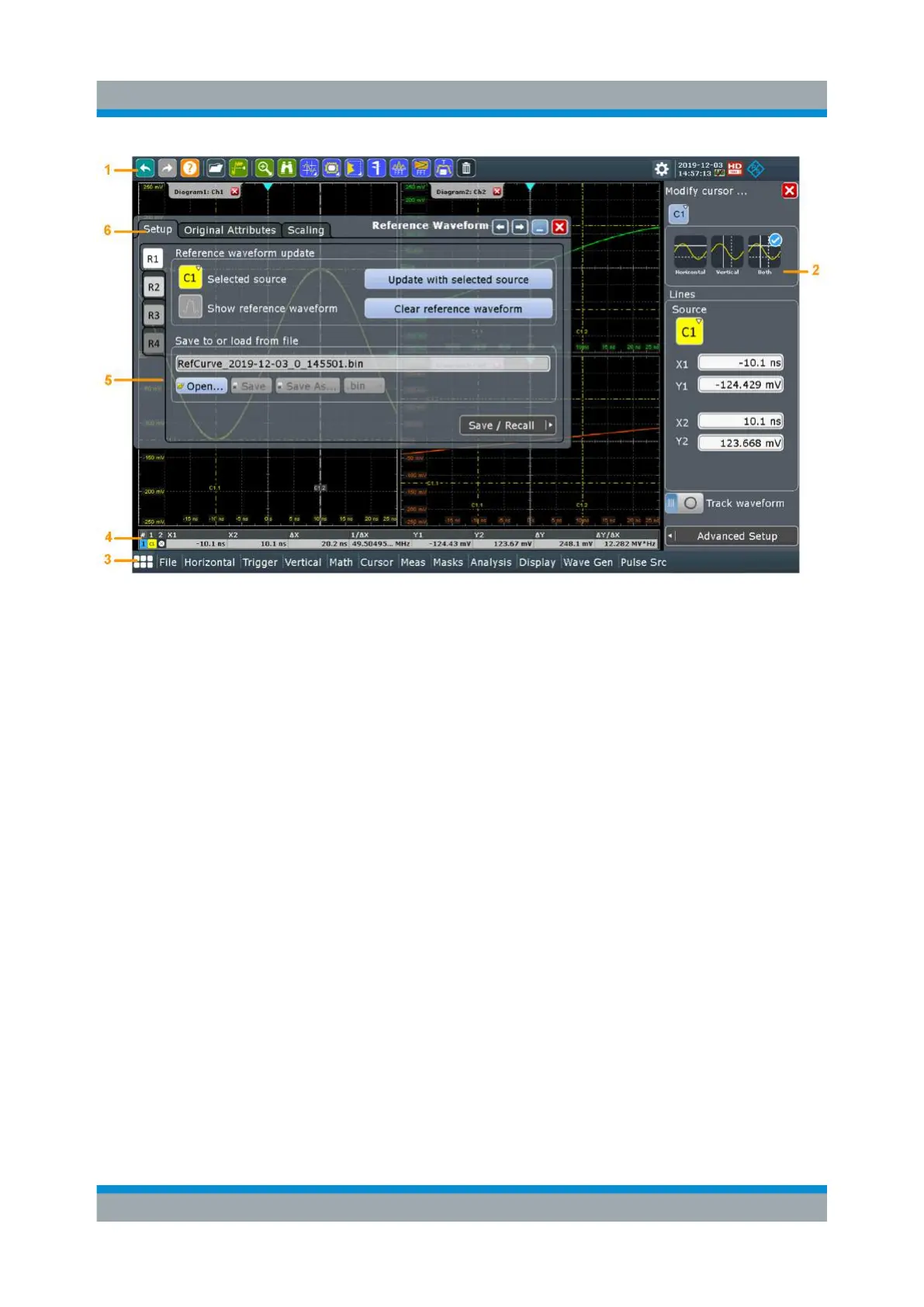
Figure 7-4: Control elements on the touchscreen
1 = Toolbar
2 = Sidebar
3 = Menu bar
4 = Result box (docked)
5 = Dialog box
6 = Tab in a dialog box
Not shown = Input box
Toolbar (1)
The icons on the toolbar provide quick and easy access to the most important
functionality. For a detailed description, refer to Chapter 7.6, "Toolbar",
on page 92.
Sidebar (2)
The sidebar shows all enables waveforms as described in "Sidebar (3)"
on page 83. If you adjust the settings of an analyzing function, e.g., cursor meas-
urment, the most important settings are available on the sidebar. If you need
more settings, "Advanced Setup" opens the corresponding dialog box.
Menu bar (3)
The menus provide access to the complete functionality of R&S RTO.
Touchscreen Display


 To Next Page