Operating the Instrument
R&S
®
RTO2000
91Getting Started 1332.9719.02 ─ 10
● To switch off a minimized waveform, tap the "Close" icon in the upper right
corner of the minimized signal view.
● Disable "Show channel" in the "Vertical" > "Channels" tab.
● Tap the "Delete" icon (Recycle bin) in the toolbar, and then the waveform.
If several waveforms overlap or lie close together, the upper (selected)
waveform is switched off.
7.5 Rohde & Schwarz SmartGrid
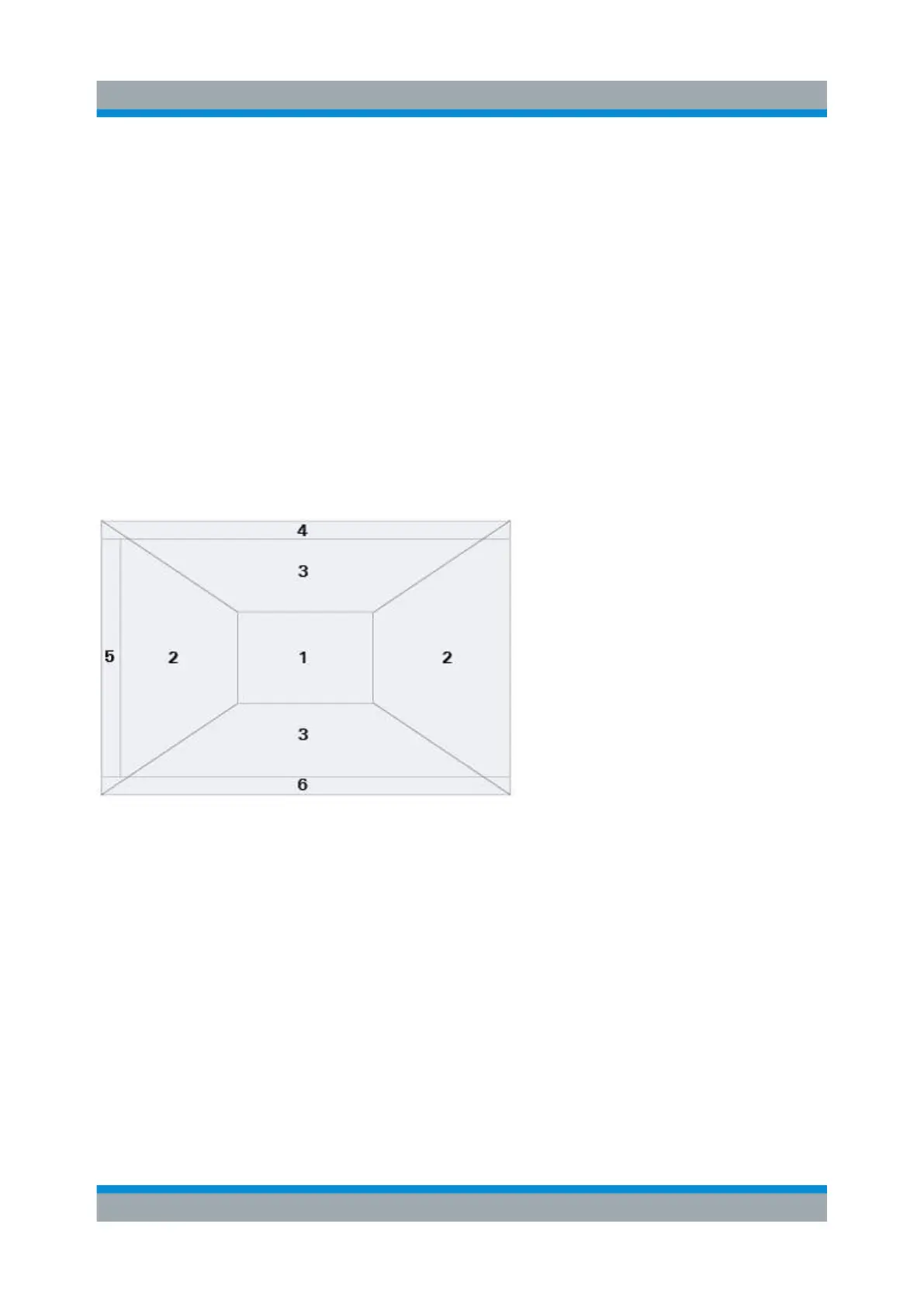
The Rohde & Schwarz SmartGrid helps to create and arrange the diagrams on
the screen with drag&drop. The diagram layout depends on the position where
you drop the signal icon, in relation to an existing diagram.
Figure 7-5: SmartGrid positions
1 = In the existing diagram, overlay of signal
2 = New diagram on the left or right
3 = New diagram above or below
4 = New diagram on top of the existing diagram
5 = XY-diagram
6 = YX-diagram
The diagram configuration is deleted when you use [Preset] and *RST.
To arrange a waveform using the SmartGrid
You can arrange waveforms in one of the existing diagrams, or in a new diagram.
1. Drag the signal icon to the diagram area, and move it around.
Rohde & Schwarz SmartGrid


 To Next Page