Starting Halogen
1. Start the application using your favorite method, such as double clicking on the Halogen desktop icon.
A splash screen displays until the application loading completes.
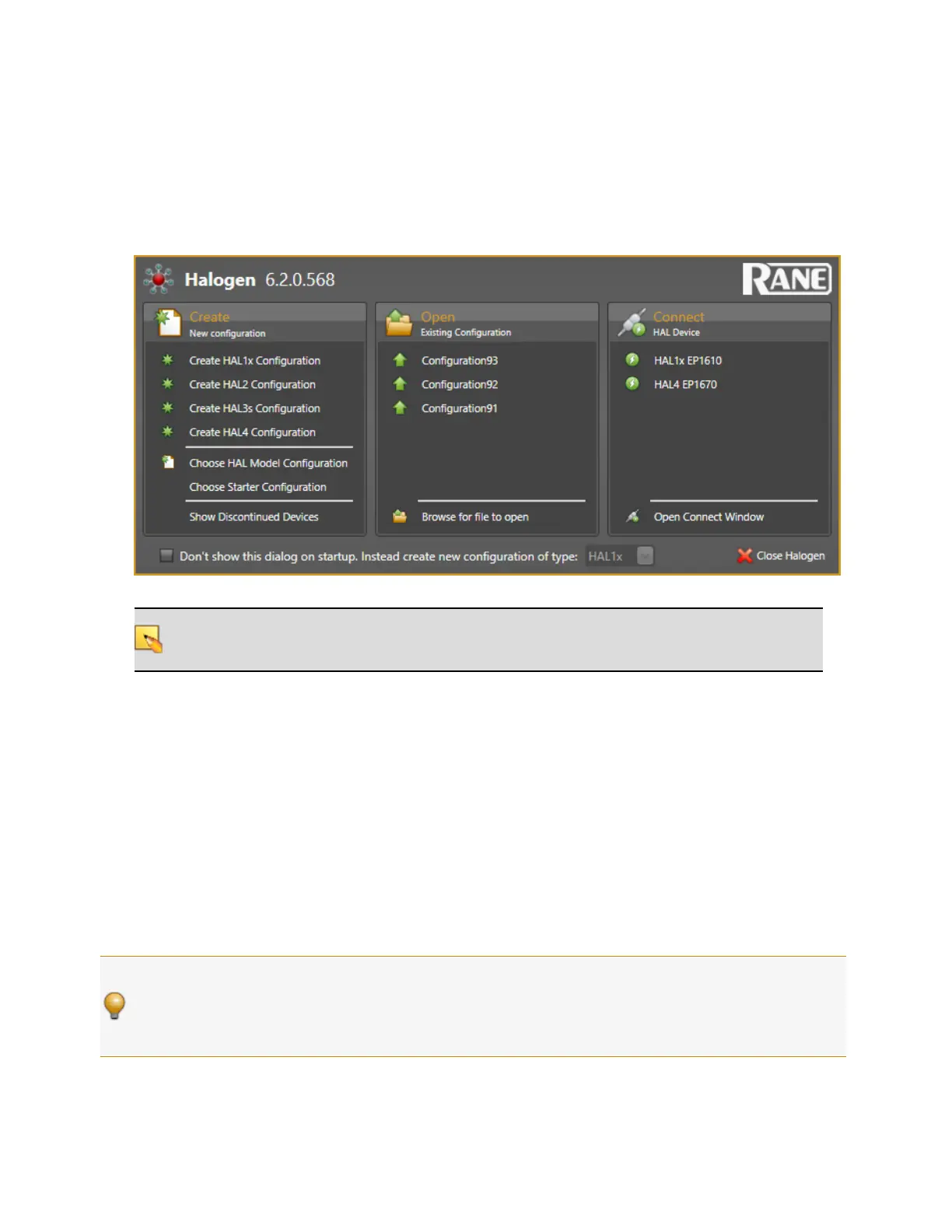
2. By default, Halogen first shows the Startup Panel, allowing you to create a new configuration for a
HALmodel of your choice, open an existing configuration file, or connect to a HALdevice:
.
NOTE: If the application fails to start, verify that all required ports are available and that all required
processes are installed and available. For details see "Required Ports" on page 8 and "Required Proc-
esses " on page 9
Uninstalling the Halogen Software
To uninstall Halogen:
1. Click Start, begin typing "Programs and Features", click Programs and Features from the top of the list. In
the Programs and Features window scroll and select the Halogen application from the list, then click Unin-
stall.
2. When prompted, click Yes to confirm that you want to completely remove Halogen and all of its com-
ponents. A dialog box appears showing the status of the uninstall. When the uninstall completes, a dialog
box appears confirming that the uninstall completed successfully.
3. Click Finish to close the wizard.
TIP: Running multiple versions of Halogen on one computer: Installers can run any and every version of Hal-
ogen software needed, at any job site, new or old, without uninstalling and reinstalling anything. Halogen
allows running any and every version – one at a time – on the same computer.
Here are details: http://blog.rane.com/2013/01/15/tip-running-multiple-versions-of-halogen-on-one-computer/
CHAPTER 4: Introduction to the Halogen Software
91


 To Next Page