CHAPTER 5: Troubleshooting Your HAL System
Installation
This section provides troubleshooting tips for specific situations. In each subsection are tables that list potential
problems paired with possible causes and proposed action.
Troubleshooting the HAL Hardware
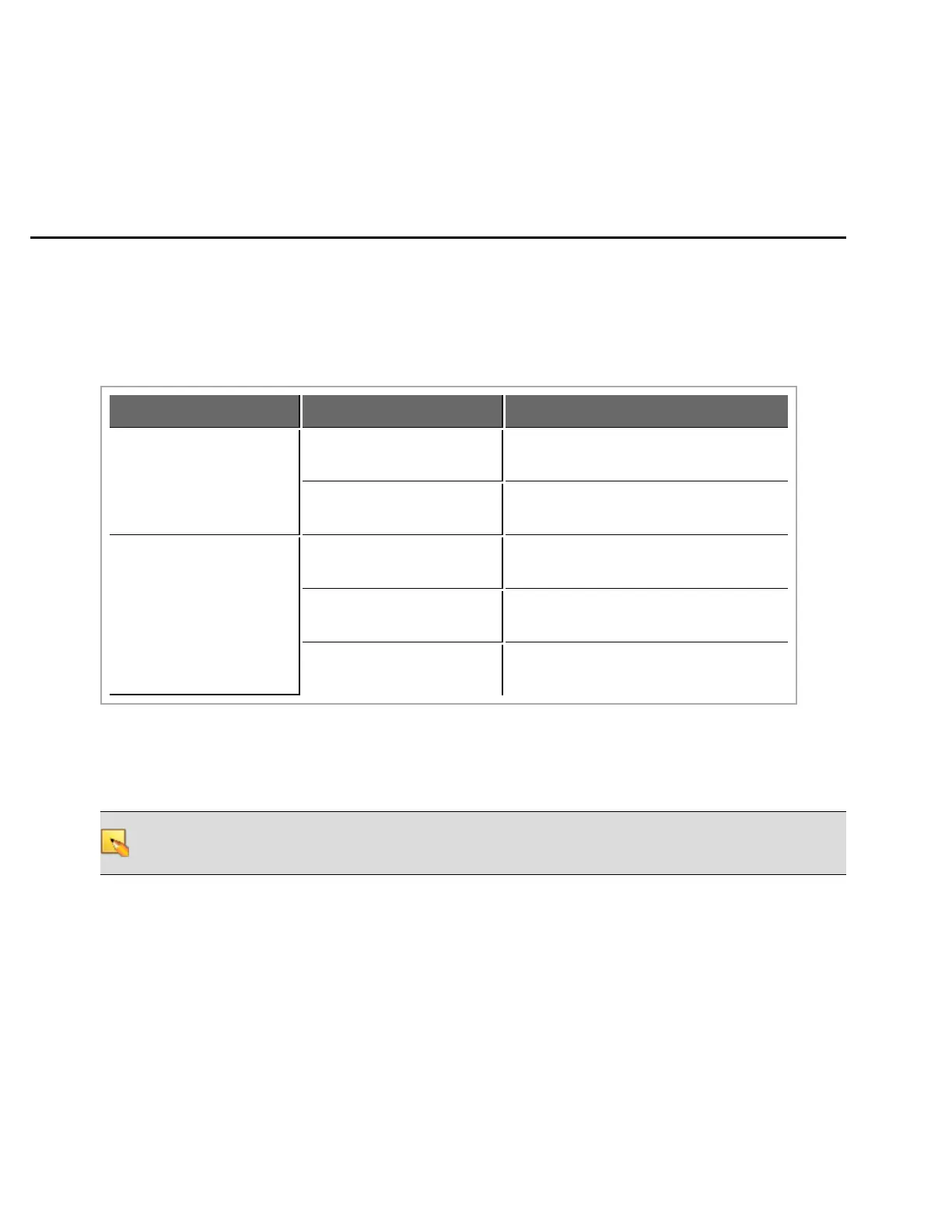
Problem Possible Causes Suggested Action
Power light doesn’t come
on when the device is
plugged in.
Power outlet or power strip
isn’t working.
Try a different outlet or power strip.
HAL power cord is mal-
functioning.
Replace the HAL power cord.
Ethernet Link LED indi-
cators do not come on
after plugging the HAL
into a network switch or
connecting it directly to a
computer.
HAL and/or network switch
isn’t powered on.
Power on both devices.
Ethernet cable or crossover
cable is broken.
Try a different cable.
The port on the network
switch isn’t working.
Try plugging the cable into a different
port on the network switch.
Displayed on the rear panel of the HAL are four status indicators for each connected RAD. If the HAL is com-
municating properly with a RAD, all four status indicators (Audio Rx, Audio Tx, Comm, and Power) should be on.
The following table details possible causes and solutions for situations in which one or more of these indicators
are off.
NOTE: It is best to check these indicators in the following order: Power, Comm, Audio Tx, and Audio Rx. If
the power isn’t working, nothing else will work. If the data communications (Comm) isn’t working, Audio
Tx will not work. If Audio Tx isn’t working, Audio Rx will not work.
101


 To Next Page