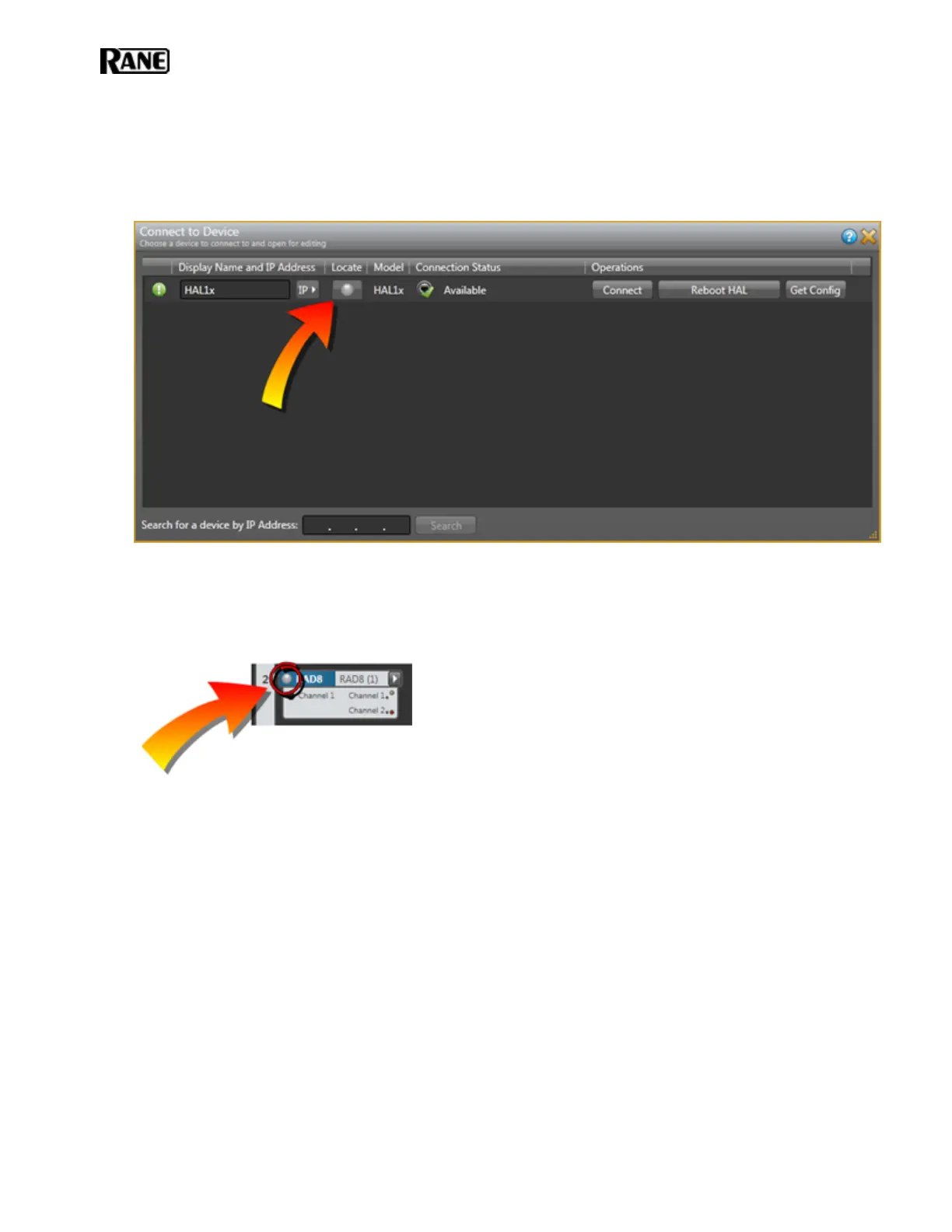
To locate a HAL device:
1. In the application toolbar, click Connect.
2. In the Connect to Device dialog box that appears, click the Locate button associated with the HAL
device you want to locate:
To locate a peripheral device:
1. Connect to the HALdevice.
2. Click the Hardware tab to open the Hardware Workspace.
3. In the Hardware Workspace, click the Locate button associated with the peripheral device:
Swapping Hardware Devices
You've pulled all the shielded CAT 5e cable, terminated all the connections, installed and connected the HAL and
all the EXPs, RADs and DRs, and have taken great pains to identify each cable that connects the EXPs, RADs and
DRs to the HAL device. You fire up Halogen and discover to your horror that there are mismatches in the Hard-
ware Workspace. You've connected some of the EXPs, RADs and/or DRs to the wrong ports. You installed the
hardware in the right physical locations, but you simply connected them to the wrong ports on the back of the
HAL or EXP.
Your options? You could crawl around in the rack room disconnecting and reconnecting cables to ports, making
obsolete your neat and tidy cable dressing OR you could make a few clicks in the software and resolve the prob-
lem while maintaining the integrity of your cable dressing and, more importantly, maintaining the integrity of the
configured audio path, processing, presets, and control linking in the Processing Workspace—see warnings below.
I don't know about you, but that second option sounds awfully appealing. The following procedure explains how
easy it is to do.
HAL SYSTEM INSTALL GUIDE
98


 To Next Page