4.2 The computer should detect a new USB device and prompt a “New Hardware Found”
message.
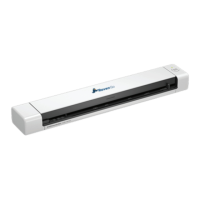
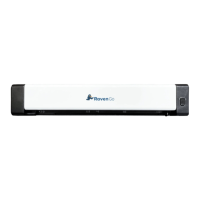
4.3 Open Raven Desktop and click to Connect a new scanner, then choose Raven GO
and the USB connection method to proceed through the steps to finishing installing
drivers and connecting the scanner to your computer. Be sure the scanner is powered
on and connected to the computer by USB cable.
Scanning with Raven Desktop
Ensure that the scanner shows as Connected in the bottom left corner of Raven
Desktop
If the scanner is not connected, click “Connect Scanner” to reconnect or reinstall drivers.
If the scanner is in sleep mode, press the power button to wake before connecting.
13 support@raven.com | 1-800-713-9009 | raven.com/support


 To Next Page