EasyManua.ls Logo

Raymarine CP570 - User Manual

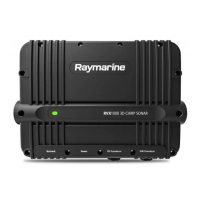
Raymarine CP570
102 pages
Print Icon
To Next Page IconTo Next Page
Loading...
© 2018 Raymarine UK Limited
87349-2Document number:
05-2018Date:
English (en-US)
Installation instructions
CP370 / 470 / 570

Table of Contents

Questions and Answers

  • B
    Bradley AlexanderAug 17, 2025
    What causes no depth reading on my Raymarine Sonar?
    • A
      amber72Aug 17, 2025
      If your Raymarine Sonar is not showing a depth reading or has lost bottom lock, check the following: * Transducer location: Verify that the transducer has been installed according to the provided instructions. * Transducer angle: Adjust the transducer angle if it's too great, as the beam might be missing the bottom. * Transducer kicked-up: If the transducer has a kick-up mechanism, ensure it hasn't been activated by hitting an object.
  • N
    Nicole PetersAug 21, 2025
    What to do if my Raymarine CP570 Sonar transducer is damaged or fouled?
    • G
      greg81Aug 22, 2025
      Check the condition of the transducer ensuring it is not damaged and is free from debris / fouling.
  • G
    Gary NelsonAug 27, 2025
    What to do if vessel speed too high for Raymarine CP570 Sonar?
    • M
      Mrs. Crystal Morse DVMAug 27, 2025
      Slow vessel speed and recheck.
  • C
    Curtis MillerSep 1, 2025
    What to do if bottom too shallow or too deep for Raymarine CP570 Sonar?
    • A
      Angel QuinnSep 1, 2025
      The bottom depth may be outside of the transducers depth range, move vessel to shallower or deeper waters as relevant and recheck.
  • D
    David ThomasNov 6, 2025
    Why is the scrolling image not being displayed on my Raymarine CP570?
    • J
      jessica01Nov 6, 2025
      The scrolling image may not be displayed on your Raymarine Sonar for several reasons: * Sonar may be disabled: Enable Ping from the Sonar app’s sounder tab: Menu > Settings > Sounder > Ping. * Incorrect transducer selected: Check that the correct transducer is selected in the Sonar app’s Transducer tab: Menu > Settings > Transducer > Ping. * Damaged cables: Check the transducer cable connector, power supply cable, and vessel's battery voltage for damage or corrosion. Replace if necessary. * Damaged or fouled transducer: Ensure the transducer is not damaged and is free from debris/fouling. Clean or replace as needed. * Wrong transducer fitted: Ensure that the transducer is compatible with your system. * External sonar module: SeaTalkhs / RayNet network problem: Check that the u...
  • D
    davidsmithNov 11, 2025
    What to do if my Raymarine CP570 Sonar has a poor or problematic image?
    • M
      mary21Nov 11, 2025
      If your Raymarine Sonar displays a poor image, consider these potential causes and solutions: * If your vessel is stationary, targets will appear differently (e.g.: fish will appear on the display as straight lines). Increase vessel speed. * If scrolling is paused or speed is set too low, unpause or increase sonar scrolling speed. * Sensitivity settings may be inappropriate for present conditions, so check and adjust sensitivity settings or perform a Sonar reset. * Damaged cables can cause image issues. Check the unit’s connector for broken or bent pins. Check that the cable connector is fully inserted into the unit and that the locking collar is in the locked position. Check the cable and connectors for signs of damage or corrosion, replace if necessary. Check the vessel’s batter...

Summary

Chapter 1: Important Information

Certified Installation

Recommends installation by certified personnel for enhanced warranty benefits and proper operation.

EMC Installation Guidelines

Guidance for minimizing electromagnetic interference for optimal system performance and correct installation.

Compass Safe Distance

Advice on maintaining adequate distance from magnetic compasses to prevent interference.

Chapter 2: Document and Product Information

CP370 Product Overview

Describes the CP370 as a ClearPulse traditional sonar module and its features.

CP470 Product Overview

Describes the CP470 as a ClearPulse CHIRP broadband sonar module and its features.

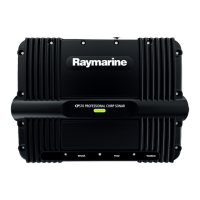
CP570 Product Overview

Describes the CP570 as a ClearPulse CHIRP dual-channel broadband sonar module and its features.

CHIRP Technology

Explains CHIRP sonar using swept frequencies for better target resolution and sensitivity.

Chapter 3: Planning the Installation

Installation Checklist

Outlines the key activities involved in the installation process.

Required Additional Components

Lists essential components like transducers and MFDs for full operation.

Multifunction Display Compatibility

Lists compatible Raymarine MFDs for the sonar modules.

General Location Requirements

Discusses important considerations for choosing a suitable mounting location.

Chapter 4: Cables and Connections

Power Connection Requirements

Details voltage, supply type, and connection method for power.

CP370 Transducer Connections

Shows how to connect traditional transducers to the CP370.

Chapter 5: Mounting

Mounting the Unit

Provides steps for mounting the unit using a template, drilling, and securing.

Chapter 6: System Checks and Troubleshooting

Sonar Troubleshooting

Lists common causes and solutions for sonar display issues, including cable, power, and location problems.

LED Diagnostics

Explains LED colors and patterns for status and troubleshooting, covering normal operation, warnings, and errors.

Chapter 8: Technical Support

Raymarine Product Support and Servicing

Information on accessing Raymarine's support services, warranty, repairs, and web resources globally.

Chapter 9: Technical Specification

CP370 Technical Specification

Details physical, power, environmental, sonar, and conformance specs for CP370.

CP470 Technical Specification

Details physical, power, environmental, CHIRP sonar, and conformance specs for CP470.

CP570 Technical Specification

Details physical, power, environmental, CHIRP sonar, and conformance specs for CP570.

Raymarine CP570 Specifications

General IconGeneral
Sonar TypeCHIRP
Channels2
Supply Voltage12/24 V DC
Waterproof RatingIPX6
Input Voltage12/24 V DC
Depth CapabilityUp to 3000 m
ConnectivityEthernet
Operating Temperature-25 to 55°C

Related product manuals