EasyManua.ls Logo

Raymarine CP370 - User Manual

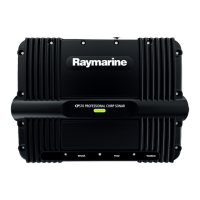
Raymarine CP370
102 pages
Print Icon
To Next Page IconTo Next Page
Loading...
© 2018 Raymarine UK Limited
87349-2Document number:
05-2018Date:
English (en-US)
Installation instructions
CP370 / 470 / 570

Table of Contents

Questions and Answers

  • J
    Jeremy ShannonAug 22, 2025
    What causes no depth reading on my Raymarine CP370?
    • D
      Daniel Lee MDAug 23, 2025
      If your Raymarine Sonar is not showing a depth reading or has lost bottom lock, check the following: * Transducer location: Verify that the transducer has been installed according to the provided instructions. * Transducer angle: Adjust the transducer angle if it's too great, as the beam might be missing the bottom. * Transducer kicked-up: If the transducer has a kick-up mechanism, ensure it hasn't been activated by hitting an object.
  • J
    John BoyerAug 25, 2025
    What to do if my Raymarine CP370 transducer is damaged or fouled?
    • R
      Rachel ConleyAug 26, 2025
      Check the condition of the transducer ensuring it is not damaged and is free from debris / fouling.
  • C
    Charles RamirezAug 28, 2025
    What to do if vessel speed too high for Raymarine CP370?
    • P
      Phillip MooreAug 28, 2025
      Slow vessel speed and recheck.
  • V
    vlutzAug 31, 2025
    What to do if bottom too shallow or too deep for Raymarine CP370?
    • S
      Shelly ReynoldsAug 31, 2025
      The bottom depth may be outside of the transducers depth range, move vessel to shallower or deeper waters as relevant and recheck.
  • D
    Deanna WestSep 2, 2025
    Why is my Raymarine CP370 Sonar not showing data on the multifunction display?
    • S
      Shaun MartinSep 3, 2025
      The Raymarine Sonar data may not be available on the multifunction display due to several reasons: a unit power supply fault (check the unit power supply and cables); a SeaTalkhs / RayNet network problem (ensure the unit is correctly connected to a Raymarine network SeaTalkhs switch or crossover coupler, check the status of the Raymarine network switch, and inspect SeaTalkhs/ RayNet cables for damage); or a software mismatch between equipment.
  • B
    Brad ThomasSep 5, 2025
    What to do if my Raymarine Sonar depth readings or image are problematic?
    • A
      Andre NguyenSep 5, 2025
      If you're experiencing issues with depth readings or the sonar image on your Raymarine Sonar, consider the following: Ensure that the gain or frequency settings are appropriate for the current conditions. Check the voltage from the power supply, as a low voltage can affect the unit's transmitting power. Inspect the power, transducer, and all other cables to the unit, ensuring they are properly connected and free from damage. Verify that the transducer is correctly mounted and clean, and if you have a transom-mount transducer, check that it hasn't kicked up. Adjust scroll speed. Fish arches are not displayed if the vessel is stationary, fish will appear on the display as straight lines. High vessel speed: turbulence around the transducer may be confusing the unit.
  • B
    Bethany BurnsSep 7, 2025
    What to do if the LED on my Raymarine Sonar indicates a transducer is disconnected?
    • P
      parksstephenSep 8, 2025
      Ensure the transducer cable and connections are secure and free from damage. Power cycle the unit to recover transducer information. Also, ensure the network is powered and that the network cable and connections are secure and free from damage. Ensure power cable and connections are secure and free from damage and that the power supply cabling is consistent with recommendations. If combined with a voltage warning, check the power supply and cables.
  • J
    Jesse GarciaSep 12, 2025
    Why is my Raymarine CP370 Sonar giving an incorrect speed reading?
    • A
      ayalatimothySep 12, 2025
      An incorrect speed reading from your Raymarine Sonar could be due to a dirty paddle wheel (check that the paddle wheel is clean), no speed offset set (add speed offset), or incorrect calibration (re-calibrate equipment).
  • J
    jennifercoxSep 13, 2025
    What to do if the LED indicates unit overheating in Raymarine CP370?
    • Q
      qgonzalezSep 13, 2025
      Ensure the installation environment is within recommendations and the unit will recover when the temperature falls within specifications.
  • W
    watsonkarenNov 16, 2025
    Why is the scrolling image not being displayed on my Raymarine CP370?
    • N
      Nancy ChenNov 16, 2025
      The scrolling image may not be displayed on your Raymarine Sonar for several reasons: * Sonar may be disabled: Enable Ping from the Sonar app’s sounder tab: Menu > Settings > Sounder > Ping. * Incorrect transducer selected: Check that the correct transducer is selected in the Sonar app’s Transducer tab: Menu > Settings > Transducer > Ping. * Damaged cables: Check the transducer cable connector, power supply cable, and vessel's battery voltage for damage or corrosion. Replace if necessary. * Damaged or fouled transducer: Ensure the transducer is not damaged and is free from debris/fouling. Clean or replace as needed. * Wrong transducer fitted: Ensure that the transducer is compatible with your system. * External sonar module: SeaTalkhs / RayNet network problem: Check that the u...

Summary

Important Information and Safety Guidelines

Certified Installation

Guidance on professional installation for enhanced warranty benefits and correct setup.

EMC Installation Guidelines

Recommendations for minimizing electromagnetic interference for optimal system performance.

Operation Instructions

Directs users to display documentation for detailed operating procedures.

Multifunction Display Software Version

Emphasizes using the latest software for optimal performance and compatibility.

Document and Product Details

Document Information Overview

Overview of the manual's purpose and available product documentation.

Parts Supplied

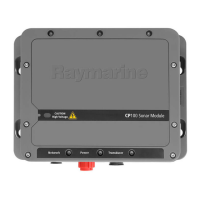
Lists the components included in the box for the CP370, CP470, and CP570 models.

Product Overview

Describes the features and capabilities of the CP370, CP470, and CP570 sonar modules.

Sonar Technology Explained

Explains the principles behind traditional and CHIRP sonar technologies.

Planning Your Installation

Installation Checklist

Outlines the key tasks required for a successful product installation.

Required Additional Components

Lists essential components like transducers and multifunction displays needed for full operation.

Multifunction Display Compatibility

Details compatible Raymarine multifunction displays and required software versions.

Compatible Transducers

Guides users to find compatible transducers via the Raymarine website.

Tools Required for Installation

Lists the necessary tools for performing the product installation.

General Location Requirements

Provides guidance on selecting an optimal and safe mounting location for the unit.

Cables and Connections Guide

General Cabling Guidance

Covers best practices for cable routing, strain relief, and circuit isolation.

Power Connection Procedures

Details how to correctly connect the sonar module to the vessel's power supply.

Transducer Connection Instructions

Explains how to connect traditional and broadband transducers to the sonar modules.

Network Connection Setup

Describes how to connect the sonar module to a multifunction display via the network.

Mounting the Sonar Unit

Mounting Instructions

Provides step-by-step instructions for securely mounting the sonar unit.

System Checks and Troubleshooting

Initial Power On Test

Guides on performing an initial power-up test to verify correct operation.

Troubleshooting Common Issues

Lists common problems and their solutions for sonar and depth readings.

Maintenance and Cleaning

Routine Maintenance Checks

Outlines essential periodic checks for cables and connectors.

Unit and Transducer Cleaning

Provides instructions for cleaning the sonar module and transducers.

Technical Support Information

Raymarine Product Support and Servicing

Information on how to contact Raymarine for product support, warranty, and service.

Technical Specifications

CP370 Technical Specification

Detailed technical specifications for the CP370 sonar module.

CP470 Technical Specification

Detailed technical specifications for the CP470 sonar module.

CP570 Technical Specification

Detailed technical specifications for the CP570 sonar module.

Spares and Accessories

Available Spares and Accessories

Lists available spare parts and accessories for the sonar modules.

Network Hardware Options

Details available network switches and couplers for system expansion.

RayNet to RayNet Cables and Connectors

Describes various RayNet cables and connectors for system integration.

RayNet to RJ45 Adapter Cables

Lists adapter cables for connecting RayNet to RJ45 SeaTalk hs devices.

RJ45 SeaTalk hs Network and Patch Cables

Details RJ45 SeaTalk hs network and patch cables for connectivity.

Raymarine CP370 Specifications

General IconGeneral
Humidityup to 95% non-condensing
TypeSonar
Sonar TypeDigital
Frequency50 kHz, 200 kHz
Power Output600W
ConnectionsEthernet, NMEA 2000
Supply Voltage10-32 V DC
Operating Temperature-25°C to +55°C
Storage Temperature-30°C to +70°C
Power Supply12 V DC or 24 V DC
Weight1.5 kg
Transducer CompatibilityCompatible with various Raymarine transducers

Related product manuals