EasyManua.ls Logo

Raymarine Element 9 HV - User Manual

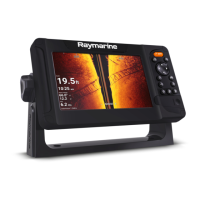
Raymarine Element 9 HV
82 pages
Print Icon
To Next Page IconTo Next Page
Loading...
© 2019 Raymarine UK Limited
87360-1Document number:
01-2019Date:
English (en-US)
Installation instructions
ELEMENT

Table of Contents

Questions and Answers

  • R
    Richard RossAug 14, 2025
    What to do if my Raymarine Sonar says 'No transducer connected'?
    • J
      Joseph BerryAug 14, 2025
      If your Raymarine Sonar displays a 'No transducer connected' message, here's what to check: 1. Ensure a transducer is connected and reboot the display. 2. Verify the correct transducer type was selected during the initial start-up wizard by selecting a sonar channel via the Menu button. 3. Inspect connectors and cabling for damage. Look for bent or broken transducer connector pins on the back of the display. Ensure the transducer cable connector is correctly oriented, fully inserted into the display connector, and locked. Check for signs of damage or corrosion on the transducer cabling and connectors, replacing if necessary.
  • D
    Daniel DunlapAug 17, 2025
    Why won't my Raymarine Element 9 HV Sonar turn on or keeps turning off?
    • D
      David CurryAug 17, 2025
      There are several reasons why your Raymarine Sonar might not be turning on or keeps turning off: * A fuse may be blown or a breaker tripped. Check the condition of the relevant fuses and breakers and their connections; replace them if needed. * The power supply cable or connections may be poor, damaged, or insecure. Ensure the power cable connector is correctly oriented, fully inserted into the display connector, and locked in position. * The power may be incorrectly connected. Make sure the installation instructions have been followed.
  • A
    Allison ByrdAug 21, 2025
    How to fix Raymarine Sonar that cannot connect to the network?
    • J
      Joseph FrazierAug 21, 2025
      If your Raymarine Sonar cannot connect to the network, consider the following: * Ensure you are trying to connect to the correct Wi-Fi network; the Wi-Fi network’s name can be found in the router’s settings. * Verify you are using the correct password; the Wi-Fi network’s password can be found in the router’s settings. * Bulkheads, decks, and other heavy structures can degrade or block the Wi-Fi signal. Try repositioning the display and, if possible, the router, so the structure is removed from the direct line of sight between the devices. * Interference may be caused by other Wi-Fi enabled or older Bluetooth enabled devices. If possible, change the Wi-Fi Channel that your router is using and retry the connection.
  • R
    rodney70Aug 25, 2025
    Why is the scrolling image on my Raymarine Sonar not displaying or intermittent?
    • C
      cpetersAug 25, 2025
      If the scrolling image on your Raymarine Sonar is not displaying or is intermittent, check the following: * Inspect connectors and cabling for damage. Look for bent or broken transducer connector pins on the back of the display. Ensure the transducer cable connector is correctly oriented and fully inserted into the display connector and locked. Check the condition of the transducer cabling and connectors for signs of damage or corrosion, and replace if necessary. * Check the condition of the transducer, ensuring it is not damaged and is free from debris/fouling; clean or replace as necessary. * Ensure the connected transducer is compatible with your system.
  • L
    Lynn ThompsonAug 28, 2025
    How to troubleshoot no depth reading or lost bottom lock on Raymarine Element 9 HV?
    • M
      mark03Aug 28, 2025
      If you're experiencing no depth reading or a lost bottom lock on your Raymarine Sonar, consider these possible causes: * Check that the transducer has been installed according to the instructions provided with it. * If the transducer angle is too great, the beam can miss the bottom. Adjust the transducer angle and recheck. * If the transducer has a kick-up mechanism, verify that it hasn't kicked up due to hitting an object. * Inspect the transducer for damage or fouling, cleaning or replacing it as necessary.
  • M
    mauriceallenAug 31, 2025
    Why is my Raymarine Element 9 HV Sonar connection so slow or keeps dropping out?
    • K
      Karl SinghAug 31, 2025
      A slow or frequently dropped connection on your Raymarine Sonar could be due to: * Wi-Fi performance degrading over distance. Move the display closer to the router. * Interference from other Wi-Fi or older Bluetooth devices. Try changing the Wi-Fi channel on your router and retry the connection. * Interference from devices on other vessels. Change the Wi-Fi channel on your router and retry the connection.
  • M
    Michael DrakeSep 3, 2025
    What to do if Raymarine Element 9 HV Sonar will not start up (restart loop)?
    • M
      Mitchell SmithSep 3, 2025
      If your Raymarine Sonar is stuck in a restart loop, it may be due to software corruption. Try downloading and installing the latest software from the Raymarine website. On display products, as a last resort, attempt to perform a ‘Power on Reset’. Be aware that this will delete all settings / presets and user data (such as waypoints and tracks), and revert the unit back to factory defaults.
  • C
    cory61Sep 6, 2025
    Why can't my Raymarine Sonar find the router network?
    • B
      Benjamin WilliamsSep 6, 2025
      If your Raymarine Sonar cannot find the router network, consider the following: * Ensure the router is broadcasting and within range of your display. If necessary, move the router and display closer together, then turn the display’s Wi-Fi off and back on again. * Make sure Wi-Fi is enabled on the display. * There may be a router problem. If possible, power cycle the router and then turn the display’s Wi-Fi off and back on again. * The device may not be broadcasting. If possible, enable broadcasting in the router’s settings. * The router’s Wi-Fi network may be incompatible. The Display’s Wi-Fi can only connect to 2.4 GHz networks.
  • P
    Paula PattersonSep 10, 2025
    Why does my Raymarine Sonar display a “No Fix” status or keeps losing position?
    • S
      Sara TurnerSep 10, 2025
      The “No Fix” status icon on your Raymarine Sonar, or a display that keeps losing position, may be due to: * Your geographic location or prevailing conditions preventing a satellite fix. Check periodically to see if a fix is obtained in better conditions or another geographic location. * The display being in a poor location. Ensure the display has an unobstructed view of the sky.

Summary

Chapter 1 Important Information

Safety Warnings and Disclaimers

Covers essential safety warnings, disclaimers, and operational advice for product use.

Chapter 2 Document and Product Information

Product Overview and Features

Description of Element HV displays, features, and compatible sonar channels.

Chapter 3 Installation

Location Selection and Requirements

Guidance on choosing a suitable location, considering ventilation, mounting, and interference.

Chapter 4 Connections

Power Connection and Distribution

Instructions for connecting the power supply, fuse ratings, and distribution.

Transducer Connections

Details for connecting Element HV, HV-100, HV-300THP, and legacy transducers.

Chapter 6 Troubleshooting

Power and Startup Issues

Solutions for problems with the unit not turning on or restarting, including resets.

GPS;GNSS and Sonar Issues

Diagnosing and resolving problems with GPS/GNSS reception and sonar performance.

Chapter 8 Technical Specifications

Element Display Specifications

Detailed technical specifications for Element 7, 9, and 12 models (power, LCD, connections).

HyperVision Sonar Specifications

Technical details for HyperVision sonar frequencies, channels, and ranges.

Raymarine Element 9 HV Specifications

General IconGeneral
Display Size9 inches
Display TypeLCD
Resolution800 x 480 pixels
NetworkingNMEA 2000
Voltage12 V DC
Wi-FiNo
BluetoothNo
Frequency1.2 MHz, 350 kHz, 200 kHz, 50 kHz
Depth RangeUp to 900 feet
TransducerIncluded
GPSBuilt-in
Waterproof RatingIPX6
Power Supply12V DC
CartographyRaymarine LightHouse NC2, Navionics, C-MAP
Operating Temperature-20°C to +55°C
Sonar TypeHyperVision CHIRP, DownVision, SideVision, RealVision 3D, CHIRP Sonar

Related product manuals