EasyManua.ls Logo

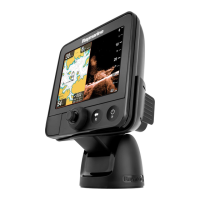
Raymarine Dragonfly 6 - User Manual

Raymarine Dragonfly 6
116 pages
Print Icon
To Next Page IconTo Next Page
Loading...
Dragonfly 6
Dragonfly 7
Installation and operation
instructions
English (EN)
Date: 02-2016
Document number: 81345-5
© 2016 Raymarine UK Limited
Release 12

Table of Contents

Other manuals for Raymarine Dragonfly 6

Questions and Answers

  • A
    afowlerJul 26, 2025
    How to restore scrolling image on Raymarine Sonar?
    • M
      Mrs. Jennifer EstradaJul 26, 2025
      If the scrolling image is not being displayed on your Raymarine Sonar, ensure that Sonar is enabled from the Shortcuts page. Check the unit’s connector for broken or bent pins. Verify that the cable connector is fully inserted and locked. Inspect the power supply cable and connectors for damage or corrosion, replacing if necessary. Also, check the transducer for damage or fouling. Finally, confirm that you have the correct transducer fitted; the CPT-DV transducer is for DownVision™ only and not compatible with the Sonar application.
  • H
    Heather BellJul 31, 2025
    How to fix a Raymarine Dragonfly 6 that does not turn on?
    • V
      victoria00Jul 31, 2025
      If your Raymarine Sonar product does not turn on or keeps turning off, check the condition of the relevant fuses and breakers and connections, replacing them if necessary. If the fuse keeps blowing, inspect for cable damage, broken connector pins, or incorrect wiring. Also, verify that the power cable connector is fully inserted and locked, and check for any damage or corrosion on the power supply cable and connectors, replacing if needed. Ensure the power supply is wired correctly and that the power source provides sufficient voltage by checking with a multi-meter under load.
  • A
    Amanda MartinAug 4, 2025
    Why does my Raymarine Dragonfly 6 display keep resetting?
    • J
      Jessica JohnsonAug 4, 2025
      If your Raymarine Sonar display behaves erratically with frequent unexpected resets or system crashes, start by checking the relevant fuses and breakers. Ensure the power supply cable is in good condition, with tight, corrosion-free connections, and verify the power source provides the correct voltage and sufficient current. You may also visit the Raymarine website regularly for software updates. As a last resort, perform a Settings and Data Reset, but remember this will erase all your stored settings and data.
  • T
    Tammy PopeAug 9, 2025
    What to do if Raymarine Dragonfly 6 will not boot up?
    • C
      Charles CervantesAug 10, 2025
      If your Raymarine Sonar product will not boot up and is stuck in a re-boot loop, refer to the solutions for a product that does not turn on or keeps turning off. Additionally, in case of software corruption, try re-flashing the latest software from the Raymarine website. As a last resort on display products, perform a ‘Power on Reset’; however, this will delete all settings, presets, user data and revert the unit back to factory defaults.
  • C
    Connie LucasAug 14, 2025
    Why is my Raymarine Dragonfly 6 not reading depth?
    • X
      xmayAug 14, 2025
      If your Raymarine Sonar shows no depth reading or loses bottom lock, verify the transducer installation meets the location requirements. Check the transducer angle, adjusting if it's too great. Inspect the transducer to ensure it hasn't kicked up due to hitting an object and check for damage or fouling. Also, check the power supply voltage under load with a multi-meter and inspect cables for damage or loose connections.
  • A
    Angel BergerAug 20, 2025
    Why Raymarine Sonar GPS cannot acquire satellite fix?
    • R
      Ruben YoungAug 20, 2025
      If your Raymarine Sonar GPS cannot acquire a satellite fix, periodically check to see if a fix is obtained in better conditions or another geographic location. A GPS Status page is available that provides satellite signal strength and other relevant information. Ensure the unit is mounted above decks, away from structural bulkheads or other electrical equipment that may cause interference.

Summary

Document and Software Changes

New Features Summary

Details changes and new features introduced in software release.

Trademark and Patent Notices

Lists registered trademarks and patents associated with the product.

Software Updates and Documentation

Information on obtaining software updates and product handbooks.

Important Product Information

Installation and Operation Warnings

Key warnings for product installation, operation, and safety.

Safety and Navigation Precautions

Guidance on safe navigation and product usage.

Electrical and Power Supply Cautions

Warnings regarding voltage, grounding, and power supply.

Handling of Chart and Memory Cards

Precautions for handling memory and chart cards to prevent damage.

Product Cleaning and Maintenance

Guidelines for cleaning the display and product.

Memory and Chart Card Usage

Information on using MicroSD and chart cards, including compatibility.

EMC Installation Guidelines

Recommendations for ensuring Electromagnetic Compatibility during installation.

Pixel Defect and Warranty Policies

Information on pixel defect policy, warranty, and registration.

Technical Accuracy Statement

Document and Product Information

Document Information Details

Information about the document, applicable products, and software.

Product Overview and Features

Overview of the Dragonfly product, including DownVision and CHIRP Sonar.

Planning the Installation

Installation Checklist and Parts

Checklist for installation tasks and list of supplied parts.

Transducer Compatibility and Tools

Details on transducer compatibility and required installation tools.

Software Updates and Installation Warnings

Procedure for software updates and important installation warnings.

Transducer and Cable Installation Guidance

Guidelines for selecting transducer location and routing cables.

Display Location and Installation Process

Factors for display placement and overview of installation steps.

Mounting Procedures

Transducer Mounting Steps

Detailed steps for mounting the transducer on the transom.

Display Cradle Mounting

Instructions for securely mounting the display cradle.

Fitting Display and Cradle Orientation

How to fit the display into the cradle and cradle down orientation.

Display Security and Removal

Methods for securing the display and removing it from the bracket.

Surface Mounting the Display

Step-by-step guide for surface mounting the display unit.

Transducer Testing and Final Mounting

Procedures for testing and finishing transducer mounting.

Cables and Connections

General Cabling Guidance

Advice on cable types, lengths, routing, and strain relief.

Connector and Cable Overview

Details of connectors, compatibility, and adaptor cables.

Display Cable Connection

Steps for connecting the power and transducer cable to the display.

Power Distribution and Fuse Ratings

Recommendations for power distribution and fuse/breaker ratings.

Grounding and Power Cable Extension

Guidance on grounding the unit and extending power cables.

Extension Cable Connection

Instructions for connecting an optional extension cable.

Getting Started with Your Device

Device Controls and UniControl

Overview and operation of the unit's controls and UniControl.

Powering Unit On and Off

Procedure for switching the unit on, off, and handling low voltage warnings.

Initial Setup Wizard and Procedures

Steps for initial setup, including language, units, and date/time.

Satellite-Based Navigation and GPS Status

Using GPS/GNSS for navigation and checking satellite status.

Checking Sonar and DownVision Functionality

How to verify the operation of the Sonar and DownVision applications.

Shortcuts Page and PowerSave Mode

Accessing shortcuts, PowerSave mode, and taking screenshots.

Applications Overview and View Switcher

Description of available applications and how to use the view switcher.

Memory and Chart Card Management

Information on using memory cards and chart cards.

Learning Resources

Available resources like video tutorials, training, and FAQs.

Fishfinder Applications

DownVision and Sonar Application Overviews

Detailed explanations of the DownVision and Sonar applications.

Interpreting Sonar Images

Guidance on interpreting bottom structure and sonar image factors.

Fishfinder Features and Controls

Key features and control methods for fishfinder applications.

Zoom and Range Adjustments

How to use the zoom function and adjust the depth range.

Scrolling Speed and A-Scope Mode

Adjusting scroll speed and using A-Scope mode.

Display Options and Customization

Customizing display options like target ID, depth lines, and white line.

Sensitivity and Contrast Adjustments

Adjusting Gain, Contrast, and Noise Filter settings.

Color Palettes Selection

Information on available color palettes for Sonar and DownVision.

Chart Application

Chart Application Overview

Introduction to the 2D chart application and its features.

Electronic Charts and Compatibility

Overview of electronic charts, including LightHouse, Navionics, and C-MAP.

Chart Application Controls

How to use controls in Motion and Cursor modes for chart navigation.

Waypoints Management

Overview of creating, managing, and displaying waypoints.

Tracks Recording and Management

How to create, edit, and erase tracks.

Importing and Exporting Waypoints;Tracks

Procedures for saving and retrieving waypoints and tracks.

Navigation and Waypoint Arrival

How to navigate to locations and manage waypoint arrival alarms.

Chart Settings and Cartography Options

Configuring chart settings based on cartography type.

Chart Detail and Bathymetry Display

Adjusting chart detail level and enabling high-resolution bathymetry.

Chart Orientation and Boat Position

Setting chart orientation and adjusting the boat symbol position.

Text Size, Community Layer, and Sonar Logging

Adjusting text size, community layer, and sonar logging.

COG Vector and Deep Water Display

Displaying COG vector and configuring deep water color settings.

Chart Objects Information

Accessing information for cartographic objects, ports, and marinas.

Tools and Settings

System Settings Menu

Overview of available system settings like language and units.

Units and GPS Setup

Configuring measurement units and GPS settings.

Sonar and Time;Date Setup

Settings for sonar, time, and date.

Simulator Mode and Maintenance Menu

Using simulator mode and accessing the maintenance menu.

Alarms Menu and Configuration

Accessing and configuring various alarm settings.

Backup and Reset Functions

Procedures for backing up, restoring, and resetting data and settings.

Maintenance Procedures

Service and Routine Checks

Information on product service, maintenance, and routine equipment checks.

Product Cleaning Guidelines

Best practices for cleaning the display case and screen.

Transducer Cleaning

Instructions for cleaning the transducer to maintain performance.

Troubleshooting Guide

General Troubleshooting

Introduction to troubleshooting common marine electronics problems.

Power Up Troubleshooting

Solutions for issues related to the product not turning on or rebooting.

GPS Troubleshooting

Common GPS issues and their solutions, including satellite fix problems.

Sonar and DownVision Troubleshooting

Resolving issues with scrolling images and depth readings.

Miscellaneous Troubleshooting

Addressing erratic behavior, system crashes, and data corruption.

Technical Support and Resources

Product Support and Servicing Information

Contact details and services for product support and repairs.

Learning Resources

Links to video tutorials, training courses, FAQs, and support forums.

Technical Specifications

Display Physical and Power Specifications

Details on display dimensions, viewing angles, power, and environmental specs.

Transducer and LCD Specifications

Environmental specs for transducers and LCD display characteristics.

Sonar;DownVision and GPS Specifications

Technical details for Sonar, DownVision, and GPS functionalities.

Spares and Accessories

Available Accessories

List of available accessories for Dragonfly 6 and Dragonfly 7.

Raymarine Dragonfly 6 Specifications

General IconGeneral
BrandRaymarine
ModelDragonfly 6
CategorySonar
LanguageEnglish

Related product manuals