The Raymarine e7 / e7D Multifunction Display is a versatile marine electronic device designed to aid navigation, provide critical data, and enhance the boating experience. This quick reference guide outlines its core functionalities, operational features, and connectivity options.
Function Description
The e7 / e7D is a multifunction display (MFD) that serves as a central hub for various marine applications. It provides a graphical interface for navigation, fishfinding, radar, data display, weather information (North America only), thermal camera control, and video streaming. The device is designed for both recreational and professional use, offering a comprehensive suite of tools for safe and efficient navigation.
Important Technical Specifications
- Model: e7 / e7D
- Document Number: 86143-2
- Date: 10-2011
- Display: The MFD features a display with adjustable brightness and color palettes.
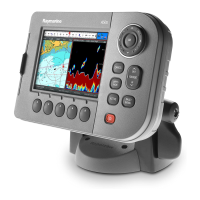
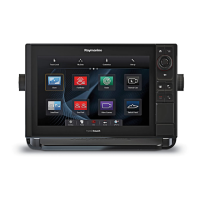
- Controls: It incorporates a hybridtouch interface, combining a touchscreen with physical buttons (POWER, MENU, UniControl, BACK, WPTS/MOB) for flexible operation.
- Connectivity:
- Chart Card Slots: Two MicroSD card slots (labeled 1 and 2) for electronic charts and archiving waypoint, route, and track data.
- Wireless: Bluetooth for remote control connection and WiFi for video streaming and Navionics chartplotter sync with Apple iPhone/iPad devices.
- External Equipment: Supports connection to GPS antennas, radar scanners, AIS units, fishfinders, and autopilot units.
- Power: The device can be powered on and off using the POWER button.
Usage Features
Powering On/Off:
- Power On: Press and hold the POWER button until the Raymarine logo appears, then press OK to acknowledge the disclaimer.
- Power Off: Press and hold the POWER button until the countdown reaches zero. Releasing the button before zero cancels the power-off sequence.
Display Brightness and Color Palette:
- Brightness: Press the POWER button once to display the Backlight Level control, then use the rotary control to adjust.
- Color Palette: From the homescreen, select Customize > Display Preferences > Color Palette.
Homescreen Overview:
The homescreen is the central point of access to all applications. It features:
- Touch Lock: Locks the touchscreen to prevent accidental use.
- My Data: Manages routes, tracks, and waypoints.
- Customize: Configures application pages, language, units, date/time, boat details, and display preferences.
- Set-up: Accesses system set-up menus.
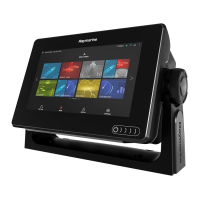
- Application Pages: Icons representing individual applications (e.g., Chart, Fishfinder, Radar, Data, Video, Weather, Chart/Radar). Each page can display up to two applications simultaneously.
- Status Bar: Displays status icons for connected equipment (GPS, AIS, radar, autopilot).
- Navigation: Use the joystick or swipe the screen to scroll through application pages.
Customizing Pages:
- Adding Applications: Select an empty page and choose applications from the menu or drag them.
- Changing Existing Pages: From the homescreen, select Customize > Homescreen > Edit Page. Select the page icon, choose a layout (e.g., "Splitscreen"), select applications, then Finish. Name the page using the on-screen keyboard and Save.
Controls:
- Touchscreen: Operates common functions and menu operations.
- MENU Button: Accesses and closes menus.
- UniControl: Provides joystick, rotary control, and OK button for menu and application use.
- BACK Button: Returns to the previous menu or dialog level.
- WPTS / MOB Button:
- Press and release: Accesses waypoint options. Press again to place a waypoint.
- Press and hold: Places a Man Overboard (MOB) marker at the current position.
- POWER Button: Switches unit ON/OFF, adjusts brightness, accesses power controls for external devices, and autopilot controls.
- Chart Card Slots: For MicroSD cards (electronic charts, data archiving).
Hybridtouch Overview:
The MFD supports both touchscreen and physical key operation. Touch lock can be activated in rough sea conditions to rely solely on physical keys.
Basic Touchscreen Operations:
- Placing/Moving Cursor: Touch the screen at any position.
- Selecting Active Window: Tap inside the desired application on a multi-application page. A border indicates the active window.
- Locking/Unlocking Touchscreen:
- Lock: From the homescreen, select the Touch Lock icon. It changes color to indicate it's disabled.
- Unlock: Use UniControl to highlight the Touch Lock icon, then press OK.
Applications:
- Chart: 2D or 3D graphical view for navigation, waypoints, routes, and tracks.
- Fishfinder: Distinguishes fish sizes, bottom structure, and underwater obstacles (requires transducer and "D" variant MFD or compatible DSM).
- Radar: Tracks targets, measures distances and bearings (requires suitable radar scanner).
- Data: Displays system and instrument data.
- Weather (North America only): Overlays historical, live, and forecasted weather graphics (requires suitable weather receiver).
- Thermal Camera: Views and controls compatible thermal cameras.
- Video: Views video or camera sources.
Alarms:
- Alerts to situations or hazards (e.g., collision warnings, temperature limits).
- Triggered by system functions and external equipment.
- Message dialogs appear on MFD and networked displays.
- Configurable via Edit option on dialogs or Alarms menu (Homescreen > Set-Up).
Man Overboard (MOB) Function:
- Marks the vessel's position when MOB is activated.
- Available regardless of the running application.
- Can be set to Dead Reckoning (considers wind/tides) or Position mode (does not).
- Requires GPS position fix, or heading and speed data for dead reckoning.
- Activation: Press and hold WPTS / MOB button for 3 seconds. Triggers audible alarm, MOB alarm dialog, and sends alarms to other Raymarine equipment.
- Cancellation: Select OK on the MOB alarm dialog, then press and hold WPTS / MOB button for 4 seconds to fully cancel.
Remote Control Connection (Bluetooth):
- Allows wireless control using a Raymarine remote control unit (e.g., RCU-3).
- Setup: Enable Bluetooth in System Settings, then pair the remote control.
Video Streaming Connection (WiFi):
- Streams MFD display to Apple iPhone 4 (or later) or iPad.
- Setup:
- Download "Raymarine Viewer" app.
- Enable WiFi in System Settings on MFD and on iPhone/iPad.
- Select Raymarine WiFi connection on iPhone/iPad.
- Enable Device Streaming in System Settings on MFD.
Navionics Chartplotter Sync Connection (WiFi):
- Synchronizes waypoints and routes between MFD and iPhone/iPad.
- Setup:
- Download Navionics Marine app.
- Enable WiFi in System Settings on MFD and on iPhone/iPad.
- Select Raymarine WiFi connection on iPhone/iPad.
Maintenance Features
While the manual does not explicitly detail maintenance features, the presence of chart card slots for archiving data suggests a capability for data backup and potentially software updates via these cards. The system setup menus would likely contain options for system diagnostics and software management. The "Quick reference" nature of this document means comprehensive maintenance details are likely found in a full user manual.

 Need help?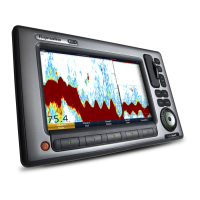





 To Next Page
 General