EasyManua.ls Logo

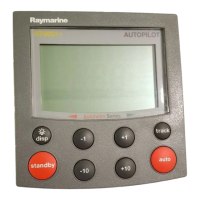
Raymarine P70 - User Manual

Raymarine P70
122 pages
Print Icon
To Next Page IconTo Next Page
Loading...
INSTALLATION & OPERATION
INSTRUCTIONS
p70/p70R Pilot Controller
© 2016 Raymarine UK Limited
81355-2Document number:
05-2016Date:
English (EN)

Table of Contents

Other manuals for Raymarine P70

Questions and Answers

  • C
    carlhamiltonAug 18, 2025
    What to do if instrument data is unavailable on Raymarine Marine Equipment displays?
    • D
      Dalton MooreAug 18, 2025
      If instrument, engine, or other system data isn't showing on any Raymarine Marine Equipment displays, start by checking the data bus wiring and connections to ensure they are properly connected. Also, verify the overall integrity of the data bus wiring. Confirm that the source of the missing data, such as an ST70 instrument or engine interface, is operational. Check the power to the SeaTalk bus. If these steps don't resolve the issue, there may be a software mismatch and you should contact Raymarine technical support.
  • T
    Tara BradyAug 20, 2025
    Why my Raymarine Marine Equipment system does not start up?
    • K
      karen17Aug 20, 2025
      If your Raymarine Marine Equipment system or part of it fails to start, begin by inspecting the relevant fuses and breakers. Ensure the power supply cable is in good condition, with tight, corrosion-free connections. Verify that the power source provides the correct voltage and sufficient current.
  • W
    wbuchananAug 23, 2025
    What to do if Raymarine Marine Equipment display behaves erratically?
    • A
      Anna VargasAug 23, 2025
      If your Raymarine Marine Equipment display is behaving erratically with frequent resets or system crashes, check the fuses and breakers. Ensure the power supply cable is sound, with tight and corrosion-free connections, and that the power source provides the correct voltage and current. Make sure the front bezel is correctly fitted and all buttons operate freely. If problems persist, go to www.raymarine.com and click on support for the latest software downloads. As a last resort, perform a factory reset via Menu > System Setup > Settings and Data Reset, but remember this will erase stored settings and data; save important data to a CF card beforehand.
  • M
    Michael CrossAug 25, 2025
    What to do if my Raymarine Marine Equipment display behaves erratically?
    • J
      Jack DyerAug 26, 2025
      If your Raymarine Marine Equipment display behaves erratically with frequent unexpected resets or system crashes, first check the relevant fuses and breakers. If the issue persists, a factory reset may be needed. Be aware that this will erase all settings and data stored on the product, so save any important data to a memory card beforehand.
  • C
    Christine BlackwellAug 27, 2025
    How to fix a Raymarine Marine Equipment that won't turn on?
    • M
      Mark HamiltonAug 27, 2025
      If your Raymarine Marine Equipment product does not turn on or keeps turning off, begin by checking the fuses, breakers, and their connections, replacing any that are blown or tripped. If fuses continue to blow, inspect for cable damage, broken connector pins, or incorrect wiring. Also, verify the power cable is securely inserted, check for damage or corrosion, and flex the cable to see if it causes a reboot. Ensure the vessel's battery voltage is adequate, and the terminals and cables are clean, secure, and free from corrosion. Finally, use a multi-meter to check for high voltage drop across connectors and fuses.
  • D
    Destiny WatersAug 30, 2025
    What to do if my Raymarine Marine Equipment won't boot up?
    • C
      Caroline BrownAug 30, 2025
      If your Raymarine Marine Equipment product will not boot up and is stuck in a reboot loop, check the power supply and connections as you would if the product wouldn't turn on at all. In case of software corruption, try re-flashing the latest software from the Raymarine website. As a last resort, perform a ‘Power on Reset’. Note: This will delete all settings, presets, and user data, reverting the unit to factory defaults.
  • D
    doughertywilliamSep 2, 2025
    Why is instrument data missing on all my Raymarine Marine Equipment displays?
    • R
      richard51Sep 2, 2025
      If instrument, engine, or other system data is unavailable on all Raymarine Marine Equipment displays, verify the data bus (e.g., SeaTalkng) wiring and connections, ensuring the overall integrity of the wiring. Check the source of the missing data, such as the ST70 instrument or engine interface, to ensure it is operating correctly. Also, check the power to the SeaTalk bus. If a software mismatch is suspected, contact Raymarine technical support.
  • E
    Erica RangelSep 4, 2025
    How to troubleshoot missing data on some Raymarine Marine Equipment displays?
    • B
      Billy HamptonSep 4, 2025
      If instrument or other system data is missing from some Raymarine Marine Equipment displays but not all, check that all required equipment is connected to the SeaTalkhs switch. Verify the status of the SeaTalkhs Switch and inspect SeaTalkhs cables for damage. If the issue persists, contact Raymarine technical support as there may be a software mismatch.
  • J
    Jeffrey GibsonSep 6, 2025
    Why is instrument data missing from all my Raymarine Marine Equipment displays?
    • C
      Christopher GreeneSep 6, 2025
      If instrument, engine, or other system data is unavailable at all Raymarine Marine Equipment displays, check the data bus wiring and connections. Also, check the data source (e.g., instrument display or engine interface) to ensure it is operating correctly.
  • R
    Richard HurleySep 9, 2025
    Why is instrument data missing from some of my Raymarine Marine Equipment displays?
    • S
      Stephanie YatesSep 9, 2025
      If instrument or other system data is missing from some, but not all, Raymarine Marine Equipment displays, check that all required equipment is connected to the network.

Summary

Important Information

Document and Product Information

Product Overview

Description of the p70 and p70R autopilot controllers and their features.

Planning the Installation

Installation Checklist

A step-by-step checklist for planning and executing the installation.

Software Updates

Guidance on updating product software for performance and features.

General Location Requirements

Key factors to consider when selecting a mounting location for the display.

Cables and Connections

SeaTalkng Power Supply

Details on powering the SeaTalkng network and required fuse/breaker ratings.

SeaTalkng Connection

Examples of connecting the p70/p70R to SeaTalkng networks.

Installation

Mounting

Detailed instructions for flush mounting the p70 and p70R units.

Getting Started

Pilot Controls

Layout and functions of the p70 and p70R pilot controller buttons.

Completing the Startup Wizard

Steps to configure language, boat type, and welcome settings.

Commissioning - Evolution Autopilot System

Autopilot Response Levels

Configuring response levels for optimum steering performance.

Using the Set-up Wizard

Step-by-step guide to configuring language and vessel type.

Using the Dockside Wizard

Procedure for dockside calibration, depending on rudder reference transducer.

Compass Linearization

Process for initial compass linearization and its importance.

Commissioning - SPX and SmartPilot Systems

Pilot Response

Setting and adjusting the pilot response level for course keeping.

Initial Setup and Commissioning

Prerequisites and steps for initial system setup and commissioning.

Dockside Calibration

Procedure for dockside calibration for SPX autopilot systems.

Sea Trial Calibration

Steps involved in calibrating the autopilot in open water conditions.

Checking Autopilot Operation

Tests to verify correct rudder gain, counter rudder, and damping settings.

Pilot Modes

Auto Mode

Engaging and changing course in Auto mode for heading control.

Track Mode

Steering the vessel to a target waypoint or along a route.

Wind Vane Mode

Using wind angle as the primary heading reference for sailing vessels.

Pilot Views

Pilot Controller Alarms

Alarms

Details common alarms, their causes, and recommended actions.

Set Up Menu Options

Autopilot Calibration Menu

Options for commissioning and calibrating the autopilot system.

Diagnostics Menu

Accessing diagnostic details for the display, pilot, and system.

System Checks and Troubleshooting

Troubleshooting

Diagnosing and correcting common problems associated with marine electronics.

Power Up Troubleshooting

Solutions for problems encountered during product power up.

Performing a Factory Reset

Steps to reset the unit to factory default settings.

Raymarine P70 Specifications

General IconGeneral
Display TypeLCD
KeypadYes
Display Size3.5 inches
InterfaceNMEA 2000
WaterproofIPX6
MountingBracket

Related product manuals