MOUSE TAB
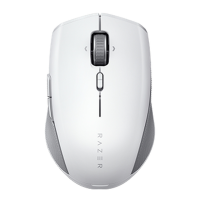
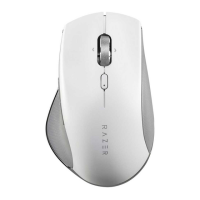
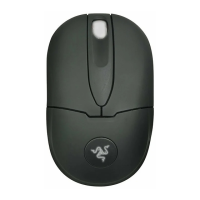
The Mouse tab is the main tab for your Razer Pro Click Mini. From here, you can change your
device’s settings such as button assignment and DPI sensitivity. Changes made under this
tab are automatically saved to your system and cloud storage.
Customize
The Customize subtab is for modifying your mouse’s button assignments.
Profile
A Profile is a data storage for keeping all your Razer peripheral’s settings. By default, the
profile name is based on your system’s name. To add, rename, duplicate, or delete a profile,
simply press the Miscellaneous button ( ).
Standard / Hypershift
Hypershift mode is a secondary set of button assignments that is activated when the
Hypershift key is held down. By default, the Hypershift key is assigned to the fn key of your
Razer Synapse supported keyboard however, you can also assign any mouse button as a
Hypershift key.



 To Next Page