•You can set HD Resolution here. The pull down menu provides you with the following choices: 1920X1080
(1080P Default) 1280X720 (720P), 704X576 (480P EU ONLY), and 720X480 (480P). You can also set the
Variable Bitrate of the recording here for both HD and SD sources. The range for HD recording is 768-4096
kbps, and for SD sources 256-768 kbps. The higher the kbps, the better the recording quality will be. Press
the save button for any parameter you have changed.
1. Setting the resolution of the recording (HD only)
•This pull down menu will limit the recording time from the system maximum of 8 hours down to 1 hour, in
one hour increments. If there is a USB device connected (Flash Drive or USB Hard Drive), it will be indicated
here.
2. Maximum Recording Time
•A prefix to the recording name may be added here to help easily identify recorded content later. Press the
save button after you have edited the prefix text.
3. Prefix
•This set of three indicators gives live status of the Bee8 current record condition.
4. Recording Status Feedback
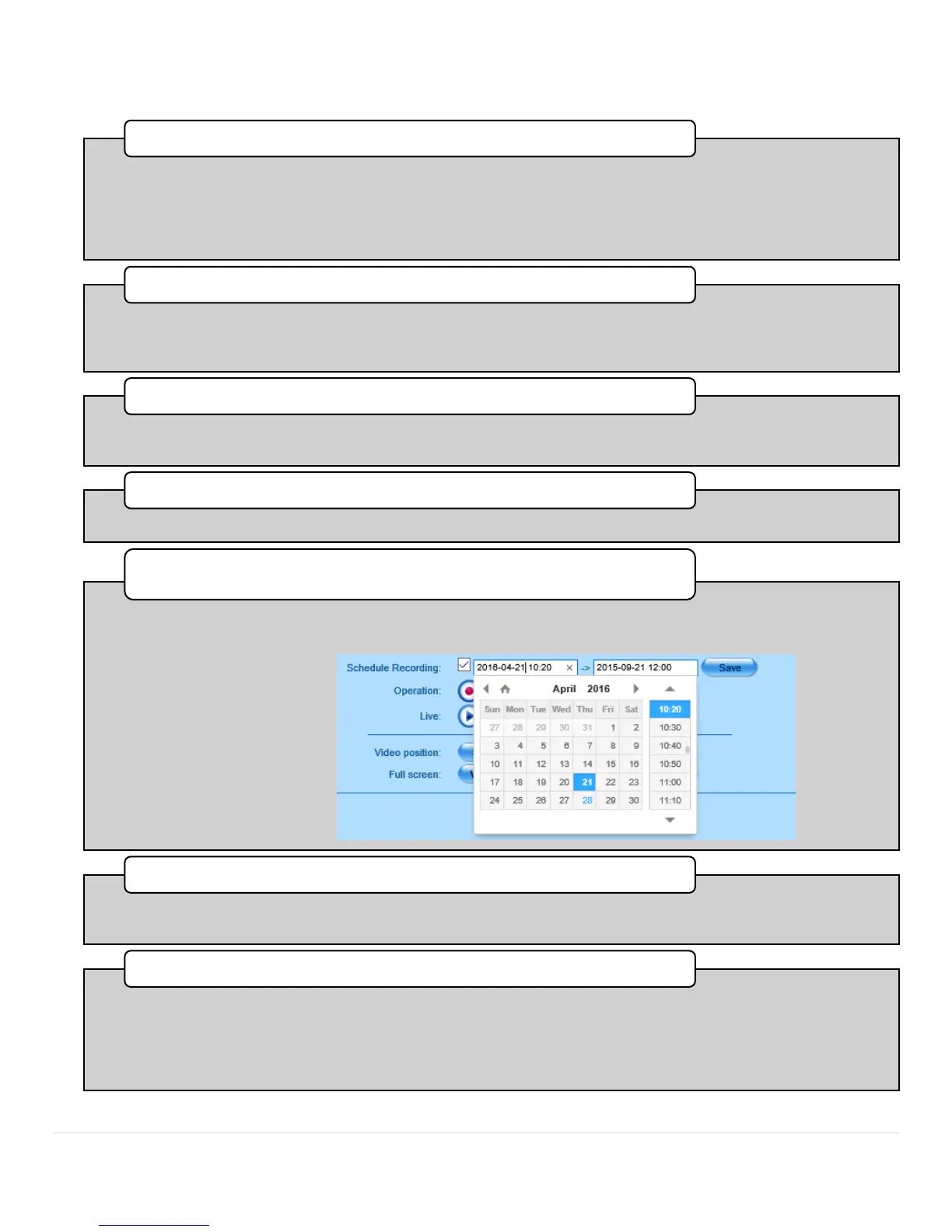
•Check this box to schedule a recording event in the future.
•Press the Save button when you have entered the start and stop time of the recording. Time increments
are at ten minute intervals.
5.Schedule Recording Checkbox
•To start a new recording on the fly, press the record button. (NOTE:The play button is a feature for the
Chinese Domestic Market only, and does not function on US Domestic Bee8 appliances.)
6. Operation Buttons
•These buttons help you select which source video arrangement will provide the most meaningful content.
The switch button cycles the sources in a counterclockwise direction, so you can choose which source will
have the largest display in the recording. You can also choose to toggle any of the 3 inputs full screen, then
return to the two or three source display by pressing the Switch button again. NOTE: This function works
both when the Bee8 is recording and streaming, or just streaming.
7. Video Position/Full Screen Selection Buttons.



 To Next Page