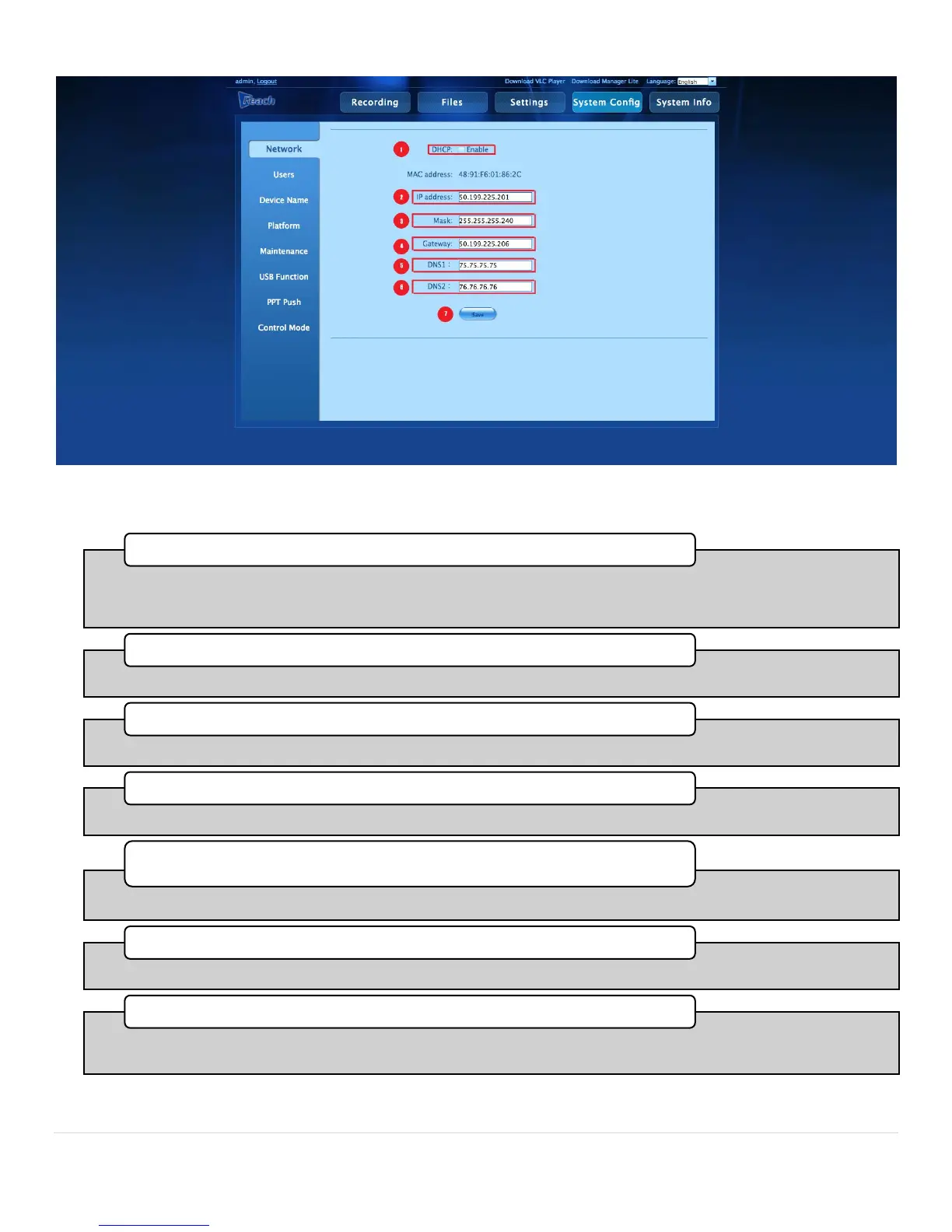
•Select this if your network infrastructure is based on Dynamic Host Configuration Protocol. Be aware that with any
lease release/renewals the IP address may change, and cause a loss of communications between the Bee8 and other IP
devices.
1. DHCP Enable
•Type in the IP address you have chosen for the Bee8 here
2. Static IP text box
•Enter the LAN Subnet Mask for the network
3. Mask text box
•Enter to IP address of the LAN gateway
4. Gateway text box
•Enter the IP address of the first Domain Name Server here (If applicable)
5. DNS1 text box
•Enter the IP iadress of the second Domain Name Server here (If applicable)
6. DNS2 text box
•Once you have entered all the appropriate information, click the save buton to commit the changes. Note: after
network changes have been made, the Bee8 will automatically restart!)
7. Save Button



 To Next Page