75
7.6 Remote Controller to Control Flight
7.6.1 Power on
Put the drone on the at surface, turn on the Remote controller and drone successively, wait for drone on at ground
for about 30 seconds for self-diagnostic tests.
When the aircraft indicator light turns from ashing or solid blue to ashing or solid green, which means the Remote
controller and drone are connected.
7.6.2 Connect app
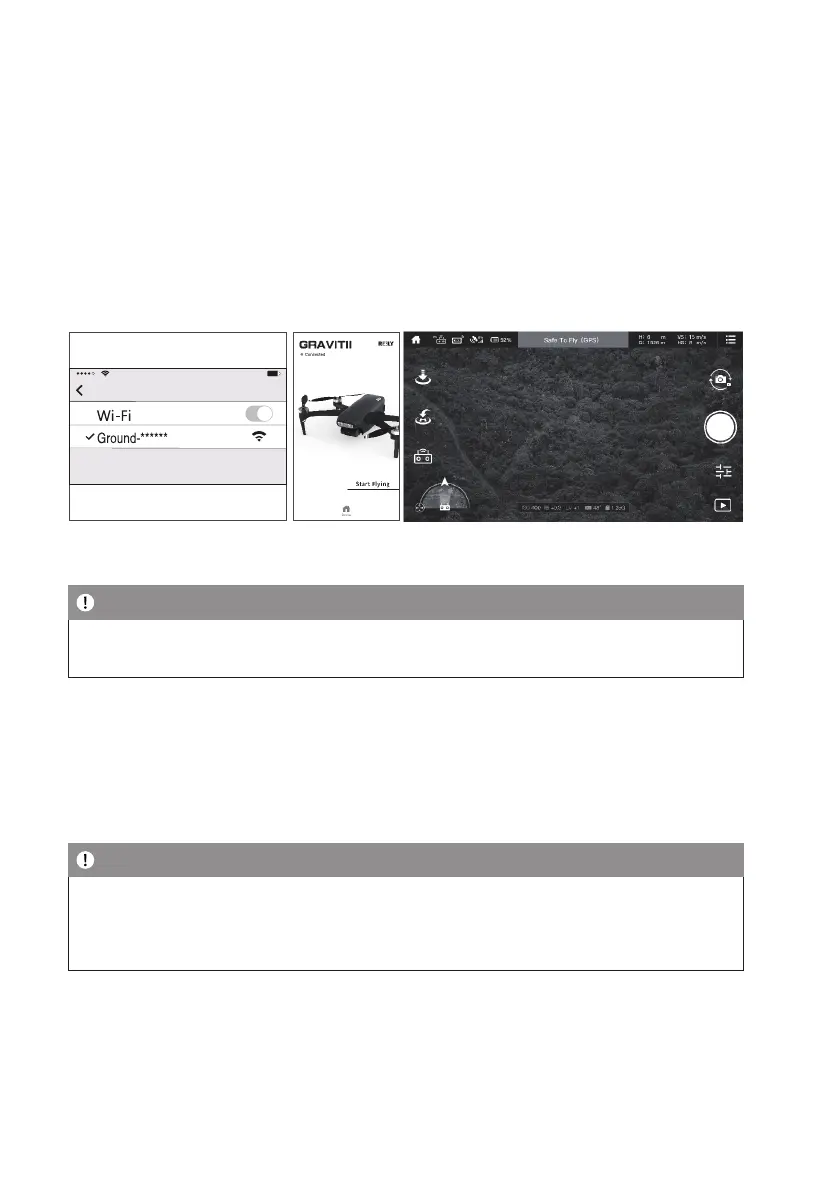
Click WLAN setting, and click “Ground-XXXXXX”, exit Settings Options after Wi-Fi Connection Successfully.
Open Gravitii app to check whether the drone status in the upper left corner is connected. If “connected “ is displayed,
click “start ying” to enter operation interface.
Note
• Please maintain the current wi connection and not switch to the mobile network.
• Use app to monitor the image and the current state of the aircraft.
7.6.3 GPS Signal Status
• When the status indicator of the drone is solid green, it indicates that the GPS positioning is normal, and the drone
can take off safely.
• When the green light ashes on the drone status indicator, it indicates that the GPS signal is weak or no signal, and
altitude mode can be selected for operation (this mode is difcult to operate, it is not recommended for beginners).
Note
• Set the aircraft up and get ready to take off after the aircraft indicator light turns solid green (indicating good
GPS signal)
• Please choose an open and spacious eld. Tall steel structures and metal materials will interfere the compass
and GPS.


 To Next Page