iOS App User Guide
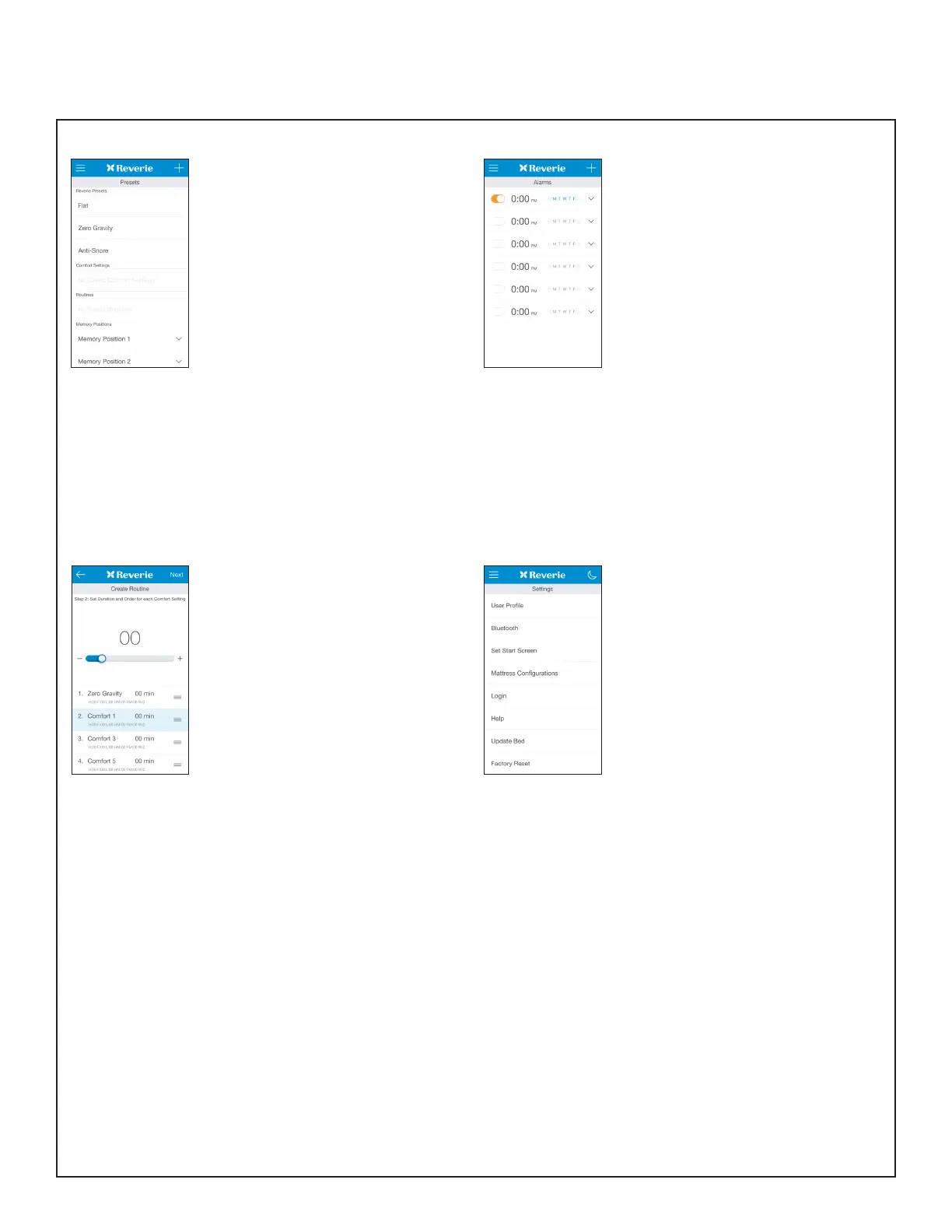
Presets
• Reverie Presets - Zero Gravity,
Anti-Snore, and Flat.
• Comfort Setting - Press “+” to
program a unique head, foot and/
or massage combination.
• Routines - Press “+” to program a
set of saved comfort settings into
a series of timed positions.
• Memory Positions - Access
and overwrite previously saved
Memory Positions from your
remote control.
• View details of each setting with
the expand arrow as well as Edit
and Delete.
Settings
• Customize your app in settings.
• User Prole - Dene your user
prole to - The “Power Base” eld
is required and is important to
allow the app to best represent
youe specic power base.
• Bluetooth - Shows the bed your
app is connected to. Shows
nearby beds that you can connect
to in order of proximity.
• Reverie Connect - If your base
is compatible with our Reverie
Connect technology you can
follow the setup to control your
base with 9 voice activated
commands
• Set Start Screen - Set what
screen you want the app to open
up to.
• Mattress Congurations -
Recongure your Reverie Dream
Supreme mattress with these
rmness guides.
• Login/Logout - Log in to your
account
• Help - Contact info for technical
support.
• Update Bed - Update the software
on your control box
• Factory Reset - Reset your app to
original settings.
Routines
• Select which Comfort Settings
you want to use to create a new
Routine.
• Set the order of these Comfort
Settings and the duration of each.
• Save your new Routine.
Alarm
• Create an alarm setting to raise
and/or massage you awake.
• Press “+” to create a new alarm
setting.
• Set time - Scroll to select the
hour, minute and day.
• Repeat - Select the days of the
week you would like the alarm to
activate.
• Assign - Select a comfort setting
or routine to assignt the alarm to.



 To Next Page