Sharing Models from a Phone to a PC
Note: The phone and PC must be connected to the same
network while transferring.
①
Open Revo Scan on your PC and click
the New Project button.
② Choose File - Import from Phone on
the Menu Bar.
③
Open Revo Scan on your phone and
find the project to transfer.
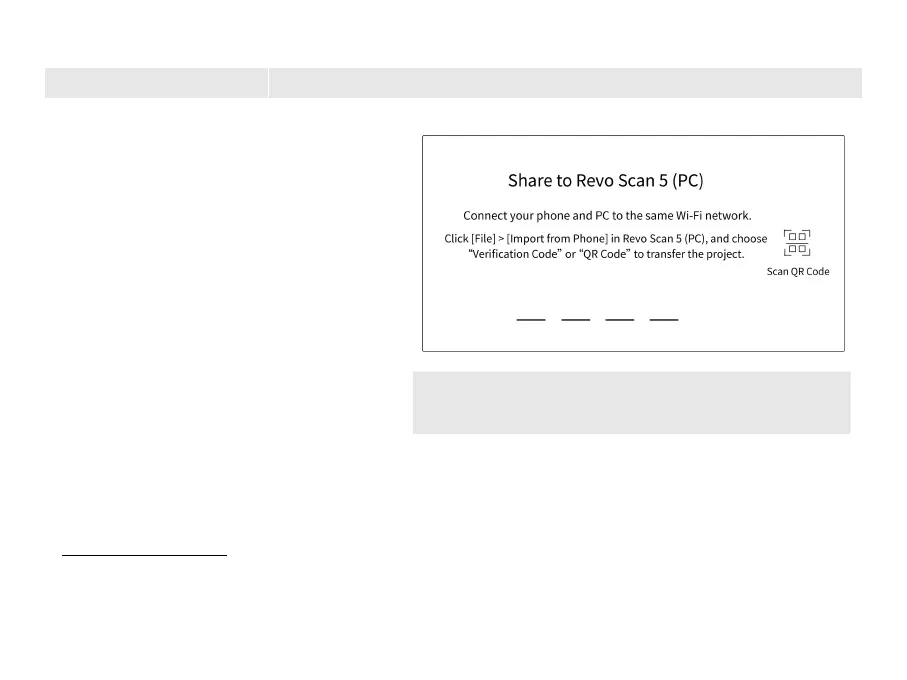
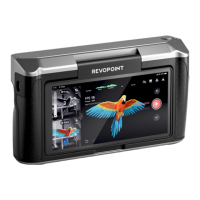
④ Tap the share icon and enter the share
page (see the image on the right).
⑤
Enter the code or scan the QR code
displayed on the PC.
⑥ Wait for the project to be transferred.
To learn more scanning skills, go to the Download page in the Support section on Revopoint’s website,
www.revopoint3d.com, to get the latest Quick Start Guide and User Manual. You can also follow our YouTube
account, Revopoint 3D, for tutorial videos. This content is subject to change. Please refer to the latest version.



 To Next Page