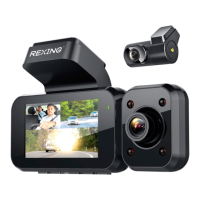
Why is my Rexing Dash Camera not looping?
- KKim StevensSep 9, 2025
Your Rexing Dash Camera may not be looping because the G sensor may be too high. Put the G sensor on the lowest setting. Also, the SD Card might be full; format the SD Card.
Why is my Rexing Dash Camera not looping?
Your Rexing Dash Camera may not be looping because the G sensor may be too high. Put the G sensor on the lowest setting. Also, the SD Card might be full; format the SD Card.
Why is my Rexing Dash Camera SD card full?
If your Rexing Dash Camera SD card is full, ensure the G-sensor is on the lowest setting. You may also need to clear some locked files or format the SD card to free up space.
What to do if my Rexing Dash Camera stops recording at random intervals?
If your Rexing Dash Camera stops recording at random intervals, the SD card may not be compatible. Try using a different SD card. You can also try restoring the default settings.
Why is my Rexing Dash Camera unable to record videos?
Your Rexing Dash Camera may be unable to record videos because the memory card is full. Check the remaining space on the memory card and delete files if necessary. If Loop Recording has been enabled, the memory card may be corrupted; reformat your memory card, and if the issue persists, replace it with a new one. You can also restore to Default Settings or make sure to hold the OK button in until the red light is blinking.
What to do if all buttons are not responding on my Rexing V1LG Dash Cameras?
If all the buttons are not responding on your Rexing Dash Camera, it could be due to a processing error or faulty device operation. Press the RESET button to restart the camera. Alternatively, the memory card may contain errors or be damaged; reformat the memory card or replace it with a new one. Also, ensure you press the buttons firmly, or hold them in; they might not always respond to a quick press.
Why is auto on/off not working on my Rexing Dash Camera?
Auto On/Off may not be working on your Rexing Dash Camera because the car charging port has a continuous flow of power. This feature can only work if it is being used in a charging port that turns off with the vehicle.
Where to find locked files on Rexing Dash Camera?
If you can’t find locked files on your Rexing Dash Camera, they may have been saved to the Read Only folder. Check the SD Card RO Folder.
What does “file error” mean on my Rexing Dash Camera?
If you encounter a “file error" when trying to play back pictures or video on your Rexing Dash Camera, the memory card may be corrupted with bad sectors. Reformat the memory card.
Why does my Rexing Dash Camera screen powers off unexpectedly?
Your Rexing Dash Camera screen might be powering off unexpectedly because the Screen Saver feature is enabled. Disable the Screen Saver feature. Alternatively, the battery could be low, so charge the battery. If neither of these solves the issue, restore the camera to its default settings.
How to fix Rexing Dash Camera losing/resetting date?
To fix your Rexing Dash Camera losing or resetting the date, you need to update the firmware.
Failure to comply with safety warnings and regulations can result in serious injury or death.
Failure to comply with safety precautions and regulations can result in property damage, serious injury or death.
Provides guidance on the proper and environmentally safe disposal of electronic equipment.
Details legal terms regarding content, services, and manufacturer liability.
Explains the manual's purpose, scope, and how to use it effectively.
Lists detailed technical specifications of the REXING V1LG Dash Cam.
Identifies and labels the physical components and ports of the dash cam.
Explains the function and operation of each button on the device.
Defines the meaning of various icons displayed on the device's screen.
Lists all items included in the product packaging.
Provides step-by-step instructions for physically installing the dash cam.
Guides on inserting the Micro SD card for recording.
Instructions for connecting the device to the vehicle's power supply.
Details the process of charging the dash cam's battery and important usage notes.
Procedure for safely removing the memory card from the device.
Explains how to format the memory card using the device.
Instructions for powering the dash cam on and off.
Covers fundamental operations like automatic recording and screen control.
Sets the video recording resolution for the dash cam.
Configures settings related to the rear camera functionality.
Enables continuous recording by overwriting older footage.
Improves image quality in varying light conditions by adjusting exposure.
Adjusts the camera's exposure value for brightness control.
Allows enabling or disabling audio recording with videos.
Adds date and time information to recorded videos.
Detects impacts and automatically locks video files.
Captures frames at intervals for time-lapse video creation.
Allows adjustment of the device's internal date and time settings.
Configures automatic shutdown when the device is idle.
Enables or disables audible feedback for button presses.
Selects the user interface language for the device.
Sets the power frequency (e.g., 50Hz/60Hz) based on geographical region.
Manages screen timeout duration to conserve power.
Initiates memory card formatting, erasing all data.
Resets all device settings to their original factory values.
Sets a delay before the device powers off after losing power.
Enters vehicle plate number to be stamped in video recordings.
Enables or disables the Daylight Saving Time feature.
Configures the speed unit for GPS tracking (mi/h or km/h).
Sets the time zone for automatic GPS time synchronization.
Displays the current firmware version of the device.
Sets the method for capturing still images, such as single shots or timed captures.
Selects the pixel resolution for captured still images.
Enables capturing a rapid sequence of photos with a single button press.
Adjusts the quality level of captured images, affecting file size.
Enhances the clarity and detail of captured images.
Adjusts color balance for optimal results in different lighting environments.
Applies color effects to captured still images.
Controls the camera's sensitivity to light for photo capture.
Adjusts the brightness level of captured images.
Enables image stabilization to reduce blur in captured photos.
Adds date and/or time information to captured images.
Instructions for installing and using software to view recorded videos with GPS data.
Guides on how to play back recorded video files on the device.
Explains how to view captured images as a continuous slide show.
Provides instructions for deleting individual or all stored files from the device.
Procedure to download and install the latest firmware for the dash cam.
Solutions for common problems like image storage, button response, and device power.
Addresses problems related to SD card compatibility, recognition, and storage.
Solves problems like continuous turning off, unable to record, or random stops.
Fixes for file errors, hazy images, horizontal stripes, and auto on/off problems.
| Brand | Rexing |
|---|---|
| Model | V1LG |
| Category | Dash Cameras |
| Language | English |