Operating your V1LG Dashboard Camera
Playback Function
37
© 2018
REXING
A
ll Rig
hts
Re
s
er
v
ed
.
PC GPS Playback Function
GPS Player Instructions
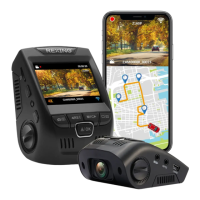
"GPS Player Software" is designed to play recorded videos along with
displaying GPS data and driving routes on a computer.
Minimum System Requirements:
Monitor Resolution: 1280*720
OS: Windows 7 / 8 (32bit / 64bit)
Software Installation
1. Locate your dash cam at support.rexingusa.com to access the GPS
Playback software.
2. Download the zip folder containing the software installer.
3. Unzip the folder to access the installer file contained within.
4. Open the installer and follow the instructions to install the GPS Playback
software to your computer.
5. Once installed, you may launch the application.
Accessing Video Files
Insert the SD card into your computer to access the video files.
Playback
Double click the "GPS Player" application icon. Drag and drop a MOV file into
the player to watch. You can use this player to play recorded videos and to
show a map with the recorded driving routes.
Windows OS Users: if your computer does not have video codec installed, you
may not be able to play MOV files on your computer. Run the "MOV Player


 To Next Page