BASIC OPERATION
To reduce power consumption, you may press the POWER button to
toggle the built-in display on or off. The camera will continue to
record with the display on or off.
5.3 DISPLAY CONTROL
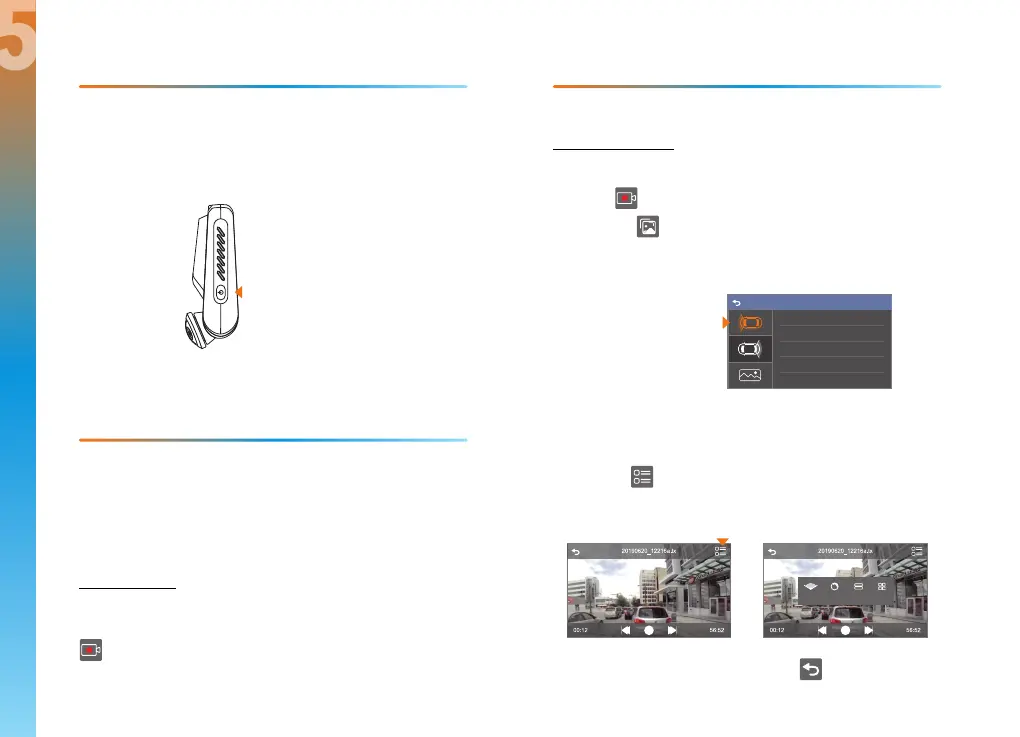
Press button to toggle the
built-in display on or off
The camera will automatically start recording when the device
receives a charge (i.e. the vehicle is started).
When in Video Recording mode, the device will display a blinking red
dot near the upper left corner of the screen. It will also show the time
of the current recording in the upper left corner of the screen.
Stop Recording
Video recording will automatically stop when the device isn't
receiving a charge. It can also be stopped manually by pressing the
c Video Recording icon.
5.4 VIDEO RECORDING
Playback of videos can be done on the device or a computer.
1. Device Playback
Follow these steps to play back recordings on the device.
A. Click Video Recording icon to stop recording.
B. Click the Library button to enter the Playback Mode.
C. Use the left three icons to toggle between front videos,
rear videos and photos.
5.5 VIDEO PLAYBACK
File s 1/9
201 9 0 6 2 1 _ 15 2 9 3 4 A . ts
201 9 0 6 2 1 _ 15 2 9 0 5 A . ts
201 9 0 6 2 1 _ 13 0 8 4 5 A .ts
201 9 0 6 2 1 _ 12 4 8 2 0 A . ts
201 9 0 6 2 1 _ 15 2 9 3 4 A . ts
Toggle between
video mode and photos
D. Swipe the screen to toggle through your videos.
E. Click to play the selected video.
F. Use the Screen Display Mode button on the top right to
change the way the video is displayed.
G. To stop playback, press the back arrow on the top left of
the screen.
Wide Mode Ball Mode Around Mode Four Mode
1918
5
5
5
Change Screen Display Mode


 To Next Page