14
Operating and installation instructions RF-KIT Power Amplifier RF2K-S
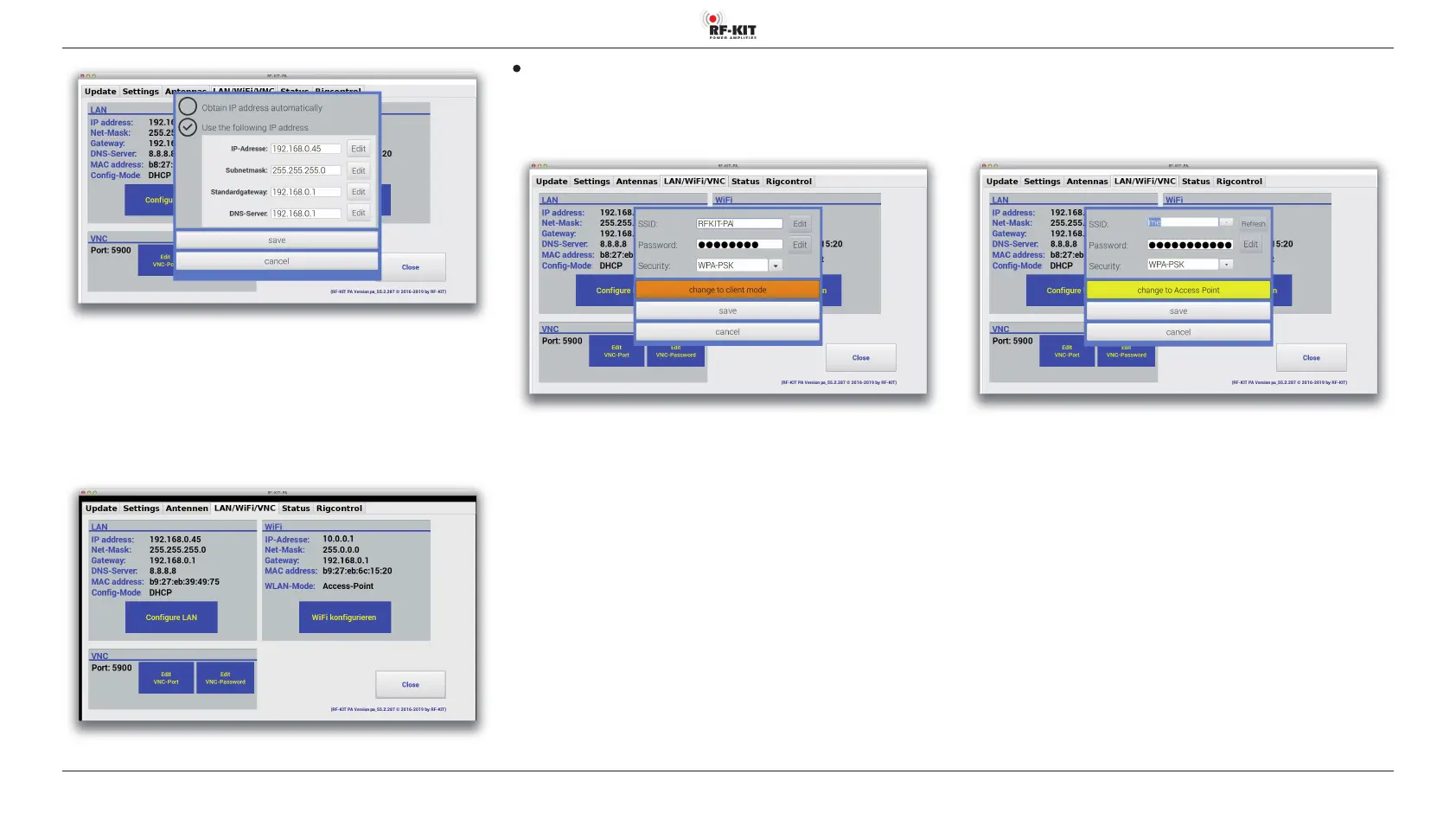
► Tap at Edit to make an entry and change values via the PC keyboard.
When all values have been entered:
► Tap at save to confirm entries respectively at cancel, to discard
settings.
The input mask disappears and indication area LAN shows the current
LAN settings:
Wireless network connection (WiFi)
Setting up WiFi connection:
► Touch switching area WiFi kongurieren. The following input mask
appears:
Enter the SSID and a valid password of the desired wireless network:
► Tap at Edit to make an entry and change values via the PC keyboard.
► Pulldown menu Security: Select an encryption method.
► Tap at save, to confirm entries respectively at cancel, to discard
settings.
If the PA itself should act as a „client“:
► Tap at change to client mode.
The input mask for the „Client Mode“ will be displayed:
Enter the SSID and a valid password to deploy a wireless network provided
by the PA:
► Enter SSID via the PC keyboard and tap at Refresh to confirm entry.
► Tap at Edit to assign a network password via the PC keyboard.
► Pulldown menu Security: Select an encryption method.
► Tap at save, to confirm entries respectively at cancel, to discard
settings.


 To Next Page