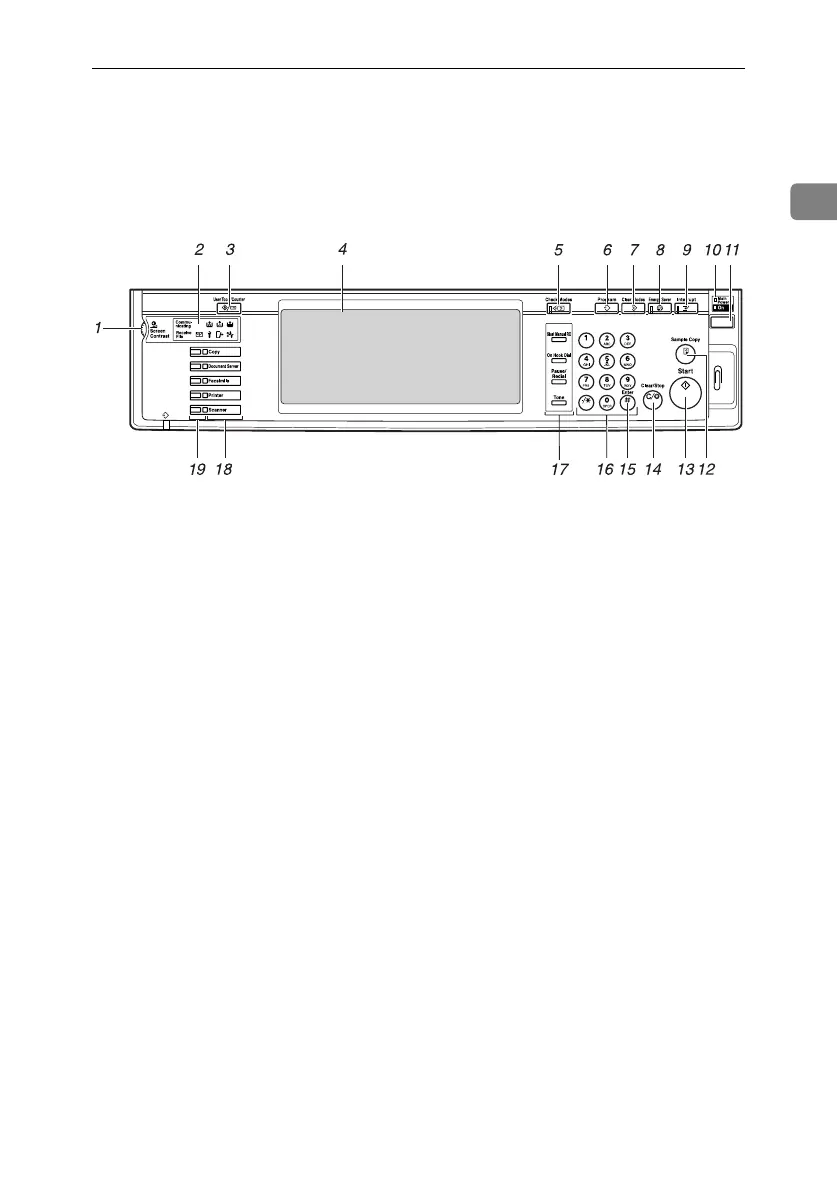
Control Panel
21
1
Control Panel
This illustration shows the control panel of a machine that has all options fully
installed.
1.
Screen contrast knob
Adjusts display panel brightness.
2.
Indicators
Show errors and machine status.
• d: Add Staple indicator. See p.125
“d Adding Staples”.
• D: Add Toner indicator. See p.113
“D Adding Toner”.
• B: Load Paper indicator. See p.110
“B Loading Paper”.
• L : Service Call indicator
• M: Open Cover indicator
• x: Misfeed indicator. See p.116 “x
Clearing Misfeeds”.
• m: Data In indicator. See “Control
Panel”, Printer Reference 1.
• Communicating: Communicating in-
dicator. See “Control Panel”, Facsimile
Reference <Basic Features>.
• i: Confidential File indicator. See
“Control Panel”, Facsimile Reference
<Basic Features>.
• Receiving File: Receiving File indica-
tor. See “Control Panel”, Facsimile Ref-
erence <Basic Features>.
3.
{
{{
{User Tools/Counter}
}}
} key
• User Tools
Press to change defaults and condi-
tions to meet your requirements. See
p.50 “Accessing User Tools (System
Settings)”.
• Counter
Press to check or print the counter val-
ue. See p.141 “Counter”.
• Inquiry
Press to check where to contact for
machine repairs and ordering toner.
See p.140 “Inquiry”
4.
Display panel
Displays operation status, error messag-
es, and function menus.
5.
{
{{
{Check Modes}
}}
} key
Press to check settings.
6.
{
{{
{Program}
}}
} key (copier/facsimi-
le/scanner mode)
Press to register frequently used settings,
or recall registered settings.
7.
{
{{
{Clear Modes}
}}
} key
Press to clear previous copy job settings.
ZLFS280N
RussianC3_ENgsg-F_FM.book Page 21 Monday, June 16, 2003 6:48 PM




 To Next Page