User Tools (System Settings)
82
4
E-mail Destination
Register e-mail destinations so you
do not need to enter an e-mail address
every time, and can send scan files
from scanner or fax function by e-
mail.
• It is easy to select the e-mail desti-
nation if you register “User (Desti-
nation) Name” and “Key Display”
as the e-mail destination.
• You can register e-mail destina-
tions as a group.
• You can use the e-mail address as
the sender's address when sending
scan files in scanner mode. If you
do this, set a protection code on the
sender address to prevent use by
unauthorized people. See p.93
“Registering a Protection Code”.
• You can select an e-mail address
from an LDAP server, and then
register it in the Address Book. For
details about programming an
LDAP server, See p.103 “Program-
ming/Changing LDAP Server”.
For details about searching an e-
mail address from an LDAP serv-
er, See “Sending Scan File by E-
mail”, Scanner Reference.
Registering an E-mail
Destination
A
AA
A
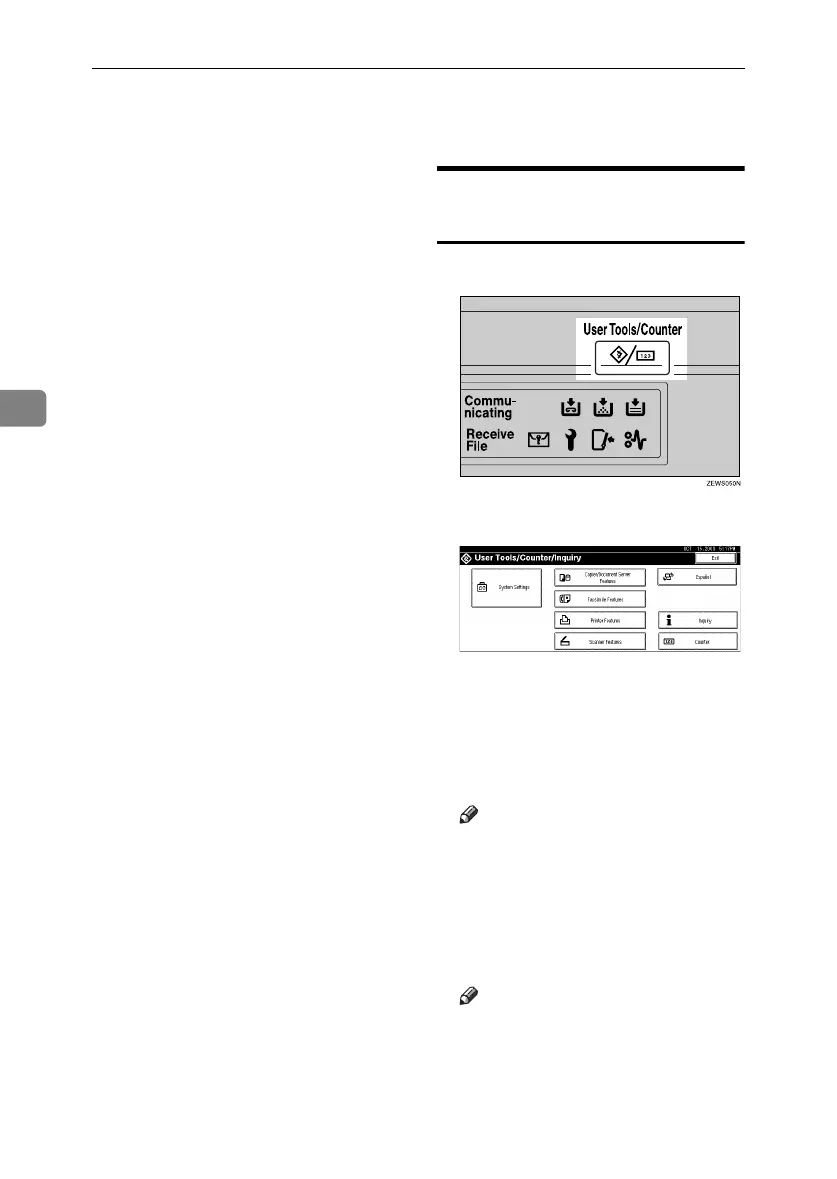
Press the {
{{
{User Tools/Counter}
}}
} key.
B
BB
B
Press [
System Settings
].
C
CC
C
Press [Key Operator Tools], and then
press [T
TT
TNext].
D
DD
D
Press [Address Book Management].
E
EE
E
Press [New Program].
Note
❒ To register an e-mail address to
a registered user, press the user
(destination) key, or enter the
registered number using the
number keys.
F
FF
F
Set the user's information.
Note
❒ To register an e-mail address to
a registered user, proceed to
step
G
.
RussianC3_ENgsg-F_FM.book Page 82 Monday, June 16, 2003 6:48 PM




 To Next Page