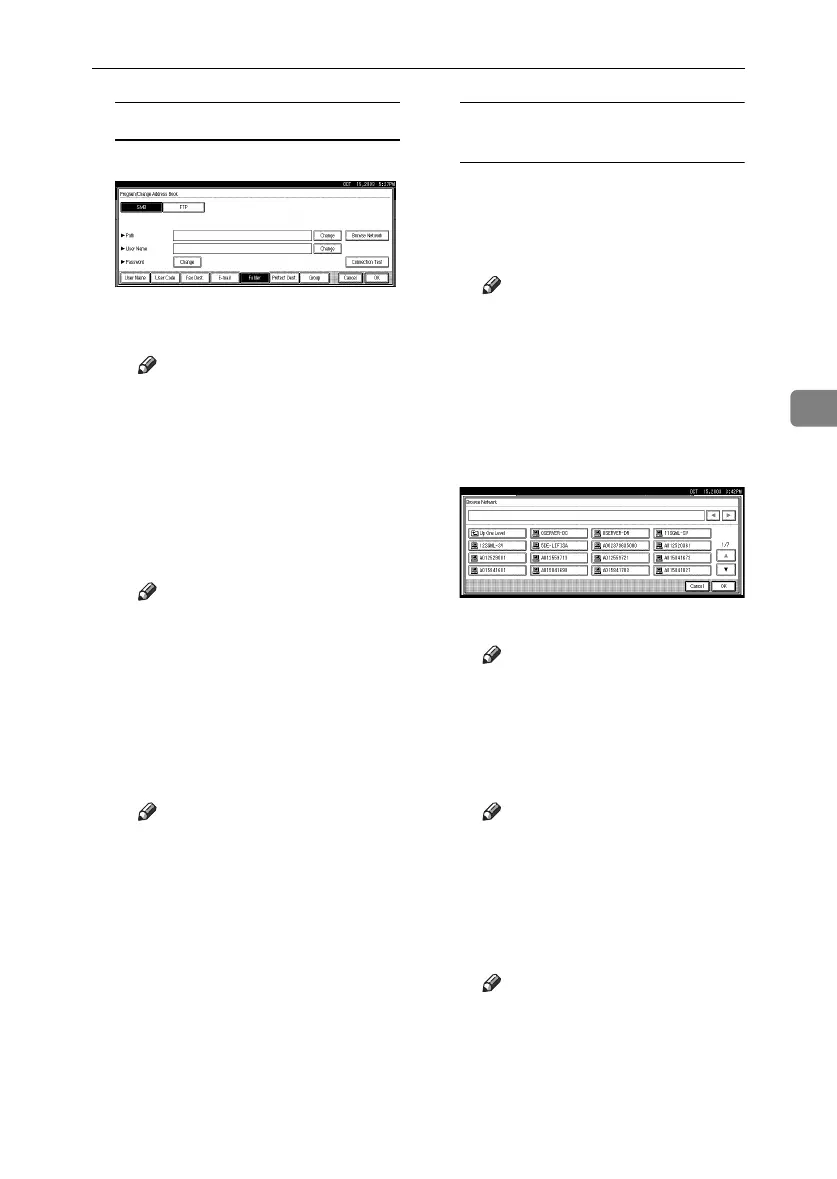
Registering Folders
87
4
To locate the folder manually
A Press [Change] under Path.
B Enter the path where the folder
is located.
Note
❒ Enter the path using this for-
mat: “\\ServerName\Share-
Name\PathName”.
❒ You can also enter an IP ad-
dress.
❒ You can enter a path using
up to 128 characters.
C Press [OK].
Note
❒ If the format of the entered
path is not correct, a message
appears. Press [Exit], and
then enter the path again.
D Press [Change] under User
Name.
E Enter the user name, and then
press [
OK
].
Note
❒ This is a user name which is
authorized to access the fold-
er.
F Press [Change] under Password.
G Enter the user's password, and
then press [OK].
Using Browse Network to locate
the folder
A Press [Browse Network].
The client computers sharing
the same network as the ma-
chine appear.
Note
❒ You can enter your user
name and password before
pressing [Browse Network]. If
you do, the Browse Network
display only lists client com-
puters you are authorized to
access.
B Select a client computer.
Shared folders under it appear.
Note
❒ You can press [Up One Level]
to switch between levels.
C Select the folder you want to
register.
The Logon display appears.
Note
❒ If you have already entered
an authorized user name and
password, the Logon display
will not appear. Proceed to
step F.
D Enter the user name.
Note
❒
This is a user name which is
authorized to access the folder.
RussianC3_ENgsg-F_FM.book Page 87 Monday, June 16, 2003 6:48 PM




 To Next Page